GETTING STARTED
1
4
2
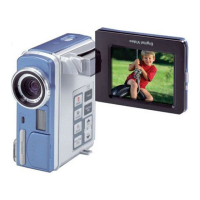
Turn off the power on your device.
Place the device onto the Dock Station.
Be sure the rubber cushion is rmly sealed onto the Dock Station and
your device is facing the correct direction and steps on the socket of
the Dock Station.
3
Close the LCD screen on your device.
Mass Storage
1
Press
A
to turn on the Dock Station. The default mode is Mass
Storage.
MAX Console or Easy Transfer will launch automatically according
to your Auto Launch Setting.
PC Cam
1
Press
A
to turn on the Dock Station.
2
Press
B
on the Dock Station.
Your default PC Cam application will launch automatically according
to your Auto Launch Setting.
E-mail
1
Press
A
to turn on the Dock Station.
2
Press
C
on the Dock Station.
A new E-mail will open up attaching the E-mail marked les
alongside. (A warning message will appear if your total size exceeds
2 MB)
We have included this convenient Getting Started to help with the
basic operations.
Thank you for purchasing the Mustek DV 5500 Dock Station.
HOW TO CONTACT US
Website:
http://www.mustek.com
Customer Service:
(General Info)
Email: cservices@mustek.com
Fax: (949) 788-3670
Technical Support
Email: tsupport@mustek.com
Phone: (949) 788-3600
Address:
15271 Barranca Parkway,
Irvine, CA 92618
USB
AV
Print
E-mail
Sensor
Mass Storage/PC Cam
Power
DC in jack
USB port
TV out
1 Product Tour
5
Plug in the power adapter to the Dock station and connect the other
end to the wall outlet.
DV5500 DOCK STATION
• Remote Control
• USB Cable
• AV Cable
• Getting Started
• Power Adapter
6
7
With the device attached, connect the USB cable to the USB port on the
Dock Station.
Connect the other end of USB cable to your computer.
PACKAGE CONTENTS
A
B
C
D
Connection Socket
82-149-00060
USB
AV
1
3
4
2
U�
S�
B�
U�
S�
B�
5
6
7
If you are planning to print pictures via your printer later, connect your
printer to your computer
1
3
2
With the printer connected to your computer,
turn on the printer.
Press
A
to
turn on
the Dock Station.
Press
D
on the Dock Station.
Print marked pictures will be printed
at your printer.
Print
2
3
3
Important:
Please make sure you have already installed the
device driver in the DV5500 package.
Rubber Cushion
2 Attaching Your Device to Dock Station
3 Modes


 To Next Page