YY
Unicorn Information System
Chapter 3: Basic Setup
The wallpaper files can be selected from the local Mvix-HDD,
USB-Host Storage or Network-Shared folder on the PC.
Maximum resolution of a digital image file that can be used as a
Background Wallpaper: 1920 x 1080
Browse, select and press ENTER / SELECT the image file.
The Background Wallpaper will be applied.
In order to revert to the Default Background, choose “Use Def.
Background” under MISC setup.
MODIFY BACKGROUND WALLPAPER:
Background wallpaper of the setup menu and playback screens
can be changed as per user preference.
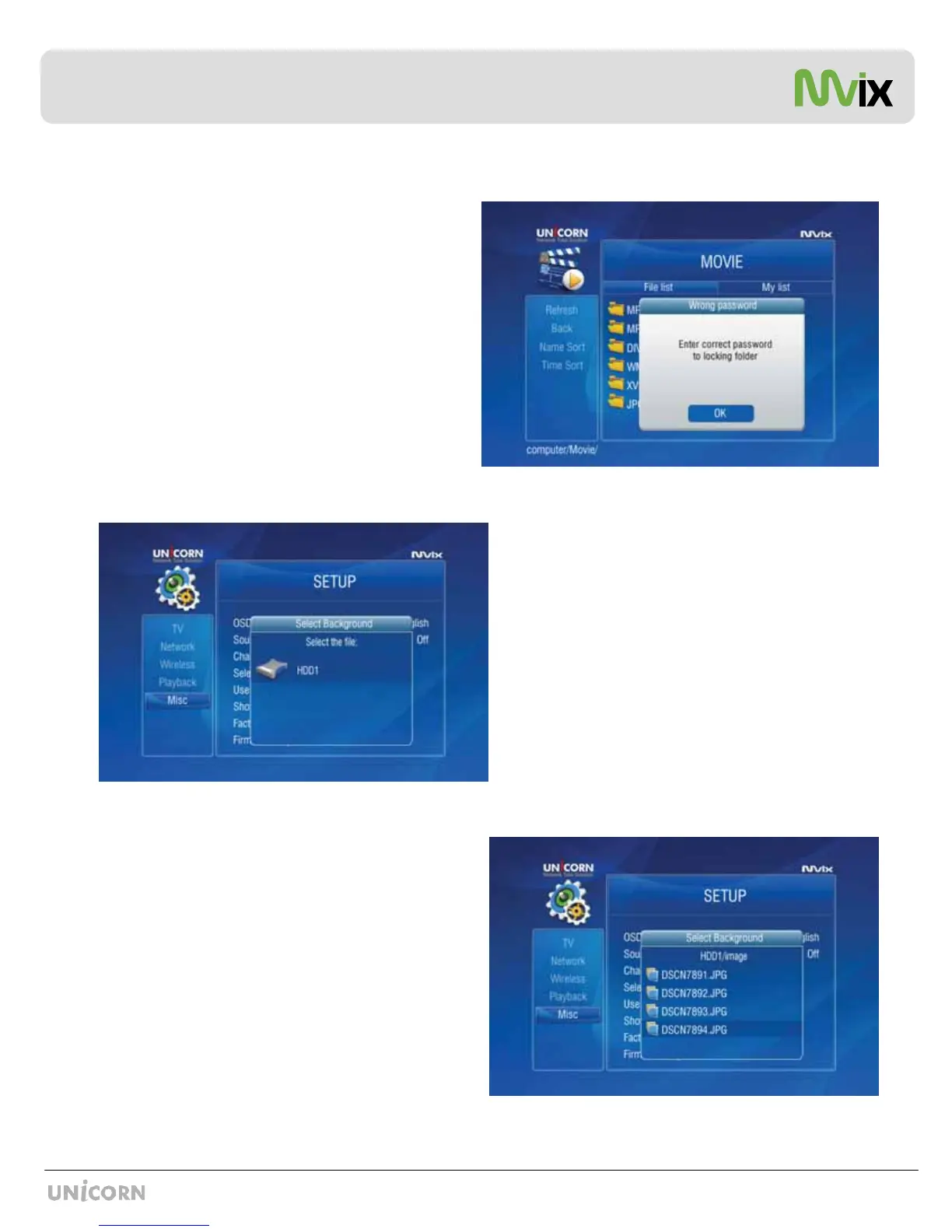
Under MISC setup, navigate and choose “Select Background”.
A Select Background file popup allows browsing and choosing a
JPEG/JPG, BMP, PNG file. Any of these digital image files can
be applied as a wallpaper
To access a password-protected folder:
1. Using the arrow-buttons on the Mvix Remote, navigate to the
folder and press ENTER / SELECT.
2. An Enter-Password prompt will popup. Enter the folder
password to access the folder contents.
3.Inputting an incorrect password displays the warning as
shown.
NOTE: Folder Passwords are CASE SENSITIVE


 To Next Page