9
2
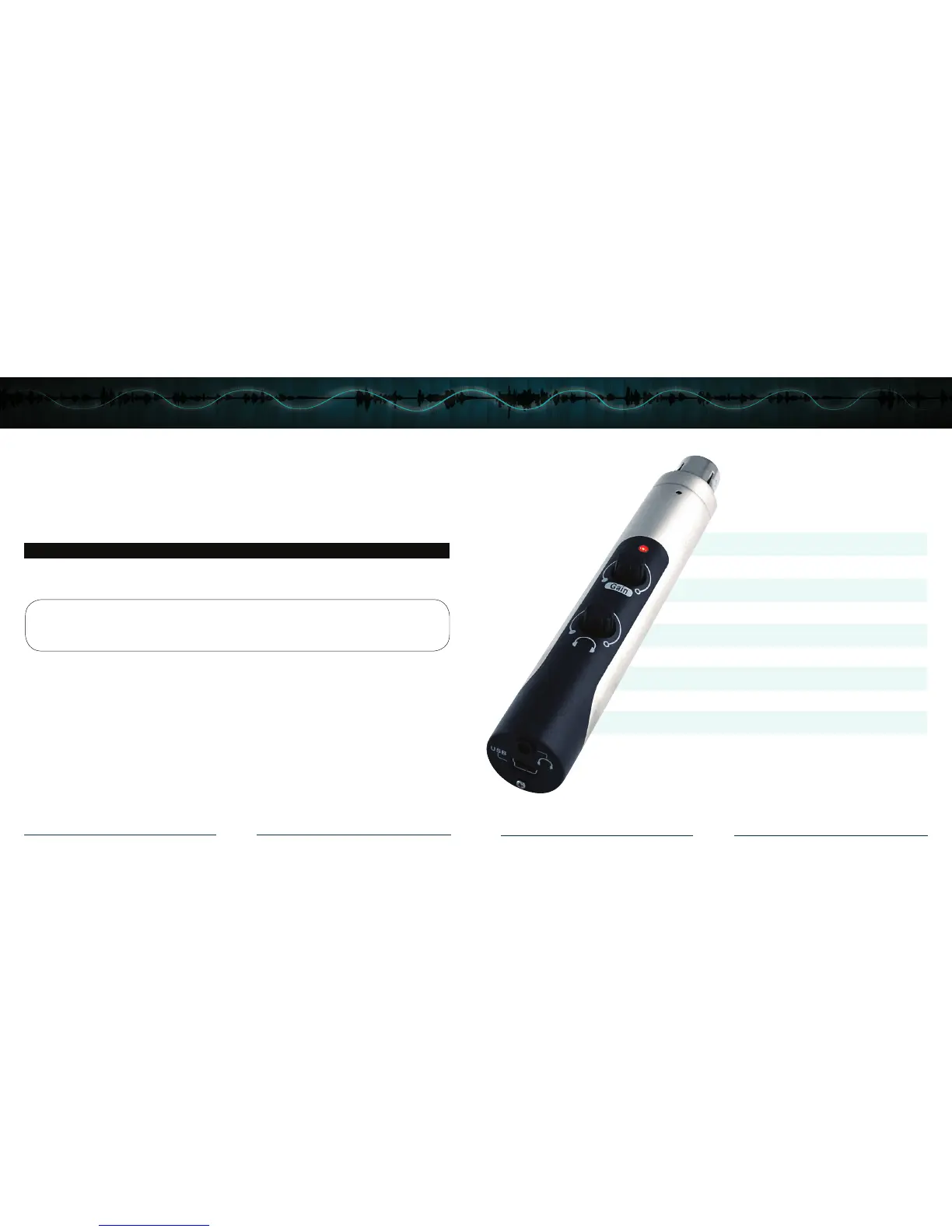
• Supplies 48V phantom power
• Studio-quality microphone preamp
• Zero latency monitoring
• 1/8-inch Stereo headphone jack
• Fully balanced low-noise analog front-end
• Gain and headphone controls
• 44.1 kHz and 48 kHz/16-bit
• USB Powered
• Less than 6 inches long
• USB 1.1 and 2.0 Compatible
Mic Mate™ Pro Features
Windows:
To get started multi-tracking and overdubbing we recommend the free 30 day trial shareware version of
Reaper. Go here to download Reaper: http://www.reaper.fm.
Macintosh:
Garage Band is the easiest way to get started if you are using a Macintosh computer. Since it’s included on
most Macintosh computers, you probably have it installed and ready to go!
Using the Mic Mate
™
Pro:
After you have connected your microphone and setup your computer, plug a set of headphones into the
1/8-inch stereo jack located on the end of the Mic Mate
™
Pro.
Important Note:
The headphone amplier can produce very loud sound levels that, when exposed to over a period of time,
can cause irreparable hearing damage. Please adjust the headphone level carefully!
You should now be able to hear your computer audio playback as well as the live microphone. When
you’re ready to begin tracking, open your favorite recording software and make sure its setup for use
with the Mic Mate
™
Pro according to the software manufacturer recommendations.
Using the MicMate™ Pro



 To Next Page
 Loading...