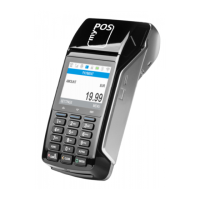
In the Receipt menu, tap 1 and enter the mobile phone number of the customer to send an e-receipt via SMS.
Tap 2 and enter the customer’s e-mail address by pressing the desired letter and then pressing F2 to select it.
An e-receipt will be automatically sent to the entered email address.
Press 3 to cancel the issuance of a receipt.
Please note that myPOS Mini is eco-friendly and paper-free. If you wish to give your customers a receipt for
their transaction, please use one of the options described above – via SMS or e-mail.
From the home screen tap F1 and then select Mobile Top-Up. Enter the mobile number with country code and
conrm with the green key (O). Select customer carrier and enter or select an amount to top-up. Conrm with
the green key (O).
Tap the desired letter and then press F2 until you select the correct one.
It’s easy! You will be notied when an update is available. Then just follow these steps:
Go to the Settings menu by tapping F2 and select “Update Software”. The device will then automatically search
for updates, download and install them. Then restart the device and enjoy the improvements!
Need more information? Please visit our FAQ section at www.mypos.com


 To Previous Page
 Loading...