EN /
I LED control
You can change the brightness of the effect by simultaneously pressing [Fn] + up
or down arrow keys.
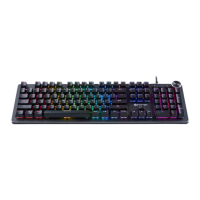
You can also use the wheel to control the effects and the light intensity.
-Hold the wheel down for 3 seconds to enter the backlighting management
mode.
-Turn the wheel to increase or decrease the brightness of the backlighting.
-A short press of the wheel changes the light effects of the keyboard.
-Hold the wheel down for 3 seconds to go back to the volume mode.
The backlighting effects settings can be congured using the software (available
on the www.nacongaming.com website).
I Volume management
The wheel increases or decreases the volume of the computer. A short press on
the wheel mutes the sound.
I Creating a macro
Using the software (available on the www.nacongaming.com website), you can
create your proles and macros at will with the macro menu.
I Liste des raccourcies avec la touche [Fn]
Recycling
Do not dispose of this product with the household waste.
Dispose of your old electrical appliance at a suitable
collection centre. Recycling is important and helps protect the
environment by reducing waste. EU and Turkey only.
FN + F1 = Computer
FN + F2 = search
FN + F3 = calculator
FN + F4 = media player
FN + F5 = previous track
FN + F6= next track
FN + F7 = play/pause
FN + F8 = stop
FN + F9 = Mute
FN + F10 = Volume -
FN + F11 = Volume +
FN + Win = Windows key lock
FN + up or down arrow = increases or
decreases the backlighting


 To Next Page