S MARTA PPLETS INSTALLED ON THE NEO 2
About the Accelerated Reader SmartApplet
15
. . . . .
enter. To mark the correct answer, press D and enter; then, enter the
answer.
7. When you’ve finished, you can unassign the NEO 2 so it is no longer
meant for use by the teacher. Follow these steps:
a. In the 2Know! Toolbar program, click Options and choose Teacher
Responder.
b. Click Unassign in the Teacher Responder dialog box.
c. Click Close.
About the Accelerated Reader SmartApplet
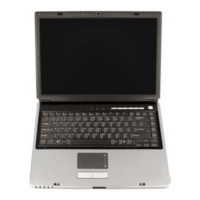
The Accelerated Reader SmartApplet allows students to take English Reading
Practice Quizzes, Vocabulary Practice Quizzes, and Other Reading Quizzes
using a NEO 2 laptop. The quiz information is sent to Accelerated Reader RP
via a Renaissance Receiver.
Before students try to use this SmartApplet, make sure you’ve installed
AlphaSmart Manager (see page 4), connected a Renaissance Receiver to your
computer (see page 7), named the Renaissance Receiver (see page 8), and
entered the Renaissance Place URL in the Renaissance Place Settings in the
Renaissance Wireless Server Utility (see the instructions below).
Setting the Renaissance Place URL in the Renaissance Wireless Server
Utility
1. Start the Renaissance Wireless Server Utility:
• Windows computers: Right-click in the lower-right corner of your
computer screen (the system tray) and choose Manage from the
menu that appears. If you don’t see this icon in your system tray, click
Start or Programs (or All Programs) Renaissance
Wireless Server Renaissance Wireless Server Utility.
• Macintosh computers: In your computer’s Applications folder, open
the Renaissance Wireless Server folder. Then, double-click
Renaissance Wireless Server Utility.
2. Type 1234 and click OK to log in. (This is the default Administrator PIN. If
you have changed the PIN, enter your new PIN.) If necessary, click Start.
3. Click the Server Settings tab.
4. Click Renaissance Place Settings.


 To Next Page
 Loading...