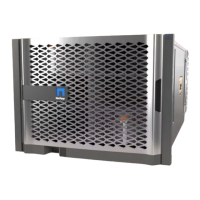
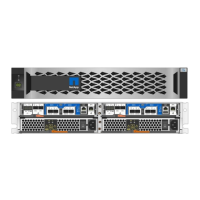
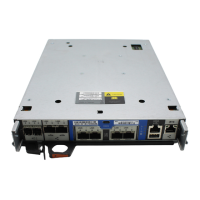
Step 5: Verify and set the HA state of the controller module
You must verify the
HA state of the controller module and, if necessary, update the state to match your system
configuration.
1. In Maintenance mode from the replacement controller module, verify that all components display the same
HA state: ha-config show
If your system is in… The HA state for all components should be…
An HA pair ha
A MetroCluster FC configuration
with four or more nodes
mcc
A MetroCluster IP configuration mccip
2.
If the displayed system state of the controller module does not match your system configuration, set the
HA
state for the controller module: ha-config modify controller ha-state
3.
If the displayed system state of the chassis does not match your system configuration, set the
HA state for
the chassis:
ha-config modify chassis ha-state
Step 6: Reassigning disks
You must confirm the system ID change when you boot the replacement node and then
verify that the change was implemented.
This procedure applies only to systems running ONTAP in an HA pair.
Steps
1.
If the replacement node is in Maintenance mode (showing the
*> prompt, exit Maintenance mode and go
to the LOADER prompt:
halt
2.
From the LOADER prompt on the replacement node, boot the node, entering
y if you are prompted to
override the system ID due to a system ID mismatch.
3. Wait until the Waiting for giveback… message is displayed on the replacement node console and then,
from the healthy node, verify that the new partner system ID has been automatically assigned:
storage
failover show
In the command output, you should see a message that the system ID has changed on the impaired node,
showing the correct old and new IDs. In the following example, node2 has undergone replacement and has
a new system ID of 151759706.
99


 To Next Page
 Loading...