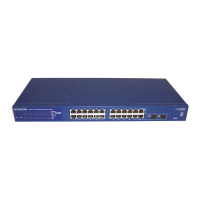
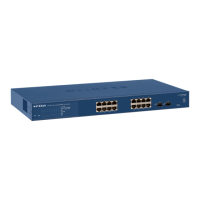
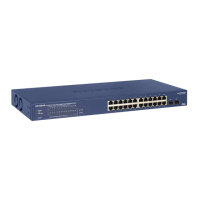
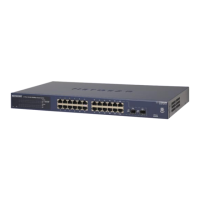
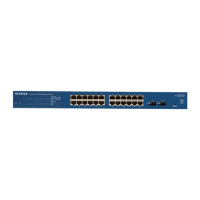
Figure 2.3: Two VLANs dividing a single LAN into two unconnected parts
The LAN devices were plugged into ports 1, 2, 7, 19, and 23 of the switch. This forms a LAN using
VLAN 1 as its container. To create a new VLAN to contain each of these devices, a new VLAN was
created. The sequence of events to create a VLAN is:
• create a VLAN giving it a ID number and a name;
• assign ports to the created VLAN;
• remove those ports from their previous position (maybe from VLAN 1); and
• set the PVID of all ports assigned to the VLAN the value of the VLAN’s ID
2.4.1 A single network
Starting with one VLAN containing all the devices which were plugged into the switch. This is to be a
new VLAN having an ID of 12 and a name of VLAN-A-12. The switch menu sequence: Switching →
VLAN → Basic → VLAN Configuration
resulted in the VLAN Configuration screen. Into the VLAN ID field the value 12 was typed and then
VLAN-A-12 into the VLAN Name field. The ADD button at the bottom of the screen was then clicked to
create the VLAN.
The switch menu sequence: Switching → VLAN → Advnaced → VLAN Membership
was used to bring up the VLAN Membership screen. The value 12 was typed into the VLAN ID field
to bring up the display of the ports assigned to VLAN 12. This was blank. Under ports 1, 2, 7, 23, and
23 their input pad was clicked until a U was produced. This indicated the port was to be connected to
the VLAN as an untagged member. When all ports had been assigned, the APPLY button at the bottom
of the screen was clicked. Then VLAN 1 was selected. This showed all 24 ports of the switch as being
untagged members of it. The input pad under each port 1, 2, 7, 19, and 23 were clicked until the pad was
cleared. The APPLY button was clicked to tell the switch those ports were no longer assigned to VLAN
1.
The switch menu sequence: Switching → VLAN → Advnaced → Port PVID Configuration
was used to bring up the Port PVID Configuration screen. The little square adjacent to Interfaces
13



 To Next Page
 Loading...