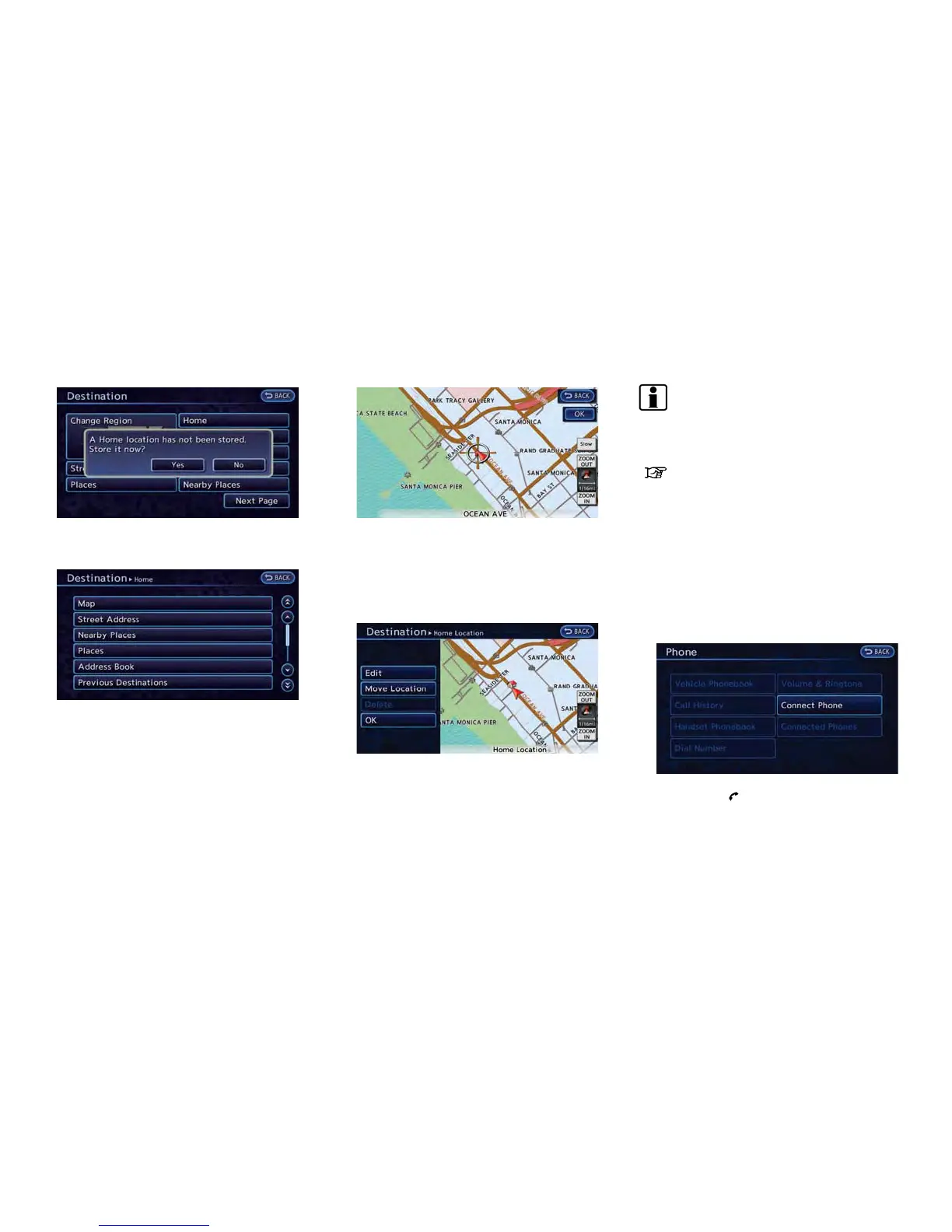
3. Confirm the contents of the message, then
touch [Yes].
4. Touch [Map]. The current location map
screen is displayed.
5. If necessary, adjust your home location by
touch panel operation.
6. After adjusting the location, touch [OK]. A
message is displayed and your home loca-
tion is stored in the Address Book.
7. Adjust the location of a stored item and edit
the contents of a stored item as necessary.
8. Touch [OK] to return to the Destination
screen.
INFO:
You can also perform the same setting by
pushing the MENU button and selecting [Set-
tings].
“Storing location” (page 3-35)
CONNECTING CELLULAR PHONE
Your vehicle is equipped with Bluetooth
®
Hands-Free Phone System. If you are an owner
of a compatible Bluetooth
®
enabled cellular
phone, you can set up the wireless connection
between your cellular phone and the in-vehicle
phone module. With Bluetooth
®
wireless tech-
nology, you can make or receive a telephone call
with your cellular phone in your pocket.
1. Push the button and touch [Connect
Phone].
Getting Started 1-13



 To Next Page