.
[Near a location on the Map]:
Charging station information for the area
where the cross pointer is placed by
moving the map is updated.
3. When [Stop] is touched while updating
information, connection to the NISSAN
CARWINGS Data Center is disconnected.
4. When the update is completed, a message
is displayed.
Energy economy and energy usage information
are displayed.
VIEWING ENERGY ECONOMY IN-
FORMATION
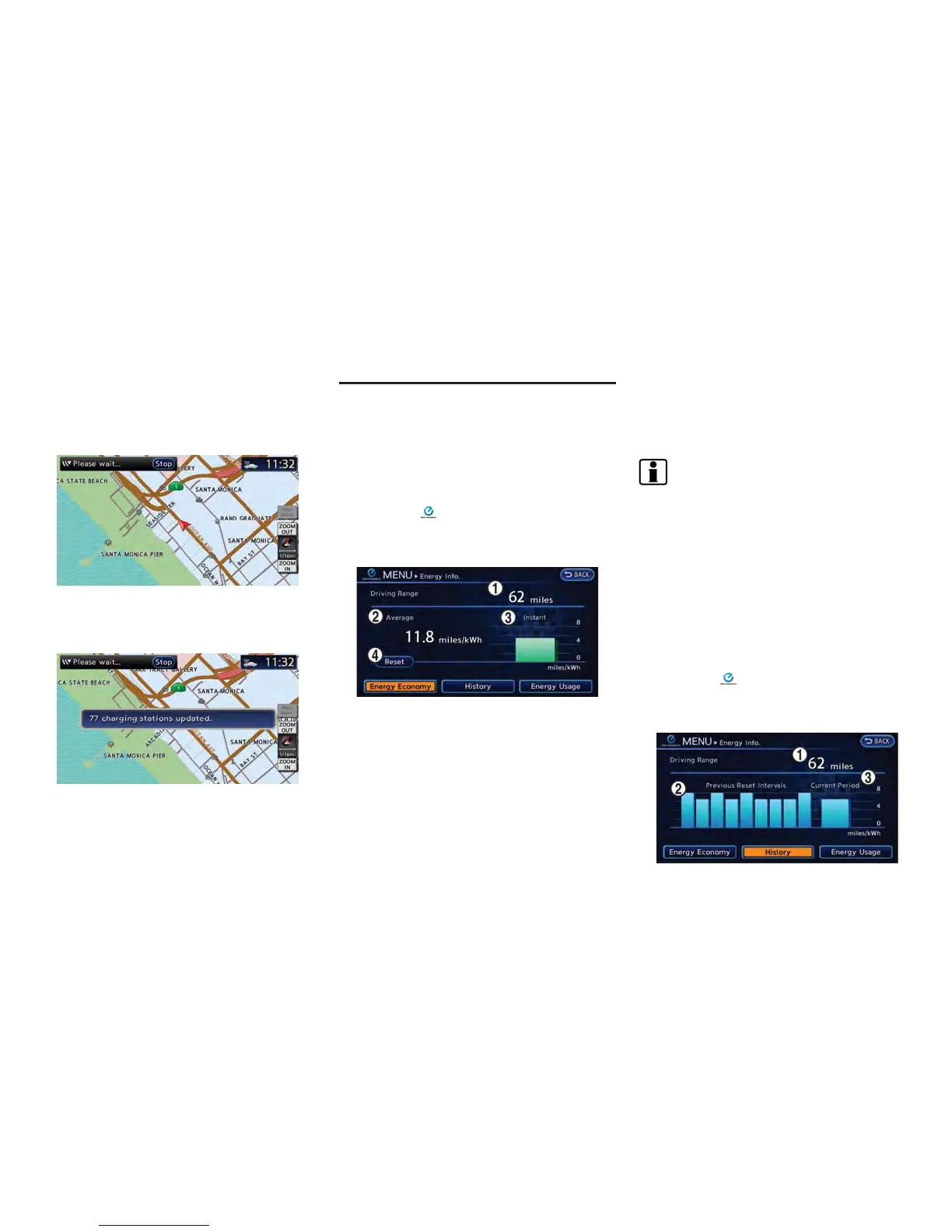
Estimated driving range, average energy econ-
omy and instant energy economy are displayed.
1. Push the
(Zero Emission menu) button.
2. Touch [Energy Info.].
3. Touch [Energy Economy].
*
1
Driving Range:
The possible driving distance based on the
current charging status is displayed.
*
2
Average:
The average energy economy from the previous
to the next resets is displayed.
*
3
Instant:
The system shows the distance that the vehicle
can travel using 1kWh.
*
4
[Reset]:
Touch [Reset] to reset the average energy
economy. After resetting the average energy
economy, it is stored in the history.
INFO:
Battery power is generated and stored by the
cooperative regenerative brake while driving.
When this occurs, the instant value will be
displayed as the maximum. The maximum value
will be displayed until the generated power is
consumed.
VIEWING ENERGY ECONOMY HIS-
TORY
The previous 10 histories of the average energy
economy are displayed.
1. Push the
(Zero Emission menu) button.
2. Touch [Energy Info.].
3. Touch [History].
Unique EV functions 2-7
ENERGY INFORMATION DISPLAY



 To Next Page