3-14 Navigation
6. Push the MAP button to return to the
current location map screen. Move the cross
pointer to the set location to display the
information.
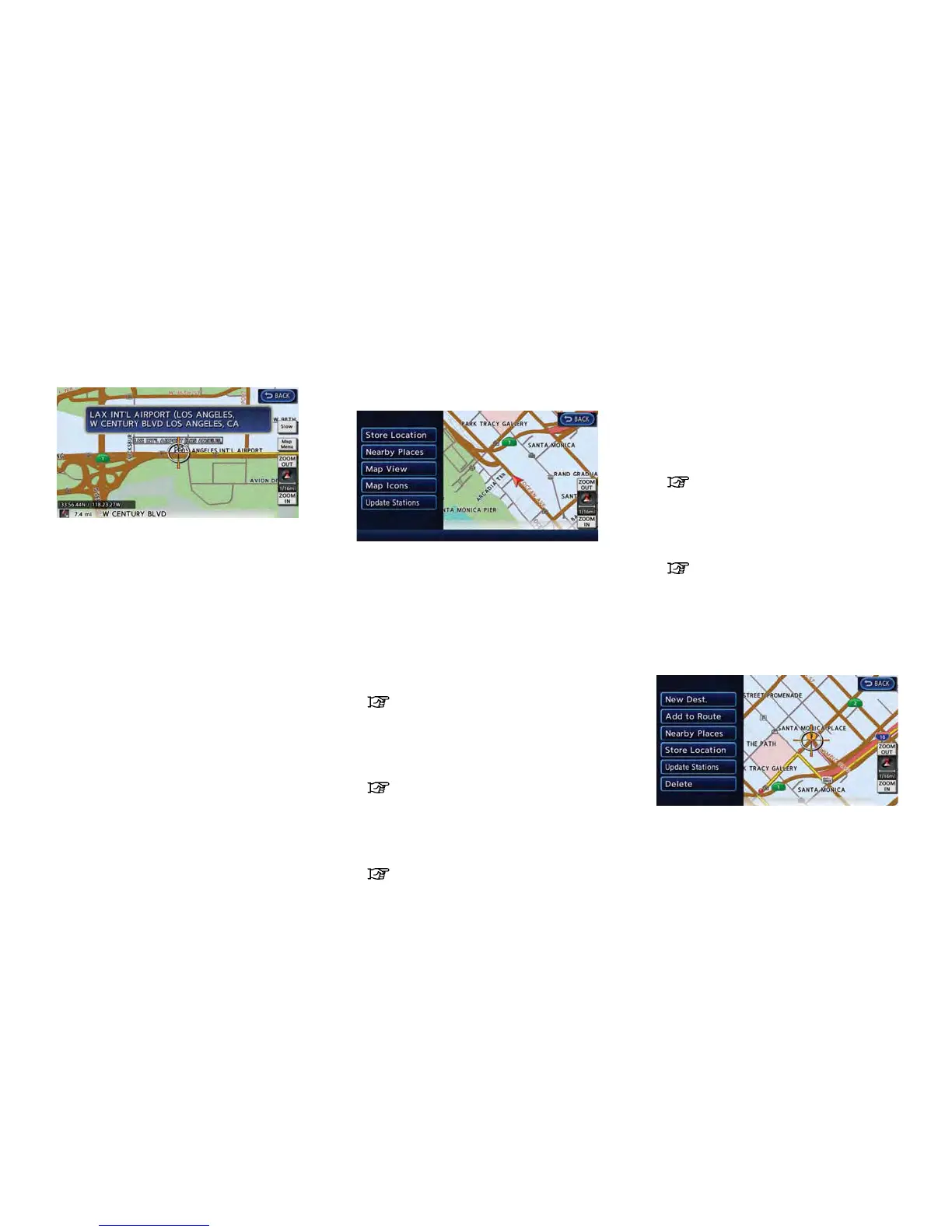
MAP MENU SCREEN
Touch [Map Menu] while the current location
map screen or a scrolled map screen is
displayed to display the menu corresponding
to that screen.
This menu can be used to access helpful
functions quickly, such as setting a destination
and searching for points of interest nearby.
Current location map screen
If [Map Menu] is touched while the current
location map screen is displayed, the following
options are available.
. [Store Location]:
Stores the current vehicle location in the
Address Book. The stored location can be
retrieved as necessary to set it as a
destination (waypoint).
“Storing location” (page 3-35)
. [Nearby Places]:
Searches for points of interest near the
current vehicle location, such as restaurants
and charging stations, etc.
“Finding nearby place” (page 3-28)
. [Map View]:
Performs map operations such as the
switching of map type and the setting of
map orientation and scale.
“Map settings” (page 3-3)
. [Map Icons]:
Displays map icons of certain points of
interest (such as restaurants and charging
stations, etc.) on the map around the current
vehicle location.
“Displaying map icons” (page 3-12)
. [Update Stations]:
Contact the NISSAN CARWINGS Data
Center to update charging station around
the current vehicle location.
“Updating charging station informa-
tion” (page 2-6)
Scrolled location map screen
If [Map Menu] is touched while a scrolled map
screen is displayed, the following options are
available.
. [New Dest.]:
Sets the destination to the map location
where [New Dest.] was touched. If a



 To Next Page