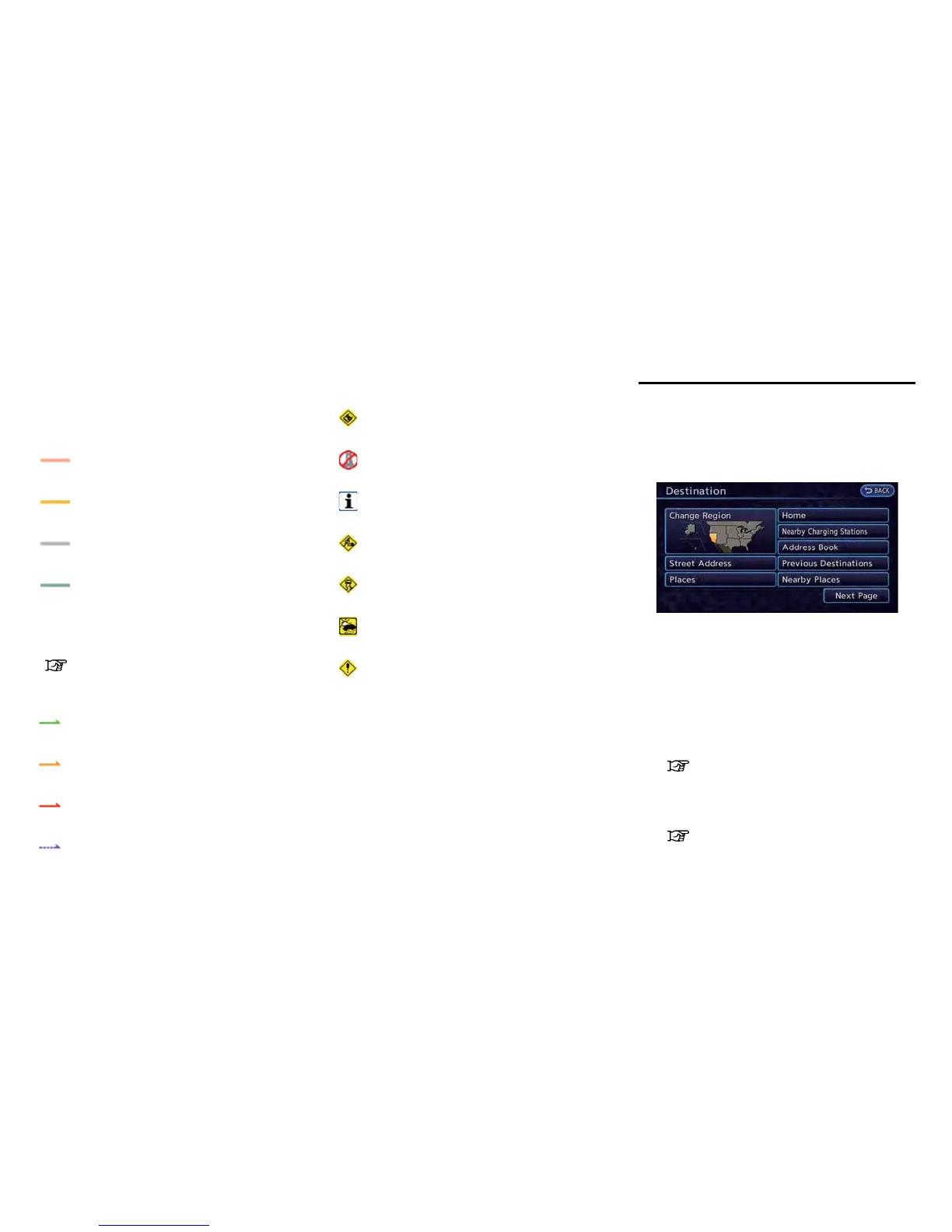
Road color
The road types are differentiated by colors.
Freeway:
(Red or light red (zoomed in))
Main road:
(Brown or dark yellow)
Narrow street:
(Gray)
Road with incomplete map data:
(Dark green)
Traffic information on map
With a subscription to the XM NavTraffic
®
service, traffic information is displayed.
“Viewing available traffic information”
(page 6-6)
Free Flow:
(Green)
Moderate traffic:
(Yellow)
Heavy traffic:
(Red)
Section affected by serious traffic event:
(Purple)
The following traffic information icons may be
displayed
Accident
Closed road
Information
Road work
Slippery road
Weather
Incident
DESTINATION SCREEN
There are several methods that can be used to
set a destination. Understand the advantages of
each method and select the best method for
finding and setting a preferred destination.
1. Push the MENU button and touch [Destina-
tion].
2. Touch the preferred method for setting the
destination.
Available settings
. [Street Address]:
Searches for a destination by address.
“Finding address” (page 3-19)
. [Places]:
Searches for a destination from various
categories of businesses or locations.
“Finding place” (page 3-21)
Navigation 3-17
SETTING DESTINATION



 To Next Page