.
[Select a City]:
Input the city to narrow down the target
city.
.
[Near Current Location]:
Shows a list of facilities that are near
current vehicle location.
.
[Near Destination]:
When the destination is set, indicates the
facility list around the destination.
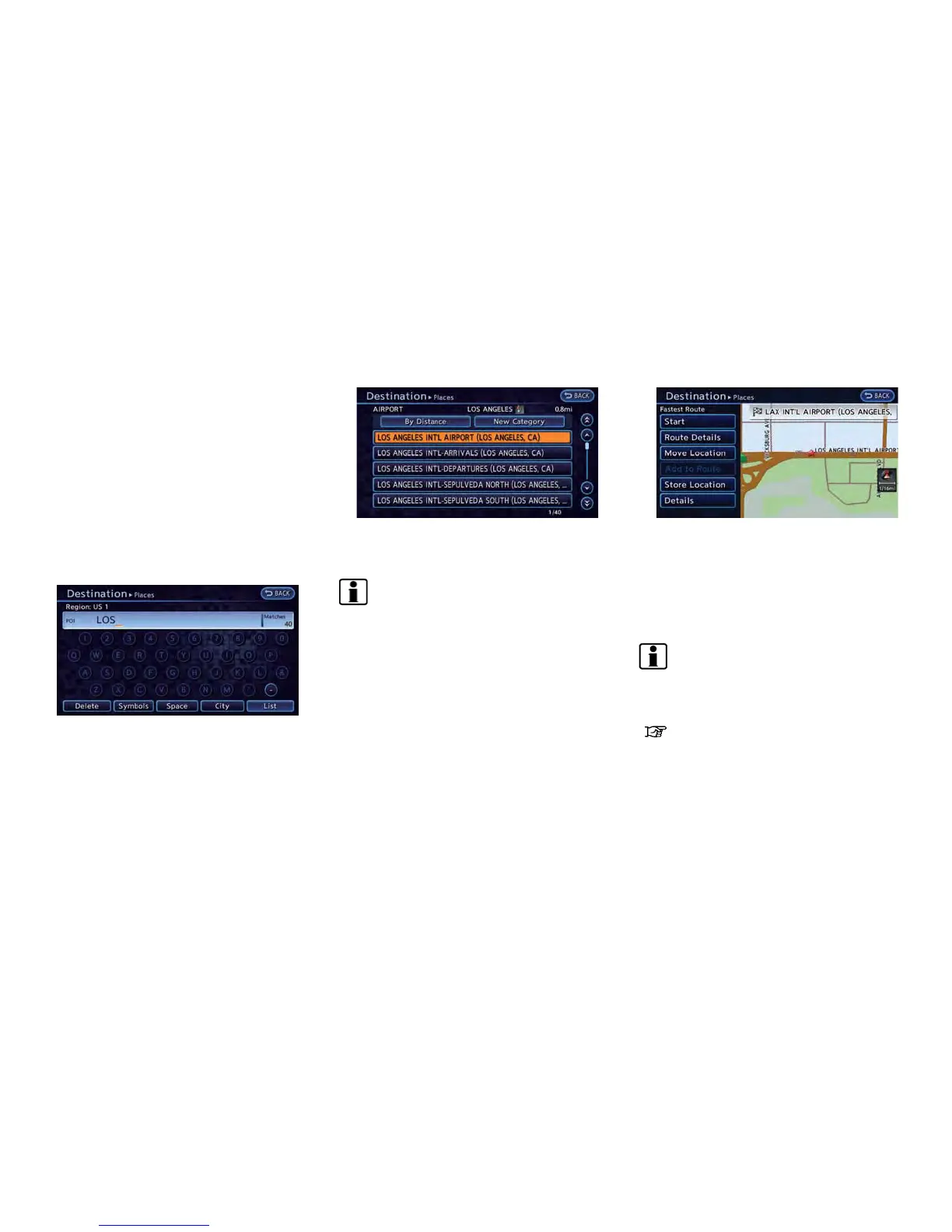
6. Touch [By Name]. A character input screen
is displayed.
7. Enter the name of the destination facility.
After finishing the entry, touch [List]. A list
screen is displayed.
8. Touch the preferred destination facility from
the list.
INFO:
.
In some cases, when a POI name has
been entered, the number of matching
destinations in the "Matches" column
may be different from the number dis-
played on the list screen. If this occurs,
enter more characters to further reduce
the number of matches.
.
By selecting [By Distance], you can sort
the list by the nearest distance. The
position of the selected location is
displayed in the preview on the right side
of the screen.
.
By selecting [New Category], you can
perform a search from another category.
9. The selected destination is displayed at the
center of the map. Touch [Start] after
confirming the location of the displayed
destination. The system sets the destination
to the selected location and starts calculat-
ing a route.
INFO:
After setting a destination, the location of the
destination can be adjusted and the location can
be stored in the Address Book, etc.
“Operations after setting destination”
(page 3-34)
SETTING HOME AS DESTINATION
The home location can be set as the destination
to which the system calculates a route. This
function is especially useful when searching for
a route to return to the home location.
Navigation 3-23



 To Next Page