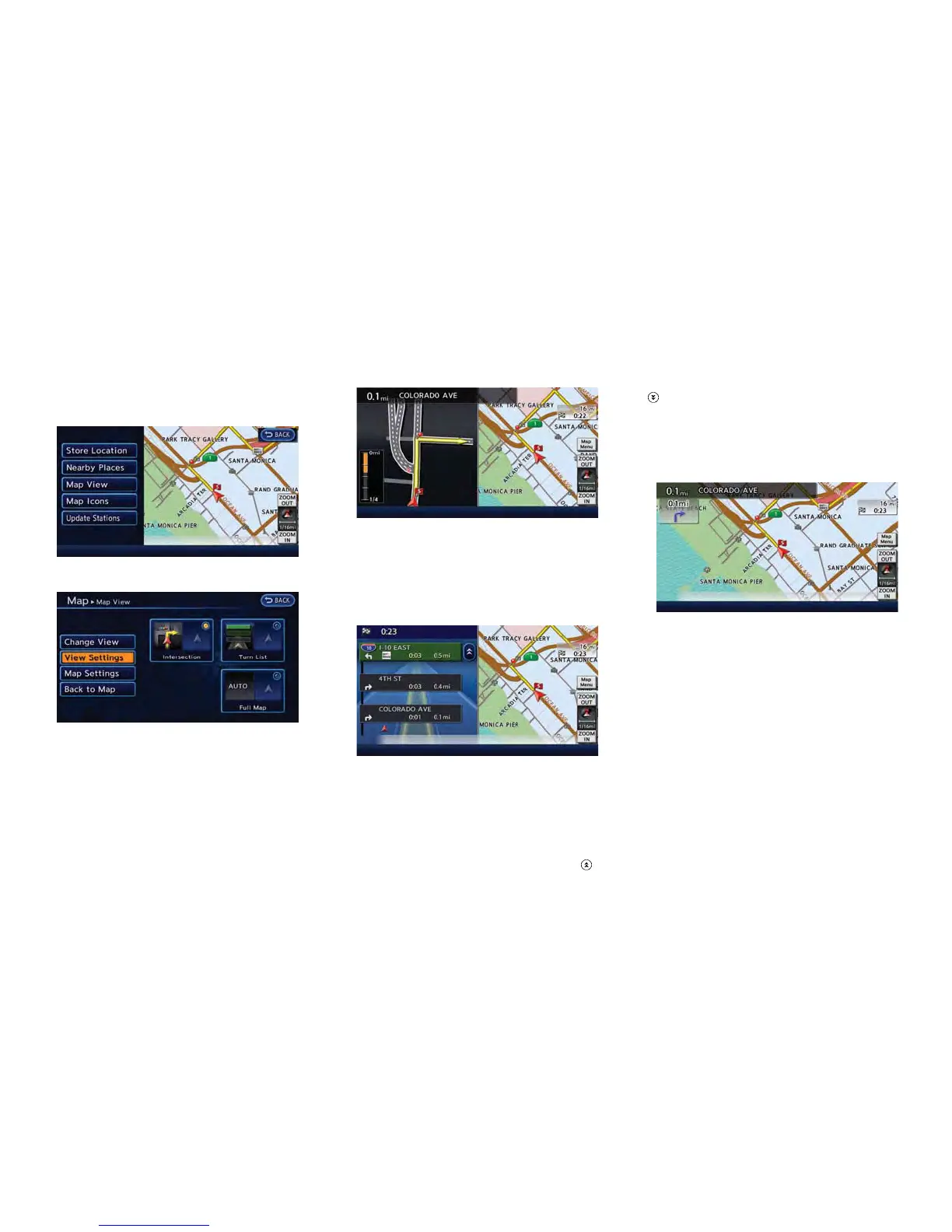
1. Touch [Map Menu] while the current location
map screen is displayed.
2. Touch [Map View].
3. Touch [View Settings].
4. Touch the preferred screen. The indicator of
the selected screen illuminates.
. Intersection
The map screen and the enlarged intersection
view can be displayed at the same time.
Push the MAP button to switch to the full map
screen.
. Turn list
The list screen for showing the guide points to
the destination and the map screen can be
displayed at the same time. An enlarged
intersection view is automatically displayed
when the vehicle approaches the guide point.
The turn list can be scrolled by touching [
]or
[
] on the screen.
Push the MAP button to switch to the full map
screen. Push the MAP button again to display
the turn list.
. Full map
The current location map is displayed. An
enlarged intersection view is automatically dis-
played when the vehicle approaches the guide
point.
When an enlarged intersection view is dis-
played, pushing the MAP button returns to the
map screen.
Show exit information on freeways
When the vehicle travels on a highway or a toll
road, the display automatically provides exit
information in the turn list.
1. Touch [Map Menu] while the current location
map screen is displayed.
Navigation 3-41



 To Next Page