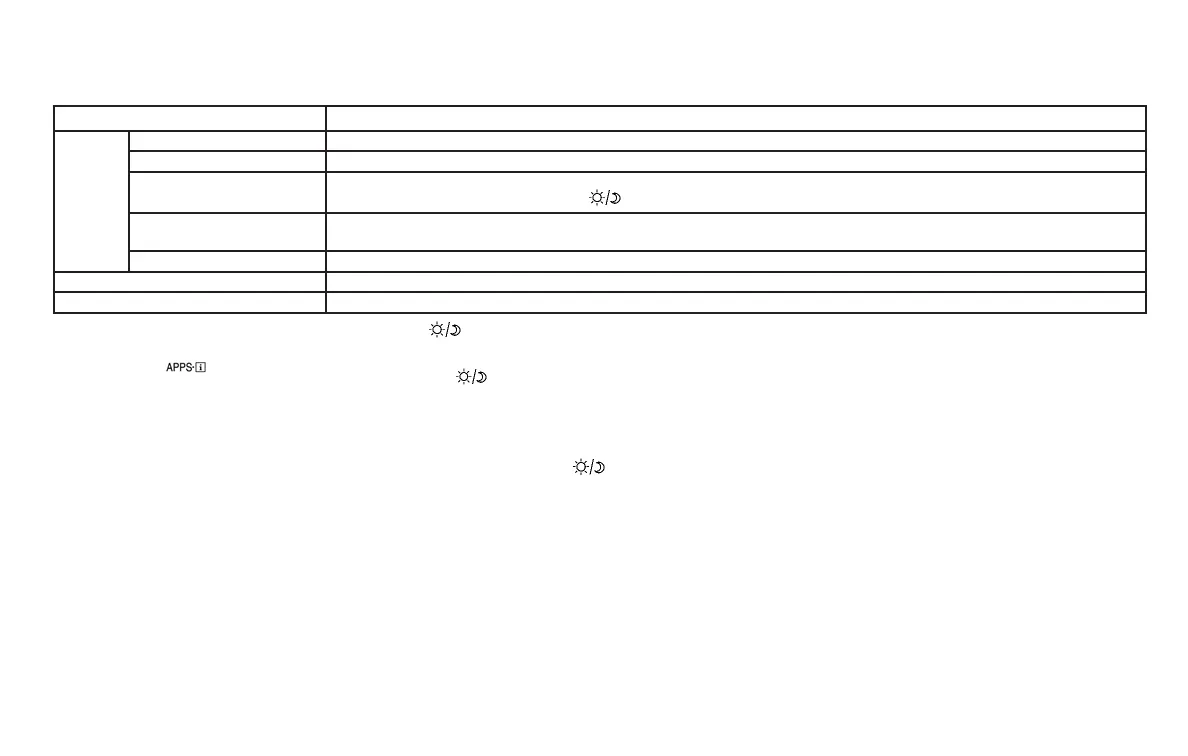
Menu item Result
Temperature Unit Touch this key to change the temperature unit being displayed (Fahrenheit or Celsius).
Touchscreen click Toggles the touch-screen click feature on or off. When activated a click sound will be heard every time a key on the screen is touched.
System Beeps Toggle the system beep tones feature on or off. When activated, a beep sound will be heard when a pop-up message appears on the
screen or a button on the unit (such as the
button) is pressed and held for 2 seconds.
Return to Factory Settings/
Clear Memory
Touch this key to return all settings to default and to clear the memory.
Software Licenses Touch this key to display software licensing information.
Traffic Touch this key to display traffic settings. For additional information, refer to the separate Navigation System Owner’s Manual.
SXM Touch this key to start SiriusXM® radio. For additional information, refer to “Audio system” in this section.
CLOCK SET
1. Press the [ ] button.
2. Touch the “Settings” key.
3. Touch the “System” key
4. Touch the “Clock” key.
5. Touch “Clock Mode” to select “Manual” to
adjust time manually.
6. Touch “Set Clock Manually”.
7. Touch “+” and “-” keys to adjust hour, min-
ute, day, month and year.
8. Press the BACK button to finish.
BUTTON
To change the display brightness, press
the
button. Pressing the button again will
change the display to the day or the night display.
If no operation is performed within 5 seconds, the
display will return to the previous display.
Press and hold the
button for more than
2 seconds to turn the display off and show the
clock, press the button again to turn the display
back on.
HOW TO USE THE ON•OFF
BUTTON/VOL (volume) CONTROL
KNOB
Press the ON•OFF button to turn audio function
on and off. Turn the VOL (volume) control knob to
adjust audio volume.
HOW TO USE THE CAMERA
BUTTON
For additional information, refer to “RearView
Monitor” in this section.
Monitor, climate, audio, phone and voice recognition systems 4-9



 To Next Page