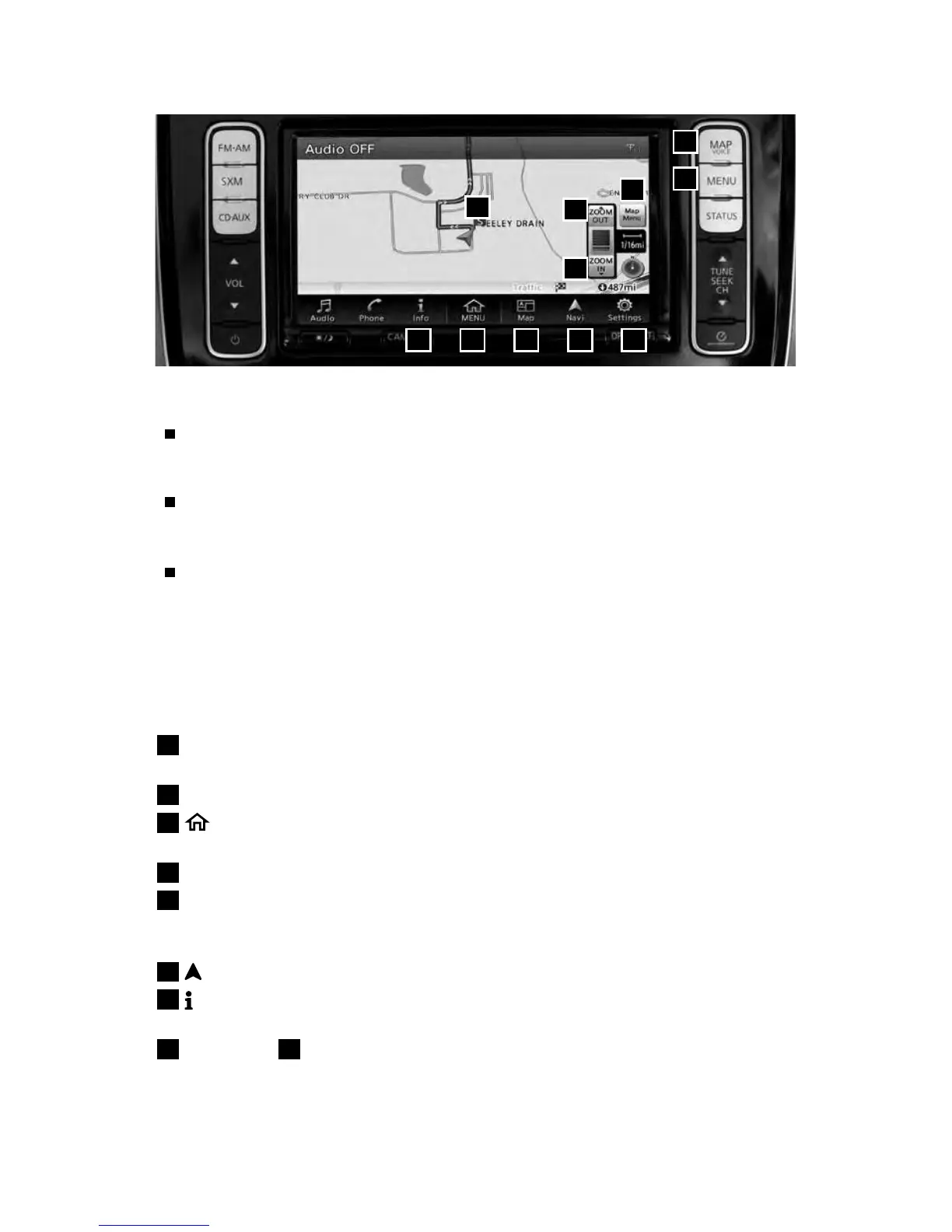
To view detailed instructional videos regarding these and other features,
please go to www.nissanownersinfo.mobi.
33
1
2
NAVIGATION SYSTEM (if so equipped)
Your Navigation System can calculate a route from your current location to
a preferred destination. The real-time map display and turn-by-turn voice
guidance will lead you along the route.
The Navigation System will continually update your vehicle’s position. If you
have deviated from the original route, it will recalculate the route from your
current location.
To help promote safe driving, some functions cannot be operated or have
limited operation when the vehicle speed is above 5 mph (8 km/h). The
on-screen text and keys for these restricted functions will be grayed-out or
muted and cannot be selected while driving. These functions will become
available again when the vehicle speed is reduced to 5 mph (8 km/h). Voice
commands may be available for some of the restricted functions. For more
information, refer to the “Voice recognition (section 7)” of your Navigation
System Owner’s Manual.
1
MAP/VOICE button – Press to view your current location on the map screen.
When you press and hold this button, the system will repeat voice guidance.
2
MENU button – Press to view a list of menus.
3
MENU button - Touch to access all available shortcut and widget items
in the menu screen.
4
Touch-screen
5
Map Menu - Touch to access dierent options related to either a selected
location by touch or one that you have navigated to. Some options include “Save
Location”, “Nearby POIs”, “Map Icons” or “New Destination”.
6
Navi (Navigation) - Touch to access the Navigation function.
7
Info (Information) - Touch to display the vehicle, trac (if so equipped) and
weather (if so equipped) information.
8
ZOOM OUT,
9
ZOOM IN - Touch to adjust the map scale. When parked, you can
pinch in or out to zoom on the screen.
37
5
6
4
11
8
10
9



 To Next Page