To view detailed instructional videos regarding these and other features,
please go to www.nissanownersinfo.mobi.
14
1
2
3
4
APPLE CARPLAY™ (if so equipped)
The in-vehicle system can be used as a controller for some of the iPhone®
functions through Apple CarPlay™.
If your iPhone® is compatible, Apple CarPlay™ can be used.
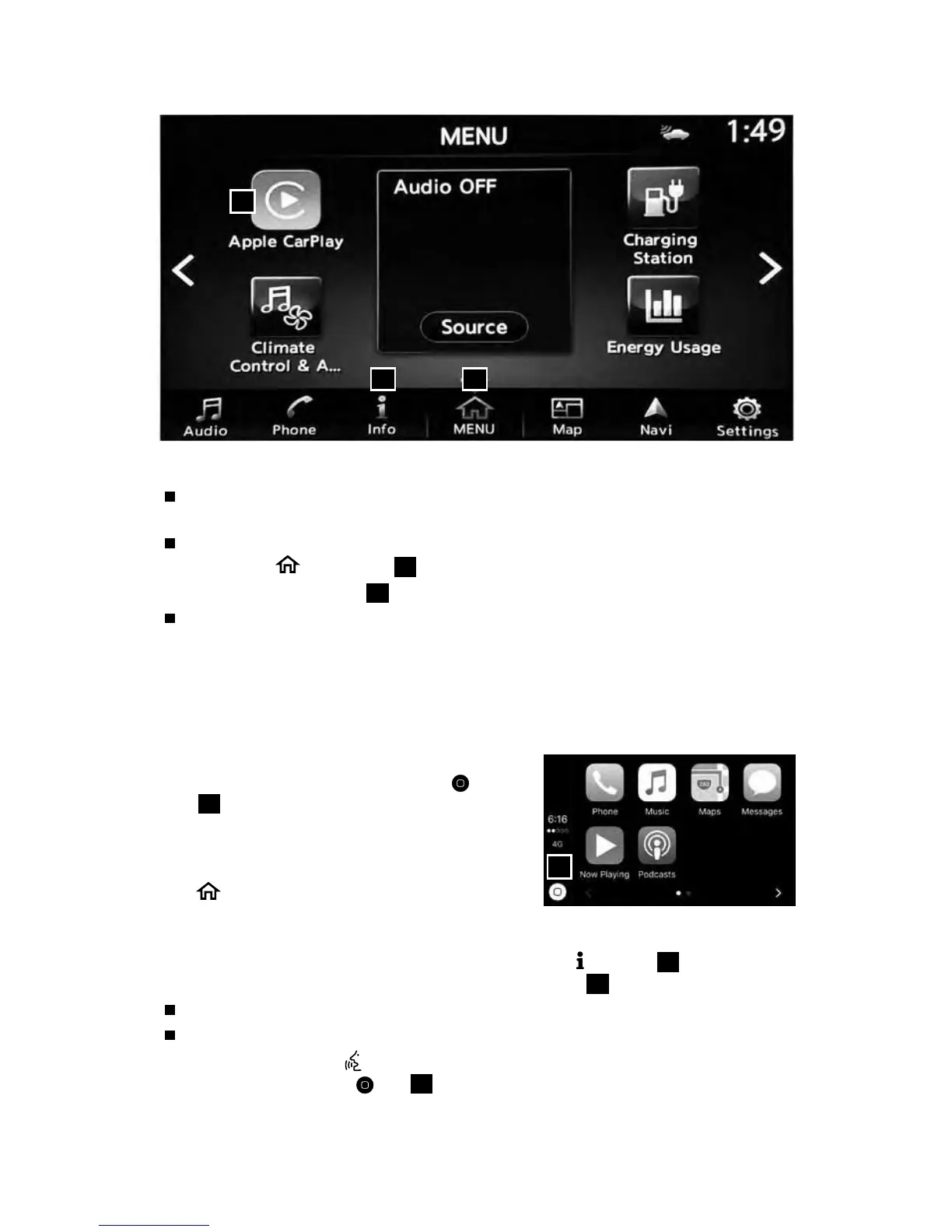
• Select the
“MENU” key
1
on the screen.
• Select “Apple CarPlay”
2
from the menu.
To connect your compatible iPhone® to the system, you must connect the
iPhone® cable to the USB port located in the center console.
• Depending on the setting, the “Startup Information” screen will appear.
• Touch “Yes” to use Apple CarPlay™.
• The Apple CarPlay™ top menu screen will appear, and the iPhone® functions
displayed on the screen can be operated by the in-vehicle system.
• To return to the “Apple CarPlay” top menu
screen after operation, touch the
key
4
on the lower left corner of the “Apple
CarPlay” screen.
• To exit the “Apple CarPlay” screen and
display the other screens, press the
MENU button or one of the other
buttons on the control panel and touch the
preferred menus.
• To return to the “Apple CarPlay” screen, touch the “
Info” key
3
on the
Launch Bar and then touch the “Apple CarPlay” key
2
.
When connected to Apple CarPlay™, Siri® operation can also be accessed.
There are three ways to start a Siri® session.
1. Press and hold the
button on the steering wheel.
2. Touch and hold the
key
4
at the lower left corner of the “Apple
CarPlay” screen.
3. Say “Hey Siri” (requires appropriate permissions enabled via phone.)
2948550_18a_Leaf_QRG_100317.indd 14 10/3/17 3:57 PM


 To Next Page
 Loading...