To view detailed instructional videos regarding these and other features,
please go to www.nissanownersinfo.mobi.
2
HOW TO USE YOUR LEAF’S
TOUCH-SCREEN DISPLAY
1
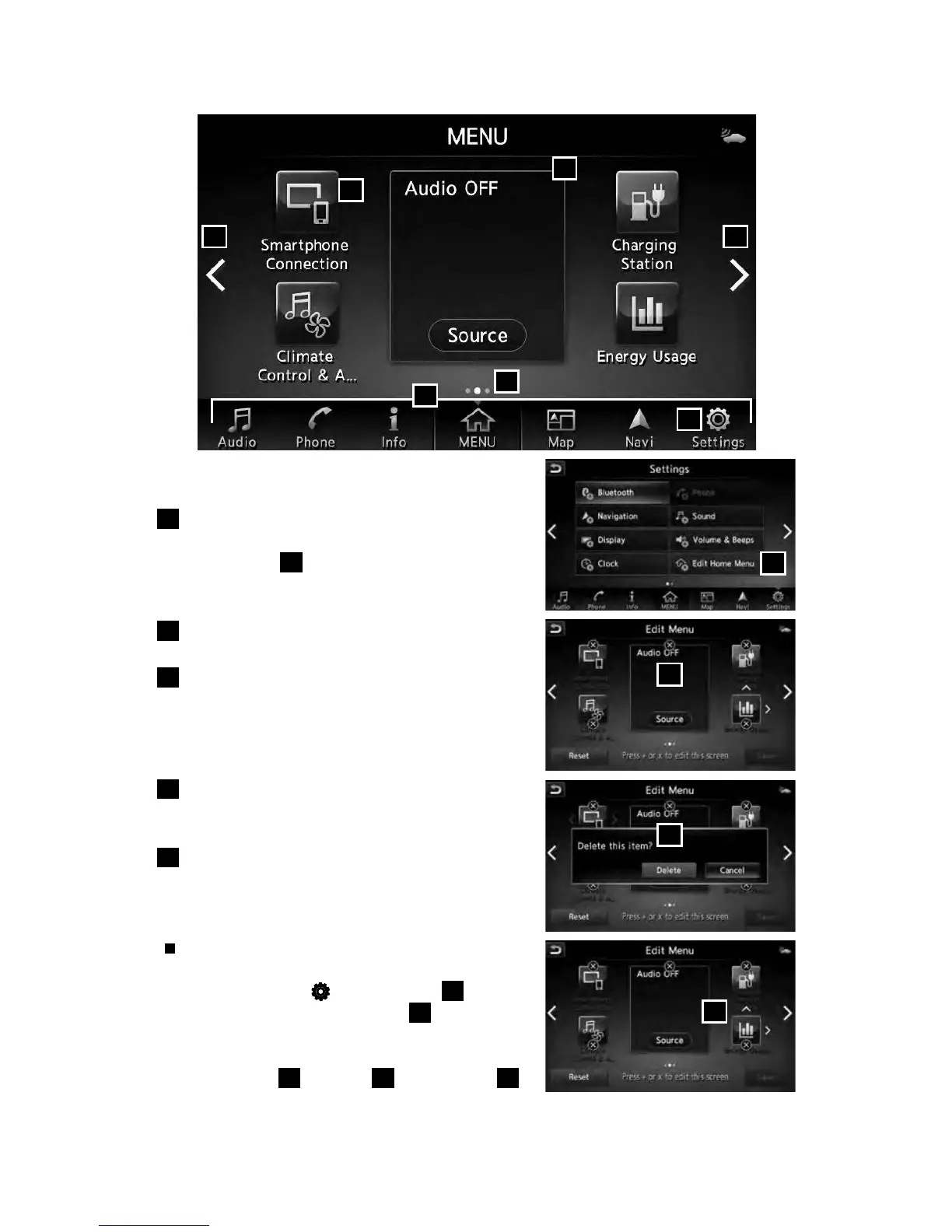
Launch Bar – Various functions can be
accessed by touching the items on the
Launch Bar
1
, which is displayed on most
of the main screens. Touching these keys will
bring up the corresponding screens.
2
Widget – These items can be interchanged,
moved, or deleted from the MENU pages.
3
Touch either arrow to navigate to the next or
previous page of the “MENU” screen. These
screens can also be swiped, as you would
with a smartphone, to move from screen
to screen.
4
These dots indicate the page you are
currently on, in white, out of the number of
pages there are available, in gray.
5
Shortcut – Shortcuts, once touched, will
bring up the system they correspond to for
quick, one-touch convenience for
commonly used features.
Shortcuts and Widgets can be set up through
the “Edit Menu” screen which can be accessed
by touching the “Settings” key
6
followed
by the “Edit Home Menu” key
7
. This will
display the “Edit Menu” screen, which allows
Shortcuts and Widgets to be moved and
rearranged
8
, deleted
9
and created
10
.
Please see your Owner’s Manual for important safety
information, system limitations, and additional operating and feature information.
For more information, refer to your NissanConnect® Manual (for Leaf).
4
2
3 3
5
7
8
9
10
1
6
NEW SYSTEM FEATURES
2948550_18a_Leaf_QRG_100317.indd 2 10/3/17 3:56 PM



 To Next Page