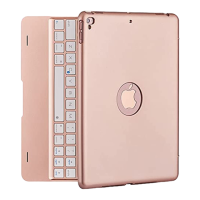
This document is a user manual for an iPad Keyboard Case with Touchpad, branded "NokBabo." It provides comprehensive instructions for setup, usage, and troubleshooting, along with compatibility information and warranty details.
Function Description:
The NokBabo iPad Keyboard Case with Touchpad is designed to enhance the functionality of an iPad by adding a physical keyboard and an integrated touchpad. It allows users to type, navigate, and interact with their iPad in a manner similar to a laptop. The keyboard features a full QWERTY layout, function keys, and a dedicated row for iPad-specific controls. The touchpad supports multi-finger gestures, enabling efficient navigation, scrolling, zooming, and app switching. The keyboard also includes a backlight with adjustable brightness and various color options, as well as a breathing backlight mode. The case itself provides protection for the iPad.
Important Technical Specifications:
- Compatibility:
- 10.2/10.5 inch Hard Case/Leather Case Compatible iPad Models:
- iPad 9th Generation 10.2 inch 2021 (A2602/A2603/A2604/A2605)
- iPad 8th Generation 10.2 inch 2020 (A2270/A2428/A2429)
- iPad 7th Generation 10.2 inch 2019 (A2197/A2200/A2198)
- iPad Air 10.5 inch 3rd Generation 2019 (A2152/A2153/A2123)
- iPad Pro 10.5 inch 2017 (A1701/A1709)
- 10.9/11 inch Hard Case Compatible iPad Models:
- iPad Air 10.9 inch 4th Generation 2020 (A2072/A2316/A2324/A2325)
- iPad Pro 11 inch 3rd Generation 2021 (A2301/A2459/A2460/A2377)
- iPad Pro 11 inch 2nd Generation 2020 (A2228/A2068/A2230)
- iPad Pro 11 inch 1st Generation 2018 (A1876/A2014/A1895)
- 10.9 inch Leather Case Compatible iPad Models:
- iPad Air 10.9 inch 4th Generation 2020 (A2072/A2316/A2324/A2325)
- 12.9 inch Hard Case/Leather Case Compatible iPad Models:
- iPad Pro 12.9 inch 5th Generation 2021 (A2379/A2461/A2462/A2378)
- iPad Pro 12.9 inch 4th Generation 2020 (A2069/A2229/A2232/A2233)
- iPad Pro 12.9 inch 3rd Generation 2018 (A1876/A1895/A1983/A2014)
- Connectivity: Wireless (Bluetooth).
- Charging: Type-C charging cable.
- Operating System Requirement: iPadOS 13.2.2 or above for full functionality, especially for the touchpad.
- Backlight: Three brightness levels, multiple rainbow colors, breathing backlight mode with adjustable rate.
- Power: On/off button, power status indicator.
Usage Features:
- Initial Setup:
- Ensure the keyboard is fully charged (2-3 hours for first use).
- Verify iPadOS version is 13.2.2 or above.
- Enable "AssistiveTouch" in iPad settings (Settings > Accessibility > Touch > AssistiveTouch > AssistiveTouch On).
- Turn on the keyboard by pressing the power button for 3 seconds (indicators flash, backlight turns on then off). For 12.9-inch models, the power button is on the right side gusset.
- For 10.2/10.5, 10.9/11, 11-inch models: Press the pair button for 3 seconds (blue indicator flashes for 3 minutes).
- For 12.9-inch models: Press "fn" + "C" together (blue wireless indicator flashes).
- Turn on iPad Bluetooth, search for "ipad keyboard," and tap to connect.
- Keyboard Functions:
- Home: Displays the iPad home screen.
- Darker/Brighter: Adjusts screen brightness.
- Virtual Keyboard: Toggles the on-screen keyboard.
- Search: Launches the iPad search function.
- Back: Navigates back.
- Play/Pause: Controls media playback (Note: third-party player video is not supported).
- Forward: Skips forward in media.
- Mute: Mutes audio.
- Volume Down/Up: Adjusts audio volume.
- Lock Screen: Locks the iPad screen.
- Pair Code: Initiates pairing mode (press for 2 seconds).
- Power Button: Turns keyboard on/off (press for 3 seconds); checks power status (press and hold for 1 second).
- Switch Language: Toggles input languages.
- Select All, Copy, Paste, Cut: Standard text editing shortcuts.
- Tab, Caps Lock: Standard keyboard keys.
- Special Characters: Hold "shift" to type characters in the grey area of keys.
- Input Method Switch: Control + (space bar).
- Backlight Control:
- Turn On/Off/Adjust Brightness: Press "fn" + (command key on the right side of the space bar). Press once for backlight, second time to increase brightness, third time for maximum brightness, fourth time to turn off.
- Change Rainbow Colors: Press "fn" + (option key on the right side of the space bar).
- Breathing Backlight On/Off: Press "fn" + "Q".
- Change Breathing Backlight Rate: Press "fn" + "W".
- Touchpad Gestures:
- One Finger:
- Left-click: Tap with one finger.
- Slide Pointer: Move with one finger.
- Drag Items: Tap twice with one finger, then hold and drag.
- Slide over Switcher: Slide one finger down from the top edge of the screen to see all active apps.
- See the Dock: Slide one finger up from the bottom edge of the screen until the Dock appears, then release.
- Double Fingers:
- Pay Attention to: Slide fingers from right to left.
- Switch Window to Left: Swipe from left to right with both fingers.
- Right-click: Tap with two fingers.
- Roller Scroll: Swipe with two fingers left/right or up/down.
- Zoom In/Out: Pinch with two fingers.
- Three Fingers:
- Open Recently Used Window/Switch Apps: Three fingers moving down simultaneously.
- Return to Home Page: All three fingers moving up simultaneously.
- Active Window (Left/Right Slide Switch): Slide three fingers simultaneously left and right.
- Four Fingers:
- Screenshot: Tap with four fingers.
- Lock/Unlock Touchpad: Press "fn" + "T".
- Touchpad Settings (iPad):
- Adjust cursor tracking speed: Settings > Accessibility > Touch > AssistiveTouch (adjust tracking sensitivity).
- Further tracking sensitivity adjustment: Settings > General > Trackpad & Mouse (adjust tracking sensitivity).
- Ensure "Keyboard" is set correctly: General > Keyboard > Keyboards > English(US) > QWERTY (can only be set after successful keyboard connection).
Maintenance Features:
- Charging:
- Use the provided Type-C charging cable.
- Red indicator flashes when low battery, stays on during charging, turns green when fully charged.
- Charge regularly, at least once a month, if not used frequently.
- Sleep Mode:
- Keyboard enters sleep mode after 10 minutes of inactivity, cutting connection to iPad.
- Wakes up and reconnects when any key is pressed.
- Backlight Auto-Off:
- Backlight automatically turns off after 5 seconds of no movement, lights up again when any key is pressed.
- Blue backlight turns on when the keyboard is powered on and turns off automatically within 1 minute (normal behavior).
- Troubleshooting:
- Connection Issues:
- Ensure keyboard is fully charged.
- "Forget this device" on iPad Bluetooth list, restart iPad and keyboard, then reconnect.
- Contact seller if issues persist.
- Touchpad Not Working:
- Verify iPadOS version (13.2.2 or above).
- Ensure "AssistiveTouch" is enabled in iPad accessibility settings.
- Check if touchpad is locked ("fn" + "T").
- Refer to "Touchpad instruction" section.
- Contact seller if issues persist.
- Characters Not Working:
- Turn keyboard off and on again.
- Contact seller if issues persist.
- Incorrect Character Output (e.g., A types Z):
- Go to Settings > Keyboard > Keyboards > English(US) > QWERTY.
- Space Bar Not Working/Inserts Period:
- Settings > Accessibility > Keyboards > Full Keyboard Access > Commands > (INTERACTION) > "Space" > Activate "Clear".
- Turn off "." Shortcut in General > Keyboard > Hardware Keyboard.
- Turn off Full Keyboard Access if necessary.
- Refer to "Space bar problem-Space bar doesn't work or Insert period" section.
- Key Press Delay:
- Settings > Accessibility > Keyboards > Slow Keys Off (or Slow Keys On 0.1 Seconds).
- Repeated Characters:
- Settings > Accessibility > Keyboards > Key Repeat On 0.1 Seconds (or Key Repeat Off).
- Keyboard Not Holding Charge:
- Try a different charging cable.
- Contact after-sale team (nokbabo@hotmail.com) with order ID for replacement if battery is faulty.
- Water Resistance: The keyboard is not waterproof; keep it away from water.
- Warranty: Every unit comes with a full 12-month warranty.
- Customer Support: Email support available 24/7/365 at nokbabo@hotmail.com. Facebook Page: Nokbabo.
- Case Removal: Instruction video available at https://youtu.be/hemjRHQBWsE.

 Need help?
 General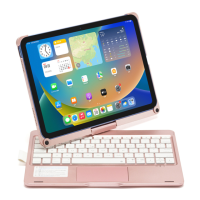

 To Next Page