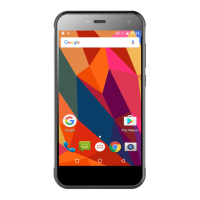
After SIM card is inserted, the mobile phone will automatically
inspect whether SIM card can be used or not.
2.2 Screen locking and unlocking
After the mobile phone is idle for a long time, the screen is black to
enter into the screen locking state to save the battery power.
Lock screen/mobile phone: press the power key
Unlock screen/mobile phone: press the power key, light up the
screen and display the screen locking state. Press the unlocking icon,
and slide towards the upside to unlock.
If you have set the locking pattern or password, the mobile phone
will prompt you to draw the pattern or enter the password.
Main menu→setting→security→screen locking
Set screen locking→pattern locking
1. Set screen locking→pattern
2. Pay attention to view the screen tip and the pattern example, and
select next for two times.
3. Drag to connect four points by finger to draw the pattern.
4. Continue to select.
5. Draw the pattern again to confirm.
6. Select OK.
After the unlocking pattern is set, the mobile phone requires to slide
towards the upside to enter the unlocking pattern when being turned
on each time. If you want not to enter the unlocking pattern, please
change the screen locking in “Set→security”, enter the unlocking
pattern, and then click None.
Set screen locking→password
1. Set screen locking→password locking
2. Enter four characters at least.
3. Continue to select.
4. Enter the character password again to confirm.
5. Select OK.
After the password is set, the mobile phone will require to slide
towards the upside to enter the unlocking password when being
turned on each time. If you want not to enter the unlocking
password, please change the screen locking in “Set→security”,
enter the unlocking password, and then click None


 To Next Page
 Loading...