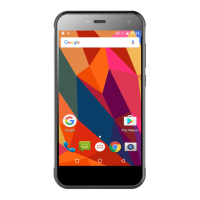
After the password is set, the mobile phone will require to slide
towards the upside to enter the unlocking password when being
turned on each time. If you want not to enter the unlocking
password, please change the screen locking in “Set→security”,
enter the unlocking password, and then click None.
Note: the steps for setting PIN screen lock mode are the same as the
above-said steps.
2.3 Touch methods
You can operate the mobile phone by the following methods (please
press the corresponding function keys by finger pulp).
2.3.1 Press:
You can select one icon or option through the press function in the
display screen. If under the main menu, click Information to enter to
browse all SMS/MMS and other information.
2.3.2 Click and press:
You can view more menu options through Click and press. For
example, when you click and press a number in the contact detail
interface, a pop-up menu will be opened, and you can execute some
option functions in the menu.
2.3.3 Scroll:
Press the scroll bar, and then dray upwards or downwards. For
example, when you browse the contact list, a scroll bar will be
popped up on the right. Drag the scroll bar to facilitate to search the
contacts.
2.3.4 Drag and drop:
Press an item by finger, and then drag the finger to move the item.
2.3.5 Double click:
When viewing the photos or web pages, click quickly for two times
by finger to zoom in or out.
2.3.6 Quick slide
When you select the contact in the list through the scroll bar, the
quick slide of the touch screen can be rapidly realized.
When you quickly slide a long column of contacts, click the screen
to stop sliding.
Warm tips: to avoid scraping the touch screen, do not use the sharp


 To Next Page
 Loading...