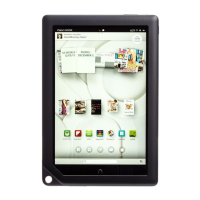
The Power Button
The Power button is the sole button on the top-right side of the NOOK. In addition to
powering your NOOK on and off, the Power button can wake your NOOK when it’s
sleeping or put it to sleep when you finish reading.
To put your NOOK to sleep or wake it using the Power button, press and release the
Power button quickly. To turn off your NOOK, press and hold the Power button for 5
seconds. To turn on your NOOK again, press and release the Power button quickly.
The Home Button
The Home button is identified by the NOOK logo (a lowercase n) and is located in
the center of the black bar along at the bottom of the touchscreen display. Like the
Power button, the Home button performs more than one function.
You can wake your NOOK by pressing the Home button. If the touchscreen is already
illuminated, pressing the Home button twice takes you to your NOOK’s Home screen.
The Volume Buttons
These two buttons on the top of the NOOK that control the volume. If no videos,
music, or other sounds are playing, the Volume buttons control the Notification vol-
ume (that is, when something new arrives such as subscription content). When video,
music, or other sounds are playing, the Volume buttons control the sound of the
media.
How Should I Clean My NOOK’s Touchscreen?
Your NOOK’s touchscreen is going to get dirty and covered in fingerprints. The
best way to clean it is using a dry, microfiber cloth like the one you would use
to clean eyeglasses. If you must use a cleaning fluid, spray it lightly on the
cloth and then wipe the touchscreen. Use only cleaning sprays designed for
cleaning LCD screens.
The Microphone
Use the microphone to record voice narration for NOOK Kids
™
books. In the
author’s recordings, the microphone had an okay quality. When you speak into it for
recording, use a strong voice and hold it close to your mouth if you can.
13
Your NOOK’s Controls



 To Next Page
 Loading...