Music
To enter the music playback mode, select the music mode and tap
the power button
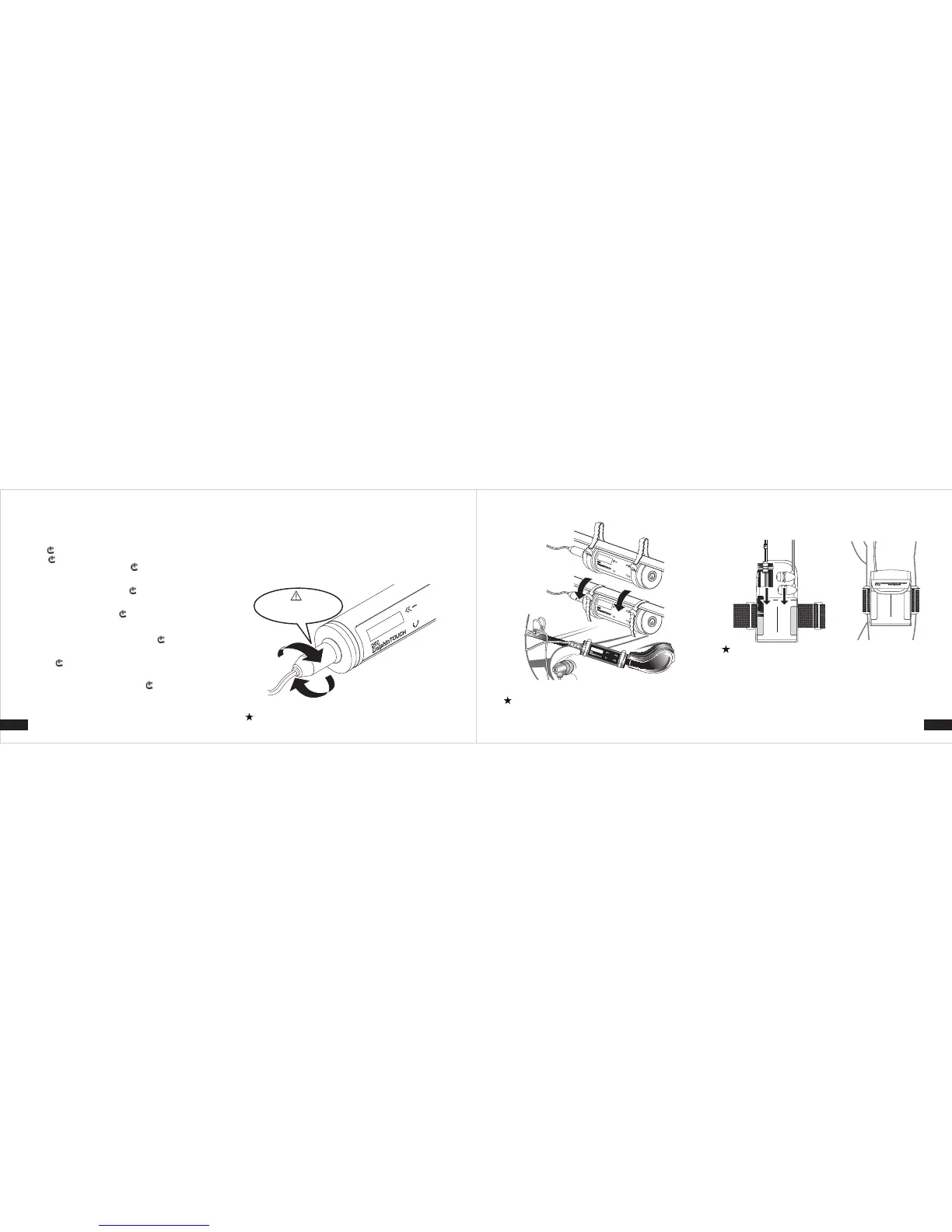
3. How to wear Dolphin Touch player?
3. Underwater Mode
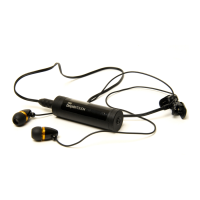
To use Dolphin Touch underwater be sure to use the supplied
professional waterproof earphones and fasten the earphone plug tightly
to the earphone jack on the Dolphin Touch.
● Before use underwater, tap and hold the power button for 2 seconds
while Dolphin Touch is on. Dolphin Touch will lock the touch panel (a
key icon will appear on the screen.) At this moment, all the touch
buttons are disabled. (because underwater operation of touch
buttons is impossible.)
Please make sure the earphone
plug is fastened tightly!
9. 10.
Be sure to fasten the waterproof earphone plug tightly to
the earphone jack before use.
Attach the Dolphin Touch on the separately sold swim
cap and place the waterproof earphone cable in the inner
pocket of the swim cap (optional).
Splash-proof earphones are not waterproof and can be
used for water sports but not underwater activities.
● While using this player, please fasten it on the goggle belt with the
supplied dedicated Fluorescent straps and fix the waterproof
earphones to the ears with the Clip.
3.2 Using an Armband (Optional)
To use the Dolphin Touch with a dedicated armband, please attach the
Dolphin Touch on the armband and place the waterproof earphones on
your ears.
The player
The earphone
3.3 Normal Mode
You can directly play music with the Dolphin Touch and its supplied
profession waterproof earphones. You may also use other high-fidelity
earphones dedicated to this product or common earphones. To use the
Dolphin Touch, attach common earphones or waterproof earphones to
the earphone jack and place in the MP3 in a backpack or pocket.
Fm Radio
When enter Main menu, press / button to select Fm Radio and
press button to enter/confirm the FM Radio mode.
Press key to select 30 stations or adjust tuner frequency from
108.00MHz ~ 76.00MHz then, press button to confirm.
● FM /Submenu
When under FM Radio mode, press to select and Normal Mode/ Save
mode (Save Mode will only be shown as 1/30-3/30) .
After select your desire mode, press “M” to enter submenu and press
/ key to select and press button to confirm.
(e.g. Save preset, Auto search,)
Save preset: (only in Normal Mode)
Select “Save preset” mode and short press button to save your
current radio frequency.
Auto search:
Press button to process automatically and save available radio
station.
Delete saved station: (Only in Save Mode)
Select “Delete preset” and short press button to delete saved
station.
Attention:
under “Normal Mode” when all the 30 stations have been saved, the new
saved station will be covered over from station
under “Save Mode” undesired station will be deleted from the current
station you are using.
►►
►►
►►
►►


 To Next Page
 Loading...