Quick reference guide
Managing your vocabulary
Add words
1. Say Add Word or say Add that to Vocabulary
2. Typecorrectspelling
Note: you can enter a new single word,
acronym or a short phrase
3. ClickDefaultPronunciationorclickthemic
icontoTRAIN
Note: It is not necessary to press the talk
button to train a word
Manage your custom words
1. Say Manage Vocabulary > search for the
word/phrasetochange/delete/train>
correct as needed
Note: if the word/phrase has already been
trained, delete and re-add to correct spelling
2. Click+toaddanewword/phrase
Step-by-step commands
Step-by-stepcommandsmayexecute
commonlyusedactionsinanapplication,or
openapplications
Create a Step-by-step command
1. Say Manage Commands or Manage Step-
by-step Commands
2. Click+
3. Enter a Name
4. Enter a Description(optional)
5. Enter a Spoken Form
6. ClickNew Stepandselectthesteptype;
repeatforeachstep/keyboardshortcut.
7. ClickApply All
Edit a Step-by-step command
1. Say Manage Commands or Manage Step-
by-step Commands
2. SelecttheStep-by-stepCommandsyou
wanttoedit
3. Makedesiredchanges
4. ClickApply All
Delete a Step-by-step command
1. Say Manage Commands or Manage Step-
by-step Commands
2. SelecttheStep-by-stepCommandsyou
wanttodelete
3. ClickX
4. ClickApply All
Auto-texts
CreateAuto-Texttobringinblocksoftextwith
asimplevoicecommand
Add an Auto-text
1. Highlightdesiredtext
2. Say Make that an Auto-text
3. Dictatethename(whatyouwillsaytoopen
it)
4. ClickApply AllthenclickClose
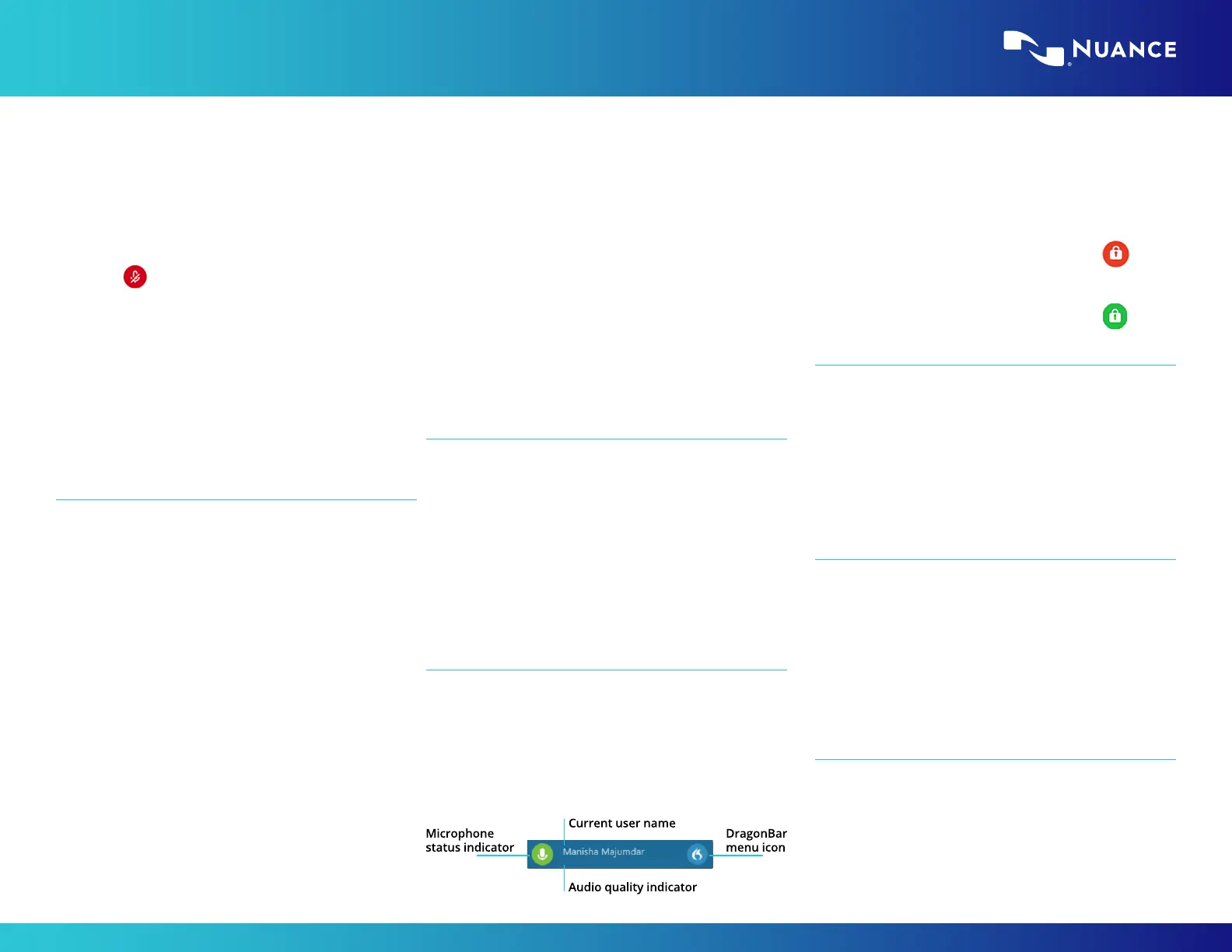
The DragonBar
Ifthemicrophonebuttonisred,itindicates
themicrophoneiso.
Ifthemicrophonebuttonisgreen,itindicates
themicrophoneison.
Anchor Speech Focus
1. OpenDPAandthetargetapplication(the
programyouaredictatinginto)
2. Placeyourcursorwhereyouwantthetext
tobetyped
3. Say Anchor Speech Focus
4. Themicrophoneiconchangesto
5. Begindictatingwhileyounavigate
throughotherapplications
6. Themicrophoneiconchangesto
7. Say Release Speech Focus
Important reminders
–Remembertoturnothemicrophonewhen
nisheddictating
–Correctcommonlymisrecognizedwordsto
increaseaccuracyandsavetime
–Positionthecursorwhereyouwantyourtext
togo...yourtextwillbetypedinthewindow
inwhichyourcursorisblinking
Exit and Log O
–AccessLogOandExitfromtheDragonBar
Menu
– Log Otochangemicrophonesourcesor
specialtyvocabularies
– Exitwhennishedataworkstationtoprotect
theprolefrombeingaccessedbyother
providers
©2021NuanceCommunications,Inc.Allrightsreserved.


 To Previous Page
 Loading...