serve as waterproof seals to prevent water from getting into the Keypad case.
3) Then close the case of the Keypad so that the outer silicone cover seals tightly at all edges.
4) Open the Nuki App on your smartphone and set up your Nuki Keypad with it. Open the
Nuki App menu and choose “Manage Keypad”.
Setup Nuki Keypad
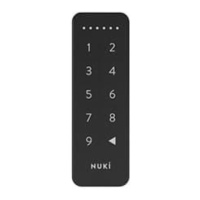
The setup and administration of the Nuki Keypad is done via the Nuki app. Open the Nuki
app and select “Manage Keypad” from the menu. Follow the instructions in the Nuki app to
set up the Keypad, configure the Keypad settings or pair a Smart Lock with the Keypad.
the Nuki Keypad has been designed to be compatible with the entire Nuki product range.
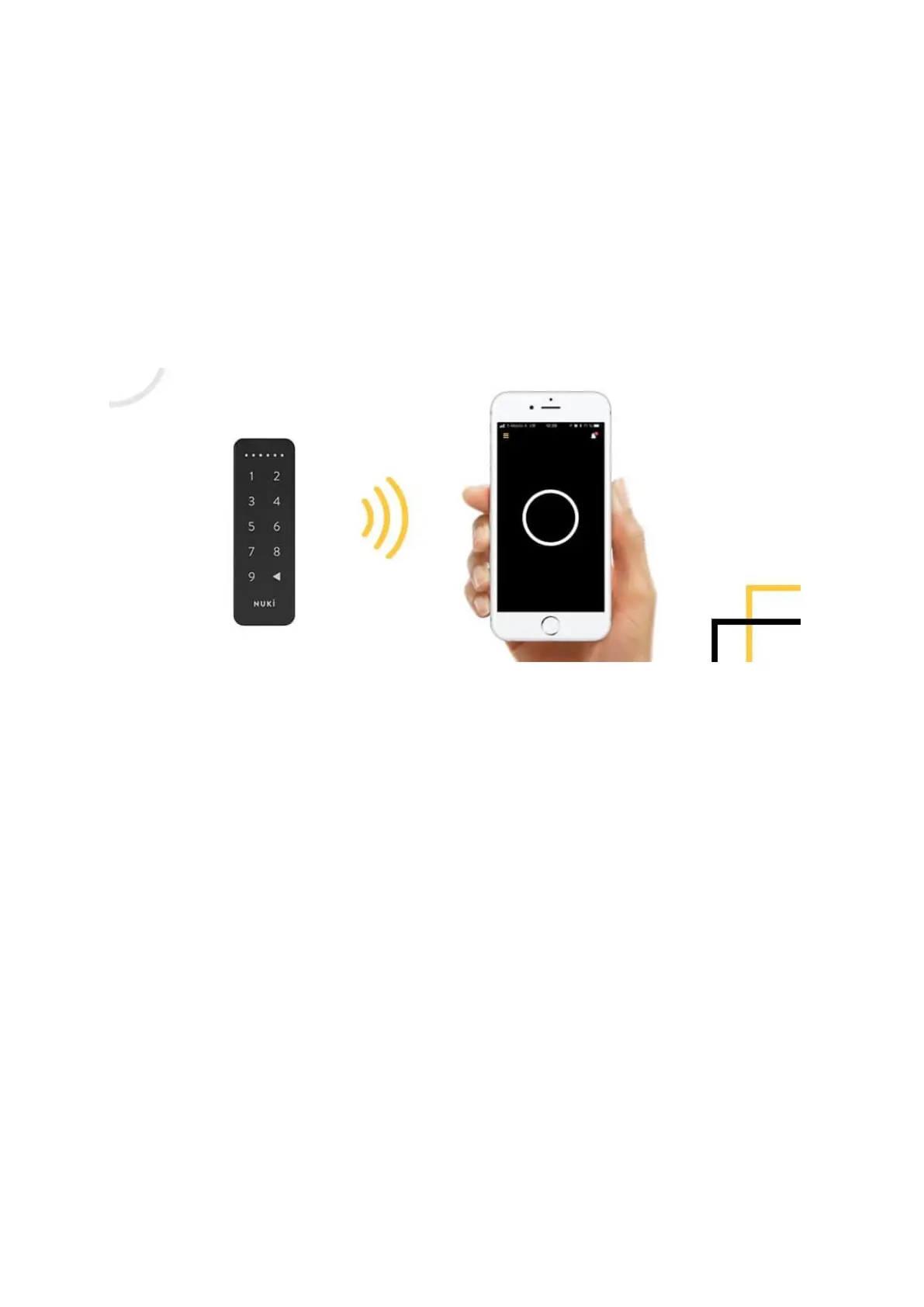
You can use your Keypad with the Smart Lock. The two devices communicate with each
other via Bluetooth, which is why the Keypad can also be used offline (without an internet
connection and Nuki Bridge). Your Keypad can only be paired with one Smart Lock. Multiple
Smart Locks require the use of multiple Keypads.
During the initial setup of the Nuki Keypad, a 6-digit security code must be set up to protect
your Keypad from unauthorized access. The security code must then be entered enery time
you want to configure the settings of the Keypad or if you want to pair another Smart Lock.
After setting up your Keypad, you can create up to 99 individual entry codes with the Nuki
app (in the Smart Lock user management). With the Nuki Bridge this even works from afar.
You decide which permissions each user receives. Thanks to the Nuki app’s activity log, you
can always keep track of who’s entering your home.
In User management tap Access Codes, Add an Access Code, Choose your Code, and give it
a name. You can now limit the access and or share the access code with the user via your
smartphone message options like; e-mail, text message, whatsapp, etc.
You can always deactivate, change or delete codes you made.
Remark; You do not see the Keypad in the Connection Status


 To Previous Page
 Loading...