Configure
Your Game at
the Correct
Resolution and
Refresh Rate
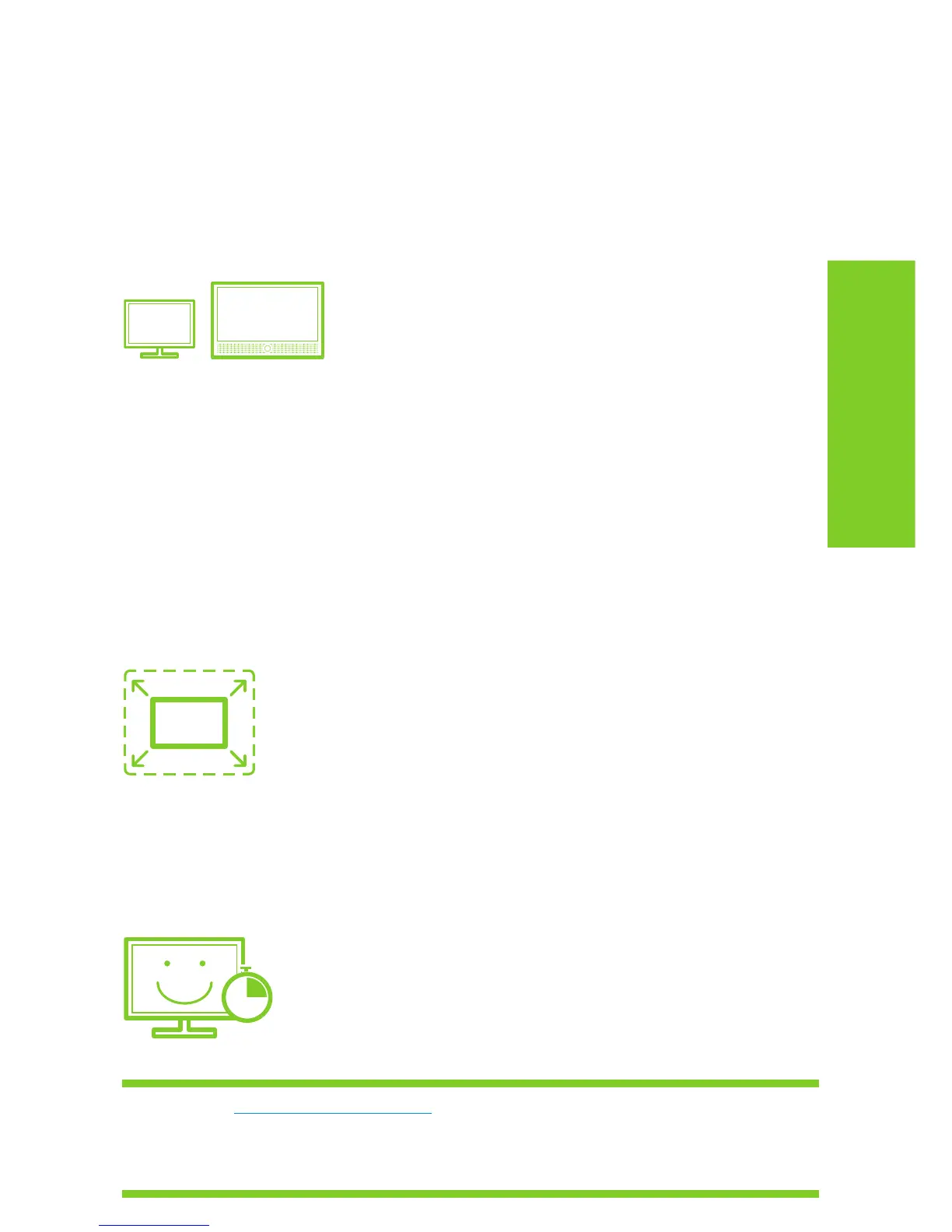
Make sure you are running your game in
resolutions that support GeForce 3D Vision.
In order to support GeForce 3D Vision, your
game must be configured to run at the correct
settings for your display. If you have:
120 Hz LCD: > Select an in-game
resolution of 1680x1050. Use the NVIDIA
Wizard or in-game settings to set a
refresh rate of 100 Hz or higher.
DLP HDTV: > Select a resolution of
1920x1080, 1768x992 or 1280x1024
and set the refresh rate to 60 Hz.
DepthQ >
®
HD 3D Projector: Select
a resolution of 1280x720. Use the
NVIDIA Wizard or in-game settings
to set a refresh rate of 120 Hz.
Run Your Game in
Full Screen Mode
GeForce 3D Vision currently only supports
full screen applications and cannot run
in windowed mode. Be sure to select full
screen mode from in-game settings.
Allow your
120 Hz LCD to
Warm Up
For optimal stereoscopic 3D image quality,
when using a pure 120 Hz LCD, please allow
your monitor to warm up. This warm-up
period is normal behavior for LCD monitors.
Please visit www.nvidia.com/support to access our 24 x 7 x 365 online knowledgebase
system, where you can submit questions to our tech support staff. GeForce 3D Vision
customers also have access to toll free technical support at 1-800-797-6530 from
9AM-6PM PST, M-F.
TIPS & TRICKS


 To Next Page