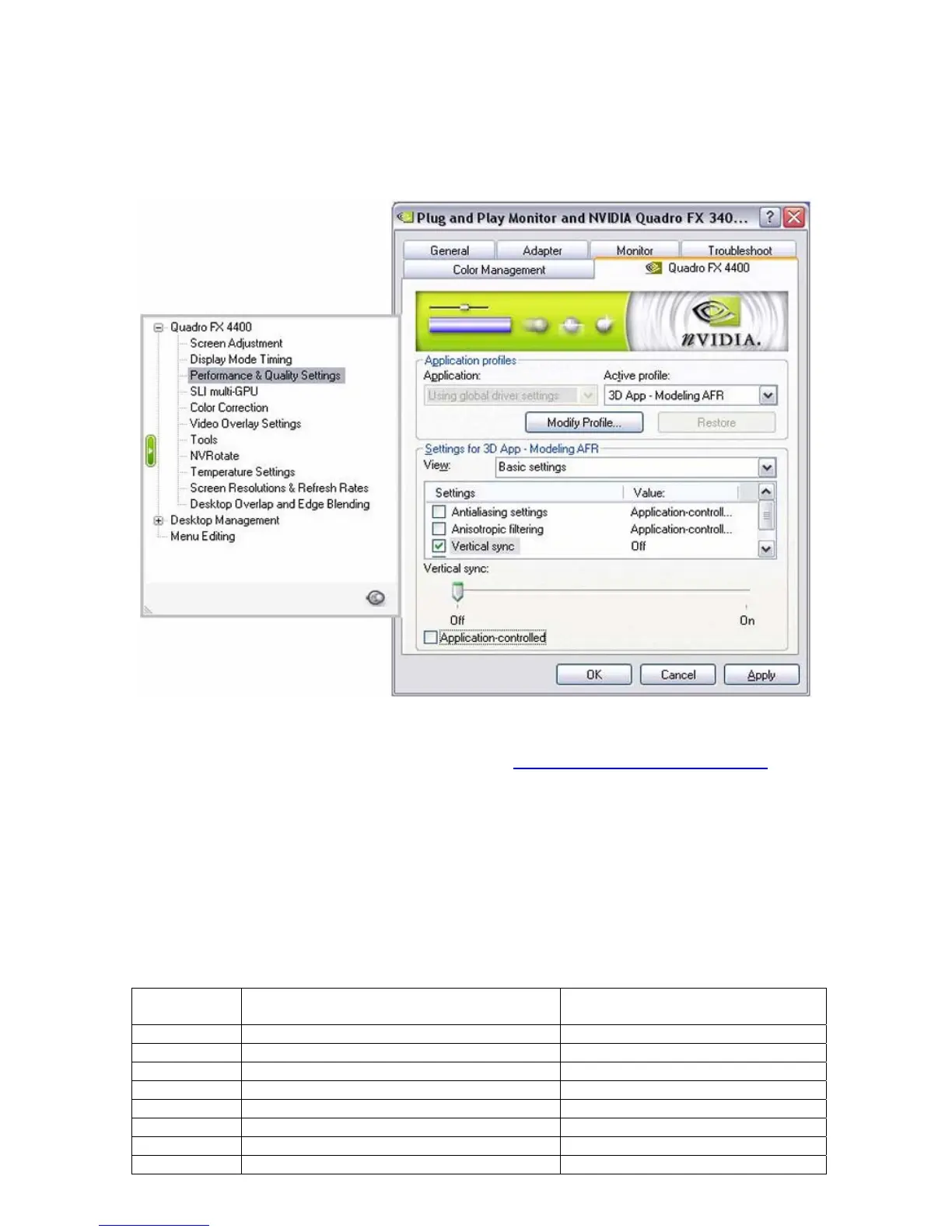
You will then need to select the appropriate profile in the control panel. You can do this by
selecting: Properties/Settings/Advanced/Quadro FX xxxx/Performance & Quality Settings. In the
“Active profile” drop-down menu, select “3D App – Modeling AFR”.
Finally, you need to turn “Vertical sync” off. While still in the “Performance & Quality Settings”
window, check the “Vertical sync” box under the “Settings for 3D App – Modeling AFR”. Then un-
check the box at the bottom of the window that reads “Application-controlled”.
Select “Apply” and “OK”. You are now ready to run the SPECviewperf benchmarks.
You can download the SPECviewperf benchmarks at:
www.spec.org/benchmarks.html#gpc
Comparison Benchmark Results (SLI Frame Rendering for Windows)
Test platform:
HP xw9300 workstation
NVIDIA nForce Professional MCP
Two AMD Opteron 250 processors (2.39 GHz)
1 or 2 NVIDIA Quadro FX 4400 graphics boards
2 GB RAM ECC Registered DRAM
Microsoft Windows XP Professional SP2
NVIDIA graphics driver version 77.13
SPECviewperf 8.1 results
Benchmarks SLI: Two GPUs
Two NVIDIA Quadro FX 4400 boards
Single GPU
One NVIDIA Quadro FX 4400 board
3dsmax-03 36.02 34.38
catia-01 27.97 26.63
ensight-01 30.02 21.83
light-07 21.87 21.78
maya-01 54.19 53.97
proe-03 61.11 54.96
sw-01 34.04 25.33
ugs-04 54.59 37.02



 To Next Page