
 To Next Page
B
bmullinsAug 3, 2025
How long to wait after triggering WPS pairing on Optus Network Hardware?
- Llaura49Aug 3, 2025
After triggering WPS pairing, allow approximately 3 minutes for the connection to establish.

How long to wait after triggering WPS pairing on Optus Network Hardware?
After triggering WPS pairing, allow approximately 3 minutes for the connection to establish.
How to improve WiFi signal on Optus Ultra WiFi Booster Gen 2 Network Hardware?
If you are not receiving a reliable WiFi signal, try moving the booster closer to the modem.
What to do if my Optus Ultra WiFi Booster Gen 2 is powered off?
If your device is powered off, make sure it is properly plugged in and the power switch is turned on.
Why Optus Network Hardware booster is not ready?
The booster might not be ready because the unit is performing a factory reset, or it is still powering up. Please wait until the booster is ready.
What to do if Optus Network Hardware has exceeded operational temperature?
If the device has exceeded its operational temperature, relocate it to a cooler area.
What to do after Optus Ultra WiFi Booster Gen 2 bootup is complete?
After the bootup is complete and the device is ready, verify that the device is connected properly.
How to ensure optimum backhaul connectivity on Optus Ultra WiFi Booster Gen 2 Network Hardware?
To ensure optimum backhaul connectivity when the booster is paired with the modem and the link quality is good, make sure the LED displays a solid green light.
Step-by-step guide to pair the booster with the modem using buttons and LEDs.
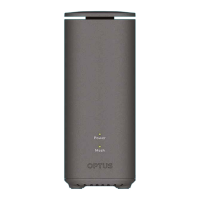
Identifies physical buttons, ports, and compatibility notes for the Gen 2 Booster.
Guidance on where to position the booster for optimal WiFi coverage in your home.
How to check booster LEDs for a good WiFi signal and troubleshoot basic connection issues.
Explains the meaning of LED lights on the booster for status and connection troubleshooting.
Information on using the My Optus app for managing your WiFi network and getting support.
 General
| Model | Ultra WiFi Booster Gen 2 |
|---|---|
| Wi-Fi Standard | 802.11ac |
| Frequency Bands | 2.4 GHz, 5 GHz |
| Maximum Wi-Fi Speed | Up to 1200 Mbps |
| Ports | 1 x Gigabit Ethernet |
| Type | Wi-Fi Repeater |
