12 13
installing your Flybox
5
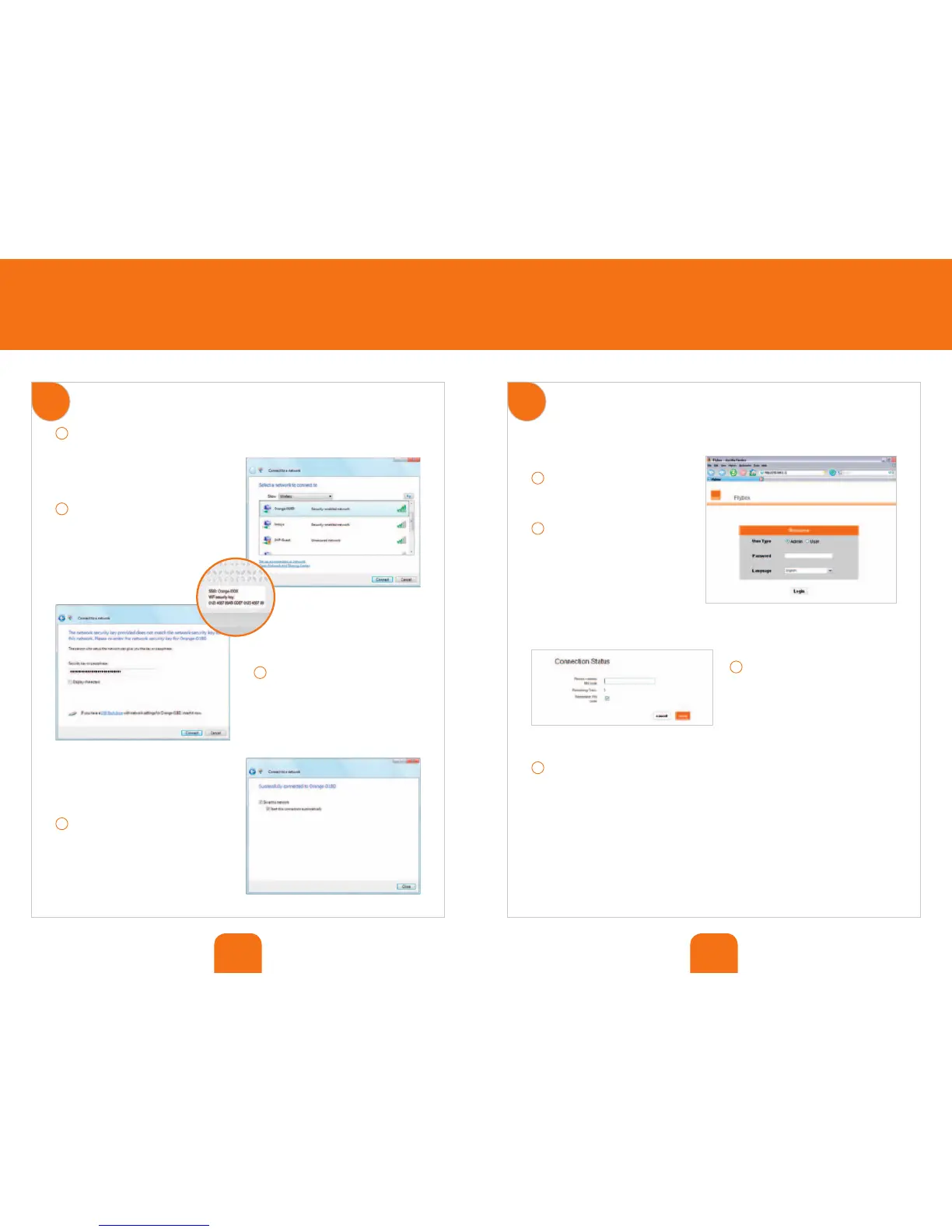
connection to the mobile network
If a flashing red light appears on your signal strength indicator (6):
1
– Open your favourite Internet
browser and go to http://192.168.1.1
2
– Under ‘User Type’, select ‘Admin’.
Enter the password ‘admin’.
3
– Enter the PIN code of your SIM
card and click on ‘Apply’. (Please note
that the SIM card will be blocked
after 3 wrong attempts.)
4
– If a solid light appears on your signal strength indicator (6), your Flybox is
operational. You now have access to broadband and telephony services from your
living room or office.
If a flashing red light appears on your signal strength indicator (6), please
restart step 5.
4
set up a WiFi connection (Windows Vista)
1
– Go to ‘Wireless network connection’, click on the right button of your mouse and
select ‘View available wireless networks’.
2
– First select the wireless network
‘Orange-XXXX’ and then click on
‘Connect’.
3
– Then enter the network key. It can
be found on the base of your Flybox.
4
– Once connected, confirm the
following window. Keep the proposed
settings and click on ‘Close’.


 To Next Page