EasyManua.ls Logo

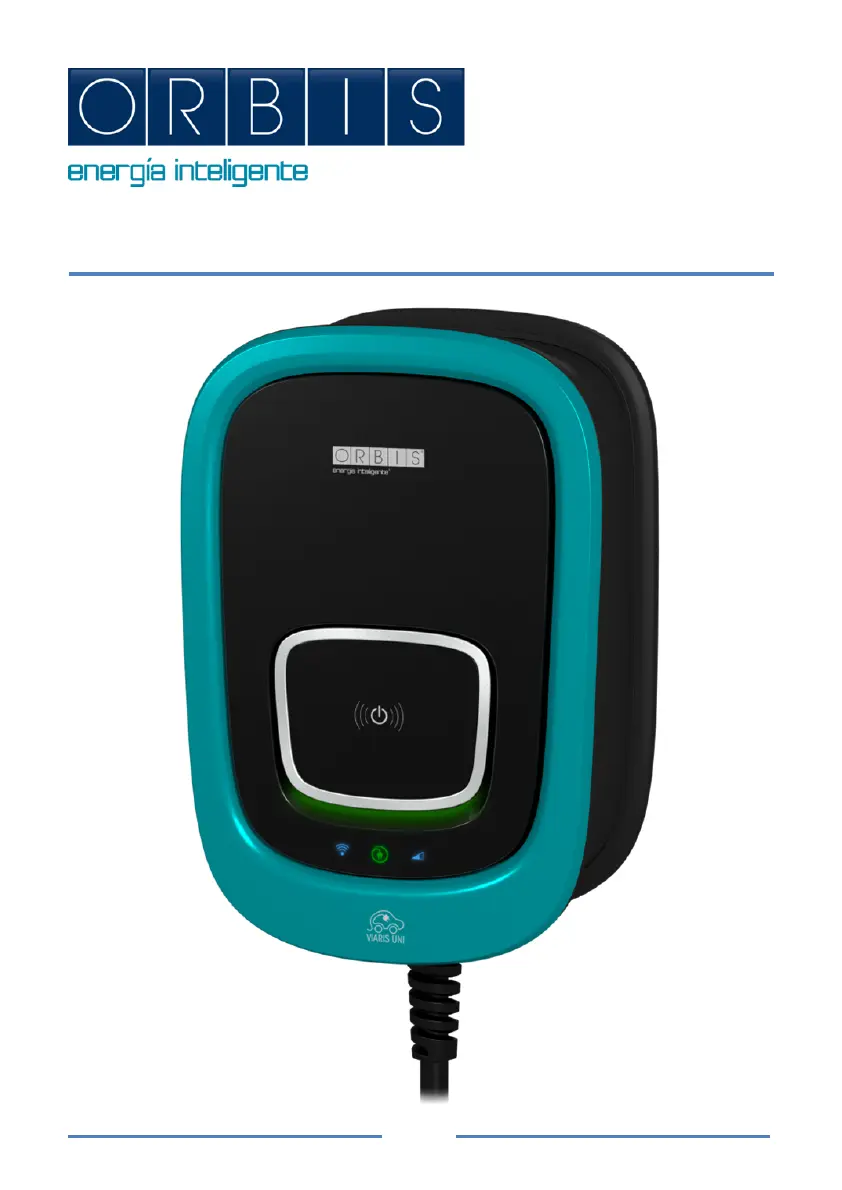
Orbis Viaris Uni - User Manual

Orbis Viaris Uni
32 pages
Print Icon
To Next Page IconTo Next Page
Loading...
1
VIARIS UNI
EV SMART CHARGER

Questions and Answers

  • C
    cookruthAug 16, 2025
    What to do if Orbis Viaris Uni Battery Charger is connected to the vehicle, the status bar is fixed red and does not charge?
    • J
      Jacob JonesAug 16, 2025
      If the status bar is fixed red and the charger isn't working, there's an error. To resolve this, turn off the charger from the protections and then switch it back on.
  • C
    Christopher PerryAug 19, 2025
    Why does Orbis Viaris Uni take a long time to load my vehicle with a three-phase charger?
    • N
      nsellersAug 19, 2025
      If you have purchased a single-phase vehicle, you will only be using approximately 1/3 of the contracted power.
  • B
    Bridget CantuAug 22, 2025
    What to do if after manual deactivation or with RFID card the Orbis Battery Charger load does not stop and the intake is blocked?
    • P
      Paul ThomasAug 23, 2025
      To resolve the issue of the load not stopping and the intake being blocked, unlock the hose using the control of the car.
  • D
    Debbie ChangAug 26, 2025
    What to do if after the loading process, the Orbis Viaris Uni remains connected to the vehicle with the locked pin, fixed green status bar?
    • R
      Ryan JohnsonAug 26, 2025
      To unlock the hose, use the control of the car.
  • A
    Anthony RyanAug 28, 2025
    What to do if Orbis Viaris Uni Battery Charger is connected to the vehicle, the status bar is in blinking green and does not charge?
    • V
      Virginia WallaceAug 28, 2025
      If the status bar is blinking green, it means the charger is not authorized to load. To solve this, pass the authorized RFID card.
  • L
    Linda JacobsonAug 31, 2025
    What to do if Orbis Viaris Uni Battery Charger is connected to the vehicle, the status bar is green fixed and does not charge?
    • C
      Carla ButlerAug 31, 2025
      If the status bar is green but the charger isn't charging, there is no communication between the vehicle and the charger. Check the hose and ensure it is correctly inserted into the vehicle and charger.
  • G
    greenethomasSep 3, 2025
    What to do if Orbis Battery Charger shows exceeding maximum power?
    • K
      Kathy FosterSep 3, 2025
      If the modulator hasn't worked, check the configuration according to the power contracted.
  • C
    Christina LiSep 6, 2025
    What to do if Orbis Viaris Uni Battery Charger is connected to the vehicle, the status bar is in blinking green and when the RFID card passes the charger make 5 “bips” and the status bar flashes in red and returns to fixed green?
    • J
      Jennifer RiosSep 6, 2025
      If the RFID card is not authorized, check the list of authorized cards.
  • S
    Steven HigginsSep 9, 2025
    What to do if Orbis Viaris Uni is connected to the vehicle, the status bar is fixed blank and does not load?
    • A
      Allison DanielsSep 9, 2025
      If the status bar is fixed blank and the charger does not load, wait till the reserved state ends.
  • R
    reneeweaverSep 12, 2025
    What to do if the Orbis Viaris Uni Battery Charger is powered and no plug connected and with the light indicators off?
    • T
      Timothy LeeSep 12, 2025
      Check the power according to the connection scheme and that the protections are activated. Wait approximately the 10 seconds the charger requires to boot.

Summary

DESCRIPTION

SMART CHARGER INSTALLATION

Safety Warnings

Crucial safety instructions for installation and operation.

Assembly Guidelines

Guidelines for mounting the charger correctly.

Wall Mounting Procedure

Step-by-step instructions for wall installation.

Power Connection and Load Modulation

Equipment Power Connection

How to connect the charger to the electrical supply.

Load Modulator Connection

Connecting the TMC100 for power modulation.

Power Configuration

Setting up charger power based on contracted rate.

External Connections

External Activation Connection

Using external signals to activate the charger.

External Extractor Connection

Connecting an air extraction system.

Charger Assembly and Front Panel

Front Panel Connection

Connecting the front panel flat cable.

Closing the Charger Casing

Final steps to secure the charger casing.

Indicator Lights

Luminous Indicators Overview

Visual indicators on the charger's front panel.

Connection Cable Indicators

Status indications for the charging cable connection.

Other Indicator Lights

Explanation of Wi-Fi and modulator status indicators.

EV Charger States

Rest Mode

Charger available, no vehicle connected.

Connected Mode Without Loading Permission

Vehicle connected, ready but without permission.

Free Mode With Loading Permission

No vehicle connected, charging permission enabled.

Mode Ready to Load

Charger connected, ready to charge.

Load Mode

Vehicle connected and actively charging.

End Mode Loading

Vehicle connected, finished charging.

Reserved Mode

Charger reservation made via management platform.

Mode Updating

Charger firmware update in progress.

Error Mode

Indicates a charger malfunction has occurred.

Charging Process

Starting the Charge

Steps to initiate the charging process.

Finishing the Charge

Procedures for ending the charging session.

Web Control Interface

Wi-Fi Connection for Web Access

Connecting to the charger's Wi-Fi for web control.

Smartphone App Management

App Configuration of Contracted Power

Setting contracted power via the mobile app.

App Real-time Monitoring

Monitoring charging status and energy usage via app.

App Consumption History

Viewing historical energy consumption data in the app.

RFID Card Registration

Accessing RFID Settings in App

Navigating the app to the RFID card settings.

Configuring RFID Activation

Setting up touch vs. RFID activation in the app.

Registering RFID Cards

Process of adding new RFID cards to the charger.

Saving Authorized Cards

Finalizing the RFID card registration.

Maintenance and Technical Specifications

Maintenance Recommendations

Guidelines for cleaning and inspecting the charger.

Technical Characteristics

Specifications like power, modes, protection, temperature.

External Dimensions

Physical size specifications of the charger.

Optional Features

Schuko Base Option

Optional feature for load modes 1 and 2.

Secondary Counter Option

Certified secondary counter for energy metering.

Ethernet Communication Option

Optional feature for network connectivity.

Troubleshooting Guide

Power and Indicator Issues

Troubleshooting when the charger is powered but indicators are off.

Charging Not Starting (Green Status)

Resolving issues when the status is green but charging fails.

RFID Authorization Problems

Solutions for RFID card authorization failures.

Charging Issues (Blue;Red Status)

Addressing problems indicated by blue or red status lights.

Wi-Fi Connectivity Problems

Troubleshooting Wi-Fi connection failures.

Power Limit and Modulator Issues

Solutions for exceeding power limits or modulator faults.

Slow Charging (Three-Phase)

Addressing slow charging with three-phase connections.

Regulatory Compliance

Directive Compliance

Essential requirements met by relevant EU directives.

Reference Standards

Adherence to specific technical rules and standards.

Orbis Viaris Uni Specifications

General IconGeneral
Quantity per pack1 pc(s)
Product colorBlack, Blue
International Protection (IP) codeIP54
AC input voltage230 V
AC input frequency50 Hz
Operating temperature (T-T)-30 - 50 °C