d. Then press OK. The preview (LCD) display will indicate the area of the photo that will be
scanned with a yellow frame based on the size you selected 4x6, 3x5 etc.
6. Press SCAN button (diagram 4), green LED will flash and “CAPTURING” will be displayed on the
preview screen.
Scanning of the photo is now complete.
Scan 35mm Format
To scan 35mm media flip the switch on the front so the word Film is visible
Refer to manual for Film/Slide placement and orientation
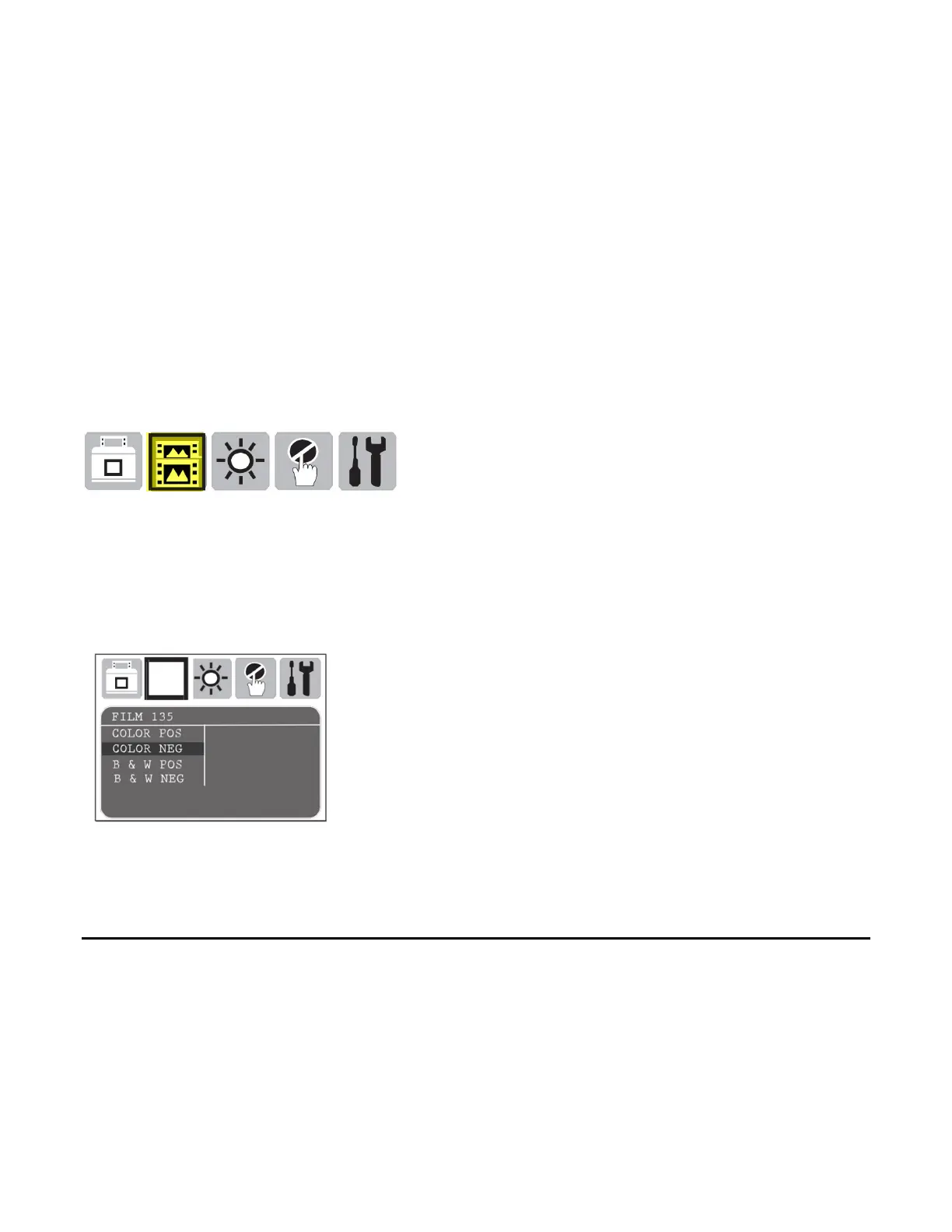
In Scan mode select your film type
a. Press OK button to display scanning options menu icons.
b. Press the Up/Down arrows to highlight the desired film type
Color POS Slides
Color NEG for Negative film strips
B&W POS for Black and White slides
B&W NEG for Black and White Negative film strips
Insert the Film / Slide holder – As directed in the manual
Press SCAN button green LED will flash and “CAPTURING” will be displayed on the preview screen.
Scanning of the Film / Slide is now complete.
FILE TRANSFER
To transfer files to a computer, connect the unit directly via the supplied USB cable, or remove the card
and use your own media card reader
Connect the box direct, once connected the scanner will appear as a removable hard drive allowing for
the transfer of the files from the card to the computer.
Windows PC - It will appear under “Computer “ as a removable drive letter



 To Next Page