✔
Listen to your favourite songs!
✔
Exchange your data
The Packard Bell Fresh allows you to listen to MP3/WMA
music files and perform voice recordings. Certain models
also include an FM radio. You can also use your player as
a Mass Storage Device to store your data files or transfer
them to another computer.
FFrreesshh FFeeaattuurreess
• MP3/WMA player
• Built in 128 / 256 / 512 / 1024 / 2048MB flash memory
• Voice recorder
• USB mass storage device
• Integrated USB connector
• Backlit display
• ID3 Tag display
• No cable required
• Requires 1 AAA / LR03 battery
• Upgradeable Firmware
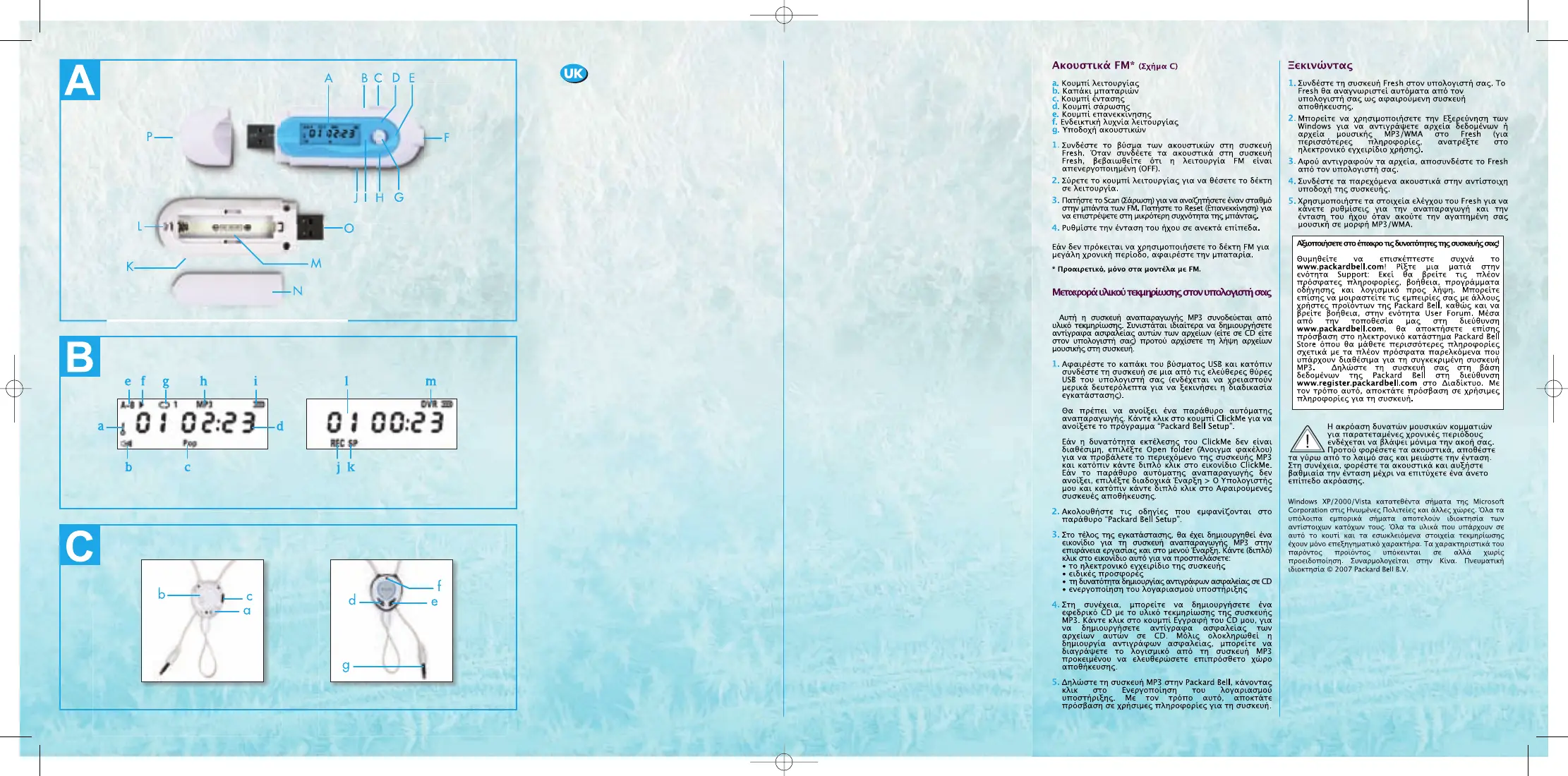
CCoonnttrroollss
((FFiigguurree AA))
A. LCD Display
B. Microphone
C. Hold Switch: Slide to lock the controls and prevent any
accidental operation while recording or playing. Slide
backward to unlock.
D. Volume Up
E. Next/Fast Forward
F. Earphone jack
G. Power on/Play/Pause/Select
• Press to turn the player on.
• In playback mode, press down to play a track. During
playback, press to pause and again to resume playback.
• In browsing mode, move up/down/right/left to scroll.
H. Volume Down
I. Previous/Fast-Rewind
J. Stop/Power off
K. Menu/A-B repeat: Press to access the Main Menu
(MUSIC, RECORD, VOICE, NAVIG, SETUP, ERASE,
ABOUT, EXIT).
L. Neck strap slot
M. Battery compartment
N. Battery compartment cover
O. USB port
P. USB port cover
SSccrreeeenn DDiissppllaayy
((FFiigguurree BB))
FFMM eeaarrpphhoonneess**
((FFiigguurree CC))
1.
Plug the earphone jack into your Fresh. Make sure the FM
is OFF when the earphones are connected to the Fresh.
2. Slide the Power button to turn on the radio.
3. Press Scan to search for an FM station. Press Reset to go
back to the minimum frequency.
4. Adjust the volume to a comfortable level.
Take out the battery if you do not use the FM radio for a long
period of time.
* On FM models only.
TTrraannssffeerrrriinngg DDooccuummeennttaattiioonn ttoo yyoouurr ccoommppuutteerr
Your MP3 Player contains your user documentation. It is
strongly recommended that you create a backup of these files
(either on a CD or on your computer) before you start down-
loading any music files on your player.
1.
Remove the USB port cover and connect the player to one
of your computer’s USB ports (the installation process
might take a few seconds to start).
An AutoPlay window should open. Click on the ClickMe
button to open the Packard Bell Setup program.
If the option to run ClickMe is not available, select open
folder to open the content of the MP3 player and double-
click on the ClickMe icon. If the AutoPlay window does-
n't open, click on Start, My Computer and double-click
on removable storage device.
2.
Follow the instructions in the Packard Bell Setup window.
3.
At the end of the installation an MP3 player icon will
be created on your desktop and in the start menu.
Click on it to access:
• the electronic user guide of your player,
• special offers,
• the possibility to burn a backup CD,
• activating your Support Account.
a.
Power button
b.
Battery cover
c.
Volume knob
d.
Scan button
e.
Reset button
f.
Power indicator
g.
Earphone jack
a.
Hold icon
b.
Volume
c.
Equalizer mode
d.
Track play time
e.
A-B Mode indication
f.
Play/Pause
g.
Play mode
h.
MP3 mode
i.
Battery Indicator
j.
Recording mode
k.
Recording rate
l.
Track number
m.
Voice mode
2
19


 To Next Page
 Loading...