EasyManua.ls Logo

Panasonic DVD-LV70 - User Manual

Panasonic DVD-LV70
51 pages
Print Icon
To Next Page IconTo Next Page
Loading...
Panasonic
Portable DVD/Video CD/CD Player
Operating Instructions
Model No.
DVD-LV75
DVD-LV70
DVD-LV55
,% _ ,_
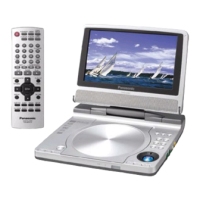
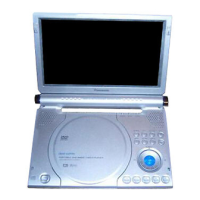
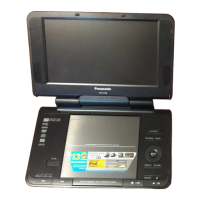
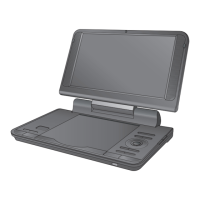
The photographs show DVD-LV75.
PalmTheater._?
V I D E O '_ [DIGITAL VIDEO)
Dear customer
Thank you for purchasing this product.
For optimum performance and safety, please read these instructions carefully.
Before connecting, operating or adjusting this product, please read these instructions com-
pletely. Please keep this manual for future reference.
I_ ILILILILILILILILIL_-'_[o]"_,j
The servicenter list and warranty can be found on pages 48 and 50.
In the U.S.A.: http://www.panasonic.com
[_ In Canada: www.panasonic.ca
RQT5897-Y
Question and Answer IconNeed help?

Do you have a question about the Panasonic DVD-LV70 and is the answer not in the manual?

Summary

Important Safety Instructions

Listening Caution

Disc Information

Disc and Unit Handling Precautions

Preparing the Remote Control

Insert the Battery

Instructions for inserting the battery into the remote control.

Replacing the Button-Type Battery

Guidance on replacing the battery when the remote control fails.

Power Supply

Using the AC Adaptor

Steps for connecting and using the AC power adapter for the unit.

Using the Battery Pack (Lithium Ion Battery Pack)

Attach the Battery Pack

Instructions for securely fitting the battery pack onto the unit.

Recharge the Battery Pack

Steps for recharging the battery pack using the AC adapter.

Basic Play

Prepare the Power Supply

Ensures the unit is ready for playback by connecting power sources.

Using Menus: Basic Operations

Navigating and selecting options within the player's menus.

Stopping Play

During Play

How to pause playback and resume from the stopped point.

Resume Function

Utilizes the unit's memory to restart playback from a previous position.

Chapter Preview

Displays the beginning of chapters for quick selection during playback.

Basic Play

Pausing Play

Temporarily stops playback and allows resuming later.

Skipping Chapters and Tracks

Navigating between different chapters or tracks on the disc.

Slow Motion

Playing the disc content at reduced speeds for detailed viewing.

Fast Forward and Rewind-SEARCH

Quickly scanning through the disc content forward or backward.

Frame-by-Frame Viewing

Advancing the picture one frame at a time for detailed analysis.

Starting Play from a Selected Title or Track

*When Playing Video CDs with Playback Control

Special steps for VCDs with interactive playback features.

To Restore Menu Play

Re-enabling menu interaction after canceling it.

Returning to a Menu

Other Play Modes

Program Play

Creating a custom playlist of tracks from a disc.

Random Play

Playing tracks from a disc in an unpredictable order.

Changing Soundtracks, Subtitle Languages and Angles

Changing Soundtracks

Selecting different audio tracks available on a DVD.

Changing Subtitle Languages

Selecting desired subtitle language tracks for DVD playback.

Switching Angles

Changing camera angles during playback if multiple angles are available.

Switching Vocals ON or OFF for Karaoke Discs

During Play

Adjusting vocal tracks for karaoke discs during playback.

Use the Cursor Jockey

Navigating audio modes using the unit's directional controls.

Changing the Monitor Settings

Changing the Size of the Picture

Adjusting the aspect ratio and zoom level of the displayed image.

Adjusting the Brightness

Modifying the overall lightness or darkness of the screen display.

Adjusting Color Intensity

Fine-tuning the saturation or hue of the picture colors.

Changing the Size of the Picture

The Picture Mode and Size

Details on how different picture modes affect display on various screen types.

Adjusting the Brightness

Adjusting Color Intensity

Enjoying Virtual Surround Sound (V.S.S.)

Virtual Surround Sound

Simulating surround sound effects using only the unit's speakers or headphones.

Enjoying Surround Effects Through Headphones

Setup for achieving surround effects with headphones connected to the unit.

Enjoying Surround Effects Through 2 Speakers

Connecting external speakers to experience surround sound.

Using On-Screen Menu Icons

Basic Operation

How to access and navigate on-screen menus for disc and unit information.

Icons for Disc Information

On-screen icons providing details about the current DVD, Video CD, or CD.

Icons for Unit Information

On-screen icons displaying player status and available functions.

Shuttle Screen

Interface for controlling playback speed, rewind, and fast forward.

Using On-Screen Menu Icons (Continued)

Icons for Disc Information

Detailed explanation of icons related to disc content like audio and subtitles.

Audio;Subtitle Language

Options for selecting audio tracks and subtitle languages for DVDs.

Signal Type;Data

Information on signal characteristics like sampling frequency and bit depth.

Using On-Screen Menu Icons (Continued)

Icons for Unit Information

Icons for advanced playback features like repeat play and markers.

A-B Repeat Play

Setting start and end points to repeat a specific segment of playback.

Repeat Play

Options for repeating tracks, titles, or the entire disc.

Play Modes

Selecting playback modes like Normal, Program, or Random for CDs/VCDs.

Dialogue Enhancer

Adjusting audio to emphasize dialogue from the center channel.

Marker

Creating and recalling specific points within a disc for quick access.

V.S.S. Mode;V.S.S. Level

Configuring Virtual Surround Sound modes and levels.

Using On-Screen Menu Icons (Continued)

Shuttle Screen

Visual interface for controlling playback speeds like slow motion and search.

Changing Initial Settings

Common Procedures

Steps to access and navigate the initial settings menu for customization.

Changing Initial Settings (Continued)

1 Disc Languages

Setting preferred languages for audio, subtitles, and menus on DVDs.

Changing Initial Settings (Continued)

2 Ratings

Setting parental controls to limit playback of discs with certain content.

3 Menu Language

Changing the language displayed in the player's on-screen menus.

Changing Initial Settings (Continued)

4 On-Screen Messages

Customizing the display and color of on-screen notifications.

9 Other Settings

Changing Initial Settings (Continued)

<Still Mode>

Selecting between field or frame stills for paused video.

<Audio During Search>

Enabling or disabling audio playback during fast forward/rewind.

<TV Mode (4:3)>

Configuring display for widescreen content on standard TVs.

<D. (Dynamic) Range Compression>

Adjusting audio dynamic range for low-volume listening.

<Still Picture Display>

Choosing the picture type (I, P, B) for still images.

Connecting Other Equipment

Using Headphones

Watching Video from a Video Camera

Enjoying a Larger Screen

Connecting to a Television

Steps for connecting the player to a TV for a larger viewing experience.

Selecting TV Screen Type

Preparations

Initial steps required before setting the TV aspect ratio.

Factory Preset

Default settings for TV aspect ratio and display options.

Enjoying More Powerful Sound

Connection to an Amplifier with 5.1 Channel Input Terminals

Connecting the unit to a 5.1 channel amplifier for surround sound.

Connection to an Amplifier with a Built-in Decoder (or an Amplifier and Decoder Combination) (Digital Connection)

Connection to a 2-Channel Amplifier or Mini-System (Analogue Connection)

Connect the Equipment

Steps for making analogue connections to a stereo amplifier or mini-system.

To Enjoy Dolby Pro Logic

Additional connections required for Dolby Pro Logic surround sound.

When Recording Audio

Guidelines for recording audio from the unit to external devices.

Connection to a 2-Channel Digital Amplifier or Mini-System (Digital Connection)

<Digital Recording>

Recording digital audio signals directly to an MD player.

Speaker Settings DVD-LV75

Preparation

Ensuring the unit and connected equipment are ready for speaker configuration.

Multi-channel

Configuring speaker settings for systems with three or more speakers.

2-Channel

Setting up the player for stereo sound or Dolby Pro Logic systems.

Speaker Settings DVD-LV75 (Continued)

Type of Speakers to be Connected

Selecting speaker size (Large/Small) and subwoofer presence.

Delay Time

Adjusting speaker delay to compensate for different listening distances.

Output Balance

Adjusting speaker volume levels for optimal sound balance.

Digital Settings

Preparation

Ensuring the unit and connected equipment are ready for digital audio configuration.

PCM Down Conversion

Setting PCM output for DVDs recorded in high-resolution formats.

Dolby Digital

Configuring Dolby Digital audio output settings (Bitstream/PCM).

DTS Digital Surround

Configuring DTS Digital Surround audio output settings.

Digital Settings (Continued)

PCM Down Conversion

Details on PCM output settings for DVDs and connection types.

Dolby Digital

Explains Bitstream vs PCM output for Dolby Digital audio.

DTS Digital Surround

Explains output settings for DTS Digital Surround audio.

Troubleshooting Guide

Troubleshooting Guide (Continued)

Troubleshooting Guide (Continued)

NO PLAY

Troubleshooting steps when the unit cannot play a disc.

Messages Do Not Appear on the Television

Solutions for missing or mispositioned on-screen messages.

On-Screen Menu Icons Are Cut Off or Are Not Displayed at All

Adjusting the position of on-screen menu icons.

U11

General error code indicating a problem requiring troubleshooting.

H □□ Stands for a Number

Explains error codes starting with 'H' and troubleshooting steps.

Displays

[] and [CHG] Indicators

Maintenance

Procedures for cleaning the unit and its lens.

Glossary

Specifications

Servicenter List (Only for U.S.A.)

Accessory Purchases

Contact information for ordering replacement parts and accessories.

Factory Servicenters Locations

List of authorized service centers for product repair and support.

Product Service

Product Information

How to obtain product service, information, or assistance.

Panasonic;Technics DVD Player Limited Warranty

LIMITS AND EXCLUSIONS

Terms and conditions of the product's limited warranty.

If You Ship the Product

Instructions for packing and shipping the product for service.

Summary

Important Safety Instructions

Listening Caution

Disc Information

Disc and Unit Handling Precautions

Preparing the Remote Control

Insert the Battery

Instructions for inserting the battery into the remote control.

Replacing the Button-Type Battery

Guidance on replacing the battery when the remote control fails.

Power Supply

Using the AC Adaptor

Steps for connecting and using the AC power adapter for the unit.

Using the Battery Pack (Lithium Ion Battery Pack)

Attach the Battery Pack

Instructions for securely fitting the battery pack onto the unit.

Recharge the Battery Pack

Steps for recharging the battery pack using the AC adapter.

Basic Play

Prepare the Power Supply

Ensures the unit is ready for playback by connecting power sources.

Using Menus: Basic Operations

Navigating and selecting options within the player's menus.

Stopping Play

During Play

How to pause playback and resume from the stopped point.

Resume Function

Utilizes the unit's memory to restart playback from a previous position.

Chapter Preview

Displays the beginning of chapters for quick selection during playback.

Basic Play

Pausing Play

Temporarily stops playback and allows resuming later.

Skipping Chapters and Tracks

Navigating between different chapters or tracks on the disc.

Slow Motion

Playing the disc content at reduced speeds for detailed viewing.

Fast Forward and Rewind-SEARCH

Quickly scanning through the disc content forward or backward.

Frame-by-Frame Viewing

Advancing the picture one frame at a time for detailed analysis.

Starting Play from a Selected Title or Track

*When Playing Video CDs with Playback Control

Special steps for VCDs with interactive playback features.

To Restore Menu Play

Re-enabling menu interaction after canceling it.

Returning to a Menu

Other Play Modes

Program Play

Creating a custom playlist of tracks from a disc.

Random Play

Playing tracks from a disc in an unpredictable order.

Changing Soundtracks, Subtitle Languages and Angles

Changing Soundtracks

Selecting different audio tracks available on a DVD.

Changing Subtitle Languages

Selecting desired subtitle language tracks for DVD playback.

Switching Angles

Changing camera angles during playback if multiple angles are available.

Switching Vocals ON or OFF for Karaoke Discs

During Play

Adjusting vocal tracks for karaoke discs during playback.

Use the Cursor Jockey

Navigating audio modes using the unit's directional controls.

Changing the Monitor Settings

Changing the Size of the Picture

Adjusting the aspect ratio and zoom level of the displayed image.

Adjusting the Brightness

Modifying the overall lightness or darkness of the screen display.

Adjusting Color Intensity

Fine-tuning the saturation or hue of the picture colors.

Changing the Size of the Picture

The Picture Mode and Size

Details on how different picture modes affect display on various screen types.

Adjusting the Brightness

Adjusting Color Intensity

Enjoying Virtual Surround Sound (V.S.S.)

Virtual Surround Sound

Simulating surround sound effects using only the unit's speakers or headphones.

Enjoying Surround Effects Through Headphones

Setup for achieving surround effects with headphones connected to the unit.

Enjoying Surround Effects Through 2 Speakers

Connecting external speakers to experience surround sound.

Using On-Screen Menu Icons

Basic Operation

How to access and navigate on-screen menus for disc and unit information.

Icons for Disc Information

On-screen icons providing details about the current DVD, Video CD, or CD.

Icons for Unit Information

On-screen icons displaying player status and available functions.

Shuttle Screen

Interface for controlling playback speed, rewind, and fast forward.

Using On-Screen Menu Icons (Continued)

Icons for Disc Information

Detailed explanation of icons related to disc content like audio and subtitles.

Audio;Subtitle Language

Options for selecting audio tracks and subtitle languages for DVDs.

Signal Type;Data

Information on signal characteristics like sampling frequency and bit depth.

Using On-Screen Menu Icons (Continued)

Icons for Unit Information

Icons for advanced playback features like repeat play and markers.

A-B Repeat Play

Setting start and end points to repeat a specific segment of playback.

Repeat Play

Options for repeating tracks, titles, or the entire disc.

Play Modes

Selecting playback modes like Normal, Program, or Random for CDs/VCDs.

Dialogue Enhancer

Adjusting audio to emphasize dialogue from the center channel.

Marker

Creating and recalling specific points within a disc for quick access.

V.S.S. Mode;V.S.S. Level

Configuring Virtual Surround Sound modes and levels.

Using On-Screen Menu Icons (Continued)

Shuttle Screen

Visual interface for controlling playback speeds like slow motion and search.

Changing Initial Settings

Common Procedures

Steps to access and navigate the initial settings menu for customization.

Changing Initial Settings (Continued)

1 Disc Languages

Setting preferred languages for audio, subtitles, and menus on DVDs.

Changing Initial Settings (Continued)

2 Ratings

Setting parental controls to limit playback of discs with certain content.

3 Menu Language

Changing the language displayed in the player's on-screen menus.

Changing Initial Settings (Continued)

4 On-Screen Messages

Customizing the display and color of on-screen notifications.

9 Other Settings

Changing Initial Settings (Continued)

<Still Mode>

Selecting between field or frame stills for paused video.

<Audio During Search>

Enabling or disabling audio playback during fast forward/rewind.

<TV Mode (4:3)>

Configuring display for widescreen content on standard TVs.

<D. (Dynamic) Range Compression>

Adjusting audio dynamic range for low-volume listening.

<Still Picture Display>

Choosing the picture type (I, P, B) for still images.

Connecting Other Equipment

Using Headphones

Watching Video from a Video Camera

Enjoying a Larger Screen

Connecting to a Television

Steps for connecting the player to a TV for a larger viewing experience.

Selecting TV Screen Type

Preparations

Initial steps required before setting the TV aspect ratio.

Factory Preset

Default settings for TV aspect ratio and display options.

Enjoying More Powerful Sound

Connection to an Amplifier with 5.1 Channel Input Terminals

Connecting the unit to a 5.1 channel amplifier for surround sound.

Connection to an Amplifier with a Built-in Decoder (or an Amplifier and Decoder Combination) (Digital Connection)

Connection to a 2-Channel Amplifier or Mini-System (Analogue Connection)

Connect the Equipment

Steps for making analogue connections to a stereo amplifier or mini-system.

To Enjoy Dolby Pro Logic

Additional connections required for Dolby Pro Logic surround sound.

When Recording Audio

Guidelines for recording audio from the unit to external devices.

Connection to a 2-Channel Digital Amplifier or Mini-System (Digital Connection)

<Digital Recording>

Recording digital audio signals directly to an MD player.

Speaker Settings DVD-LV75

Preparation

Ensuring the unit and connected equipment are ready for speaker configuration.

Multi-channel

Configuring speaker settings for systems with three or more speakers.

2-Channel

Setting up the player for stereo sound or Dolby Pro Logic systems.

Speaker Settings DVD-LV75 (Continued)

Type of Speakers to be Connected

Selecting speaker size (Large/Small) and subwoofer presence.

Delay Time

Adjusting speaker delay to compensate for different listening distances.

Output Balance

Adjusting speaker volume levels for optimal sound balance.

Digital Settings

Preparation

Ensuring the unit and connected equipment are ready for digital audio configuration.

PCM Down Conversion

Setting PCM output for DVDs recorded in high-resolution formats.

Dolby Digital

Configuring Dolby Digital audio output settings (Bitstream/PCM).

DTS Digital Surround

Configuring DTS Digital Surround audio output settings.

Digital Settings (Continued)

PCM Down Conversion

Details on PCM output settings for DVDs and connection types.

Dolby Digital

Explains Bitstream vs PCM output for Dolby Digital audio.

DTS Digital Surround

Explains output settings for DTS Digital Surround audio.

Troubleshooting Guide

Troubleshooting Guide (Continued)

Troubleshooting Guide (Continued)

NO PLAY

Troubleshooting steps when the unit cannot play a disc.

Messages Do Not Appear on the Television

Solutions for missing or mispositioned on-screen messages.

On-Screen Menu Icons Are Cut Off or Are Not Displayed at All

Adjusting the position of on-screen menu icons.

U11

General error code indicating a problem requiring troubleshooting.

H □□ Stands for a Number

Explains error codes starting with 'H' and troubleshooting steps.

Displays

[] and [CHG] Indicators

Maintenance

Procedures for cleaning the unit and its lens.

Glossary

Specifications

Servicenter List (Only for U.S.A.)

Accessory Purchases

Contact information for ordering replacement parts and accessories.

Factory Servicenters Locations

List of authorized service centers for product repair and support.

Product Service

Product Information

How to obtain product service, information, or assistance.

Panasonic;Technics DVD Player Limited Warranty

LIMITS AND EXCLUSIONS

Terms and conditions of the product's limited warranty.

If You Ship the Product

Instructions for packing and shipping the product for service.

Panasonic DVD-LV70 Specifications

General IconGeneral
Screen Size7 inches
Resolution480 x 234 pixels
Playable MediaDVD, CD
Built-in SpeakersYes
Headphone JackYes
Power SourceAC Adapter, Rechargeable Battery
Remote ControlYes
Audio OutputStereo
Supported FormatsDVD, DVD-R, DVD-RW, CD, CD-R, CD-RW, MP3
OutputComposite Video
Aspect Ratio4:3, 16:9
Region Code1

Related product manuals