148
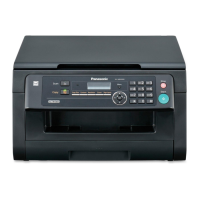
KX-MC6020HX
8.1.5. Connecting to a computer
Panasonic Multi-Function Station software enables the unit to carry out the following functions:
- Printing on plain paper, thin and thick paper,transparencies, labels, envelopes and card stocks
- Scanning documents and converting an image into text with Readiris OCR software
- Scanning from other applications for Microsoft
®
Windows
®
that support TWAIN scanning and WIA scanning (Windows XP/
Windows Vista
®
, USB connection only)
- Storing, editing or erasing items in directories using your computer
- Programming the features using your computer
- Sending, receiving fax documents using your computer
To use Multi-Function Station on your computer, the following are required:
Operating System:
Windows 98/Windows Me/Windows 2000/Windows XP/Windows Vista
CPU:
Windows 98/Windows Me/Windows 2000: Pentium
®
or higher processor
Windows XP: Pentium or higher processor
Windows Vista: Pentium 4 or higher processor
RAM:
Windows 98/Windows Me: 64 MB (128 MB or more recommended)
Windows 2000/Windows XP: 128 MB (256 MB or more recommended)
Windows Vista: 512 MB (1,024 MB or more recommended)
Other Hardware:
CD-ROM drive
Hard disk drive with at least 150 MB of available space
USB interface
LAN interface (10Base-T/100Base-TX)
Other:
Internet Explorer
®
5.0 or later
Warning:
• To assure continued emission limit compliance;
- use only shielded USB cable (Example: Hi-Speed USB 2.0 certified cable).
- use only shielded LAN cable (category 5 straight cable).
• To protect the unit, use only shielded USB cable in areas where thunderstorms occur.
Note:
• A USB cable is not supplied. Please purchase a shielded Type-A male/Type-B male USB cable.
8.1.6. Installing Multi-Function Station on a computer
• Install Multi-Function Station (CD-ROM) before connecting the unit to a computer with USB cable. If the unit is con-
nected to a computer with USB cable before installing Multi-Function Station, the [Found New Hardware Wizard] dia-
logue box will appear. Click [Cancel] to close it.
• The screenshots shown in these instructions are for Windows XP and are included for reference only.
• The screenshots shown in these instructions may differ slightly from those of the actual product.
• Software features and appearance are subject to change without notice.
1 Start Windows and exit all other applications.
• For Windows 2000, Windows XP and Windows Vista users, you must be logged in as an administrator in order to install Multi-
Function Station.
2 Insert the supplied CD-ROM into your CD-ROM drive.
• If the [Select Language] dialogue box appears, select the language that you want to use with this software. Click [OK].
• If the installation does not start automatically:
Click [Start]. Choose [Run... ]. Type “D:\install” (where “D:” is the drive letter of your CD-ROM drive). Click [OK ].
(If you are not sure what the drive letter is for your CD-ROM drive, use Windows Explorer and look for the CD-ROM drive.)
3 [Easy installation]
• The installation will start automatically.
4 When the setup program starts, follow the on-screen instructions.
• Readiris OCR software and Device Monitor will also be installed.



 To Next Page
 Loading...