Using VIERA Link
ENGLISH
- 99
Appendix
●
[HOME CINEMA VOLUME]
You can adjust the volume of the cinema speaker with the
projector remote control.
z
If the volume cannot be adjusted, check the settings
of the device.
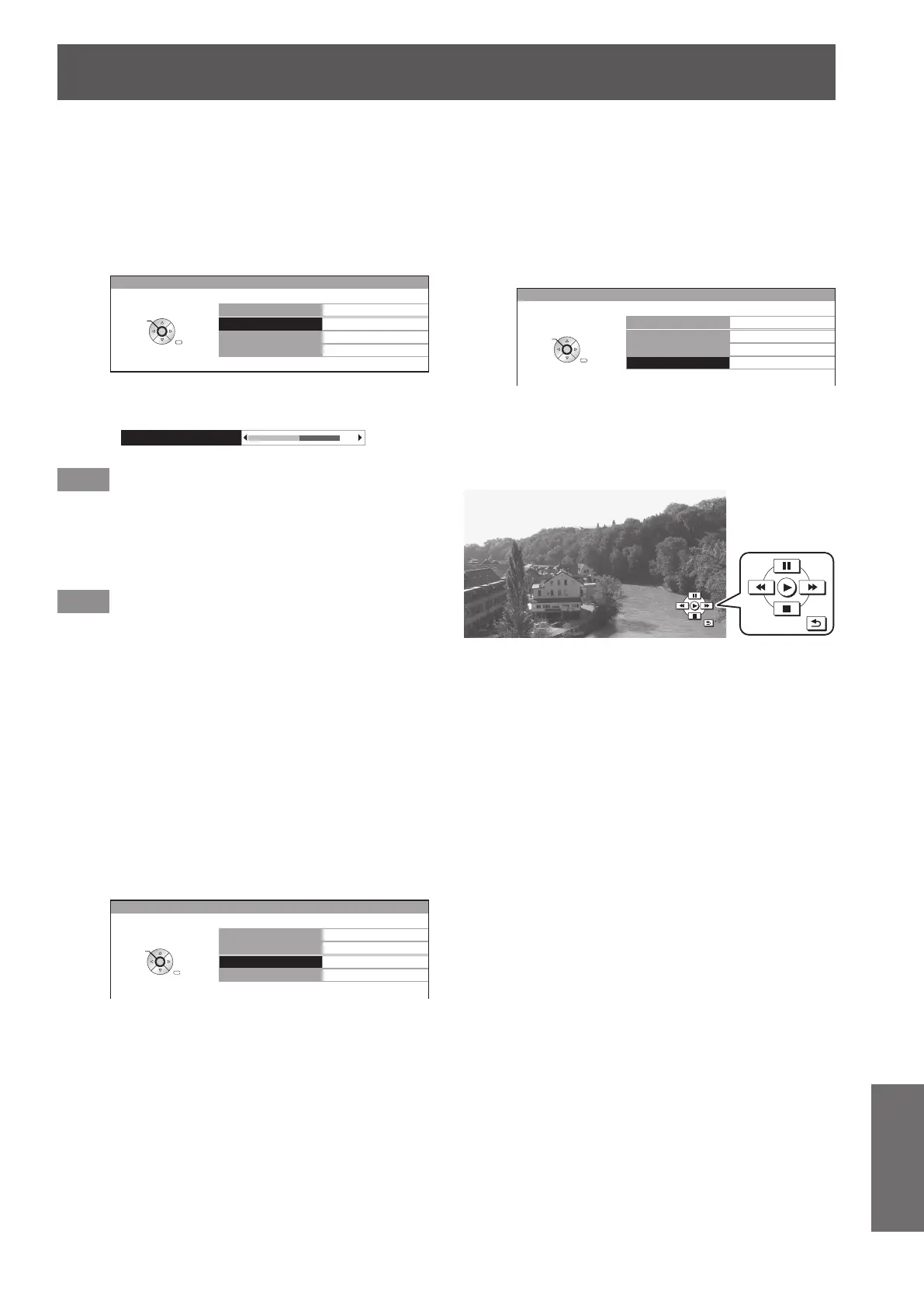
1) Select [HOME CINEMA VOLUME] with
the ▲▼ buttons.
VIERA LINK CONTROL
HOME CINEMA VOLUME
HOME CINEMA MUTE
OPERATE OTHER DEVICE
RECORDER
VIERA LINK MENU
RETURN
SELECT
ENTER
2) Press the <ENTER> button.
z
The volume adjustment bar appears.
HOME CINEMA VOLUME
64
Note
z
The design of the volume adjustment bar may differ
depending on the connected device.
3) Press the ◄► buttons to adjust the
volume of the device.
Note
z
The speaker functions may not work properly depending
on the connected device.
z
The image or sound may not be available for the rst few
seconds after the input mode is switched.
z
HDAVI Control 5 is the latest Panasonic standard (current
as of September, 2012) for HDAVI Control compatible
devices.
●
[HOME CINEMA MUTE]
You can mute cinema speakers using the projector remote
control.
z
If you cannot mute the speakers, check the settings
of the device.
1) Select [HOME CINEMA MUTE] with the
▲▼ buttons.
VIERA LINK CONTROL
HOME CINEMA VOLUME
HOME CINEMA MUTE
OPERATE OTHER DEVICE
RECORDER
VIERA LINK MENU
RETURN
SELECT
ENTER
2) Press the <ENTER> button.
z
Press the <ENTER> button again to cancel the
mute.
●
[OPERATE OTHER DEVICE]
When displaying videos using HDMI input from a third party
external device that supports VIERA Link, you can display
the remote control screen and control the external device
with the projector remote control.
1) Select [OPERATE OTHER DEVICE] with
the ▲▼ buttons.
VIERA LINK CONTROL
HOME CINEMA VOLUME
HOME CINEMA MUTE
OPERATE OTHER DEVICE
RECORDER
VIERA LINK MENU
RETURN
SELECT
ENTER
2) Press the <ENTER> button.
z
A remote control image appears on the screen.
Use this image to operate the device.


 To Next Page