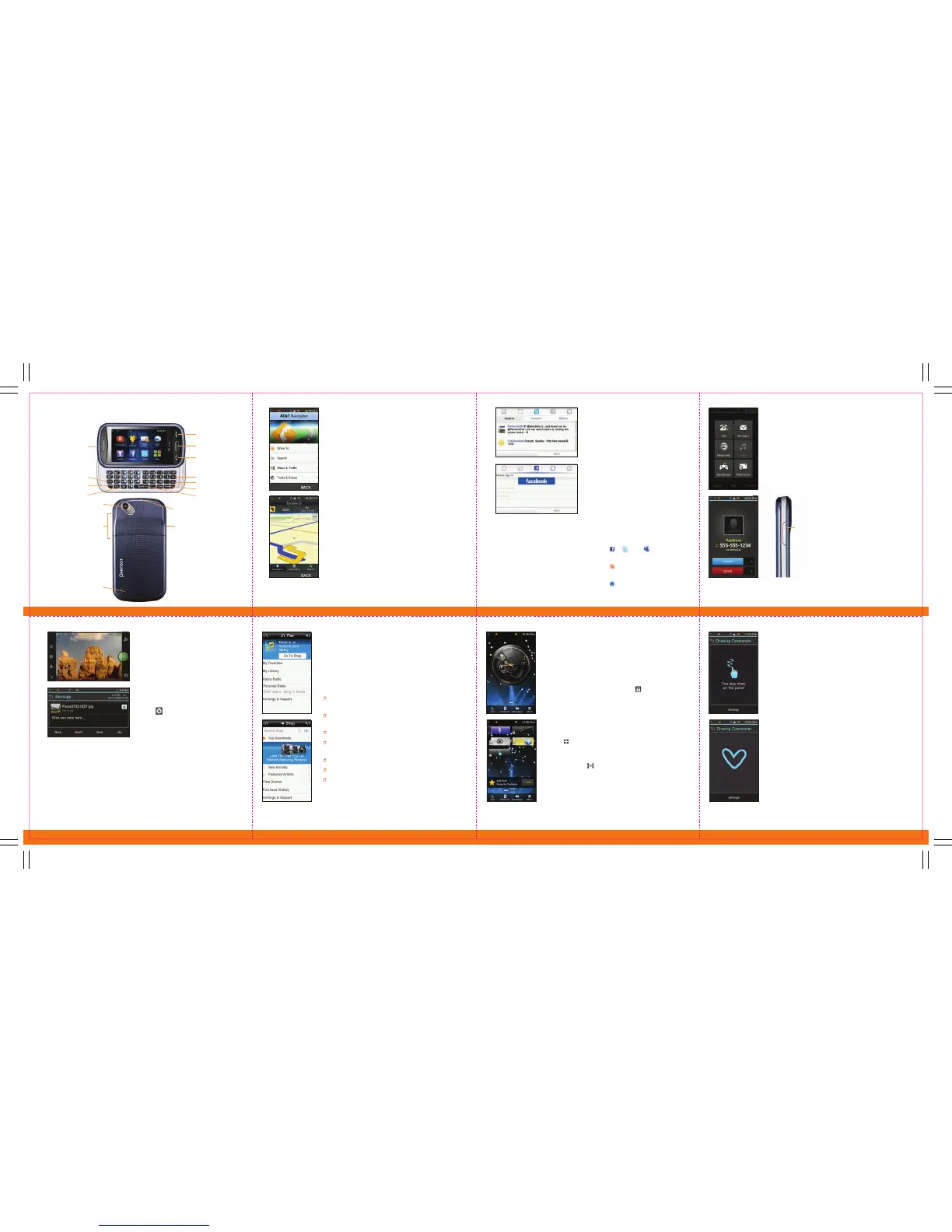
Clear key
Space key
Delete key
Enter key
Symbol key
Vibrate key
Earpiece
End key
Call key
CAPS key
Function key
Charger
Slot/Ear Mic
Camera
Speaker
Volume
Up/Down
key
Getting to Know Your Phone
For more information, visit www.att.com/navigator
AT&T Navigator
SM
AT&T Navigator with GPS-enabled
directions is the fastest way to get
where you are going – whether
across town or across the country.
To Start AT&T Navigator
• From the idle screen, tap Menu.
• Tap AT&T Navigator.
• Enter your phone number and tap Go.
Navigator Options
• Drive To – select a destination.
• Search – find a location.
• Maps & Traffic – get traffic information.
• Tools & Extras – learn about AT&T Navigator
and set your preferences.
AT&T Social Net
SM
Access the latest news as well as
popular social networks – including
Facebook,® Twitter,™ and MySpace™ –
all in one place.
• From the idle screen, tap Menu
and then tap AT&T Social Net.
• To accept data charges if asked,
tap Continue. To accept the
End User License Agreement,
tap Accept.
• Enter your phone number and
email address.
• Enter the required information and
then tap Save, then Done.
Access Social Networks and Information
• Press ,
, or
to update
your status.
• Press
for the latest news and
information.
• Press
for a snapshot of all your
status updates.
Note: Music and voice applications cannot be used at the same time.
Take and
Send Pictures
Capture the action as it happens –
share life’s precious moments with
a click of a button.
Take a Picture
• From the idle screen, press the
Camera key.
• Press to take a picture.
Send a Picture
• To send a picture message to an
email or other mobile phone, tap
the send icon and select Via
Multimedia Message. Your picture
will be inserted into a message screen.
• Select your recipients and tap
Send when you are ready.
Note: To record video, select Video Camera from the Options menu in the camera.
Photos will automatically be saved in Menu > Camera > My Pictures. Videos will
automatically be saved in Menu > Camera > My Videos.
Note: When taking, processing, or using the camera, obey all laws which may restrict your
use of the camera.
AT&T Mobile Music
SM
AT&T Mobile Music provides the ultimate music
experience. Listen to your favorite music, watch
the latest music videos, and stay in the know with
music news and more.
• From the home screen, tap Main Menu and
select AT&T Music.
Listen to your music collection with an enhanced
music player for your phone.
Access your music collection by song, artist, album,
genre, or playlist.
Listen to 40+ commercial-free genre radio stations.
Get your radio your way with unlimited personal
radio stations.
Name that song with Song Match.
Get unlimited lyrics look-up with Lyric Match.
Buy songs and albums from your favorite artists and
download them right to your phone!
Touchscreen Navigation
Navigate with a tap or slide of your finger on
the Laser’s touchscreen.
Locking and Unlocking the Touchscreen
• Lock or unlock the phone’s display by
pressing any hard key to turn on the
display, then touch and hold on
the screen.
Customizing the Apps and FAVs Screens
• From the idle screen, scroll to the left to
navigate to the Apps screen or to the right
to navigate to the FAVs screen.
• Tap and select an item from the list
to add.
• If there are one or more items on the
screen, use to add or remove items.
• To reposition items, select the icon, drag it
to the desired position, and release it.
Drawing Commander
Drawing Commander gives you fast access to
your favorite applications and items by tracing
shapes on the screen.
• To set a command, tap
Menu > Tools > Drawing Commander.
• Tap Setting > Add.
• Choose Dialer to dial a contact or Shortcut
to add a favorite program or folder.
• Select a shape to assign to your command
and tap Save.
• To use commands, tap
Menu > Tools > Drawing Commander,
then draw the command on the panel.
Lock key
Volume Up
Multitasking
Multitask simultaneously with voice and data – while
on a call, you can browse the Web or send and
receive messages.
• If you’re on a call and want to launch another task,
press and hold the Up Volume key and scroll
through and select the task you want to launch.
• If you get a call while in another task, you can
accept the call, then return to the task after
the call has ended.


 To Previous Page
 Loading...













