[©Copyright2011ParTech,Inc.Allrightsreserved.] page2 772228802
EverServ ™ 6000 POS Terminal Setup Guide
ConnectingYourPeripherals
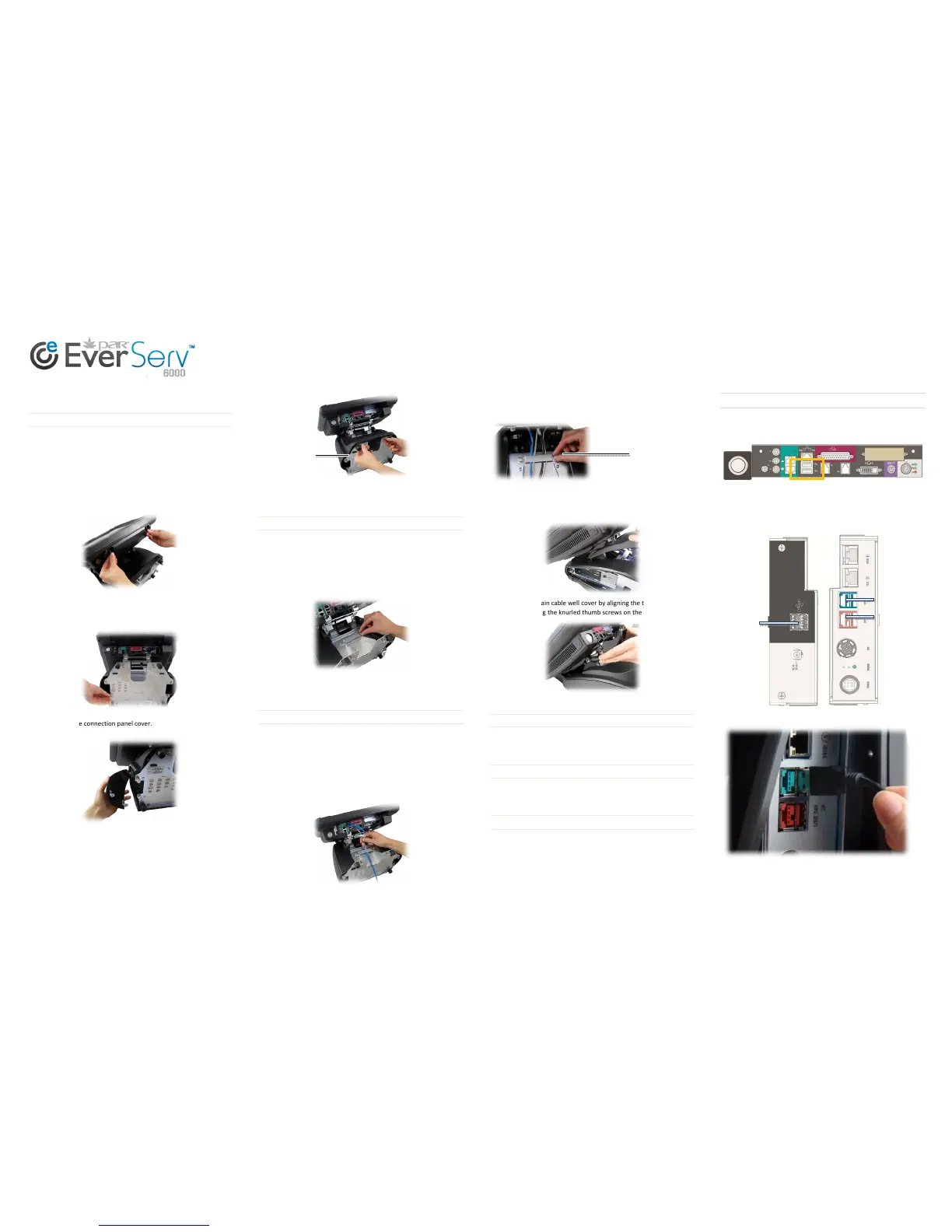
RemoveCoverstoAccessConnectionPanels
1.Lay the terminalon thecounter on itsbackwith the bottomfacing
you.
2.Tiltthetopcoverup.
3. Loosen the knurled thumb screws and remove the main cable
connectioncover from thedisplay assembly. Setthe cableconnection
coveraside.
4.Loosenthetwocaptivescrewsthatsecuretheleftsideconnection
panelcovertotheterminal.
5.Removethesideconnectionpanelcover.
6.Repeatsteps4and5 ontherightsideoftheterminaltoremovethe
rightsidecableconnectionpanelcover.
7.Onthebottomoftheterminal,loosenthetoptwoscrewsandliftup
toremovethecablechasecoverfromtheterminalbase.
Now you have complete access to the connection ports on the POS
terminal.
RemoveCableRetainers
Your EverServ 6000 POS terminal hastwo cable retainers that secure
your cables in places to keep them neat and organized and prevent
unintentionaldisconnection.
8. Locate the bottom cable retainer and loosen one screwto loosen
thecableretainerandswingitaside.
9.Locatethetopcableretainer
andloosenonescrewtoloosenthe
cableretainerandswingitaside.
ConnectPeripheralstoPOSTerminal
ConnectyourperipheralstoyourPOSterminal.Refertothe“Main
CableWell”sectiononpage1.
Whenyouhavefinished,usethecableretainerstosecureandorganize
yourcables.
10.Gatherthecablesinonehandandreplacethetopcableretainer,
securingthecablesneatlyinplace.Ensure
thecablesarenotkinkedor
stressed.
11.Arrangethecablessotheyareinarowonthecablechaseand
replacethebottomcableretainer.
12.Replacethecablechasecoverbyaligningthetabswiththeslots
andtighteningthethumbscrewsonthebaseofthePOS.
13.Replacethemaincablewellcoverbyaligningthetabswiththe
slotsandtighteningtheknurledthumbscrewsonthecover.
14.StandthePOSuprightonitsbase.
ConnectAdditionalPeripheralstoPOS
IfyourPOSterminalhastheoptionalexpansionboard,F7820,connect
additionalperipheralsasnecessary.Re ferto“OptionalExpansion
Board(F7820)”onpage1ofthisguide.
ReplacetheSideCableWellCovers
15.Replacethesidecablewellcoversandsecuretheminplaceby
tighteningthethumbscrewsonthebaseoftheterminal.Youmay
needtoresttheterminalonitsbacktodothis.
PoweronthePOSEquipment
16.PoweronthePOSterminal.Thepowerbuttonislocatedonthe
bottomleftsideofthetopcover.
17.Poweronyourperipherals.
ConnectingUSBDevices
ThePAREverServ6000POSTerminalhas6availableUSBPorts.
On the main cable connection panel under the top cover, there are
twostandardUSBports:
If your POSterminal hasthe optional expansionboard, F7820, onthe
leftsidecableconnection panel,therearetwostandardUSBports.On
the right side cable connection panel, there are two powered USB
ports:
Standard USB cables can be plugged into these powered USB Ports:
RemoveCable
ChaseCover
Ensurecablesareflat
anduntwisted
2Standard
USBPorts
12VPowered
24VPowered
USBPort



 To Previous Page
 Loading...