4 5
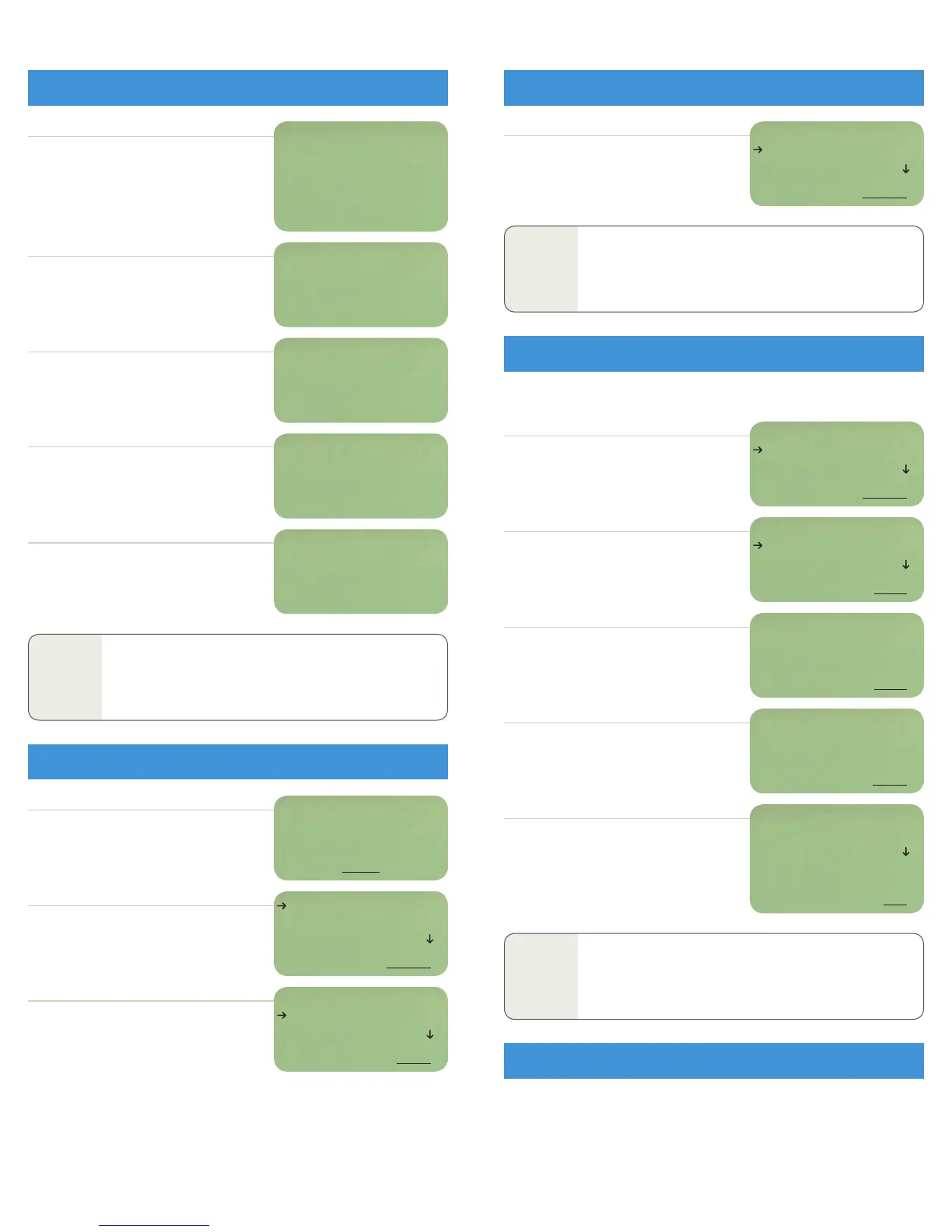
Up Arrow or Page Up to view these screen options:
Day, Date, Time, Direction.
Your distance from the nearest city.
Current HOS Regulation name.
When in Off Duty status, total Off Duty time (OFF)
is displayed next to the driver’s ID.
When in Sleeper Berth status, current Sleeper
Berth time (SB) is displayed next to the driver’s
ID, followed by time spent in the previous Sleeper
Berth period (SPLT) and the total combination
of the two Sleeper Berth periods (SBT).
Single driver views:
When in driving status, available Driving time (AD) is
displayed next to the driver’s ID, followed by available.
On Duty time (AON).
Team driver views:
Both driver’s IDs appear followed by their current
duty status. It will display time spent in the status
if they are in Off Duty or Sleeper Berth, or available
time if they are in On Duty or Driving status.
MENU to access main menu.
SELECT Driver Log to access the Driver Log menu.
Arrow down to select the driver name you want
to make active and press DONE. This option allows
teams to use the eDriver Logs
®
program. It is not
available when only one driver is logged in.
This option allows you or your co-driver to manually enter a duty status change.
This option allows you to signal a border crossing into the U.S. Mainland, Alaska, California,
Florida, Texas, Canada or Mexico. HOS are recalculated based on the country selected –
except for Mexico. Each driver needs to submit their own border crossing entry.
SELECT Change Duty Status from the driver
log menu.
Arrow Down to select your duty status.
Press NEXT.
Enter any remarks you want to appear in your log
and press DONE.
Remarks are optional. You can skip this screen by
selecting DONE.
NEXT to confirm your location. If this is not your
location, backspace to delete the location. Then,
use the keyboard to type the correct location.
LOCATION UNKNOWN – means you must enter
a location.
YES to confirm your duty status and location.
NO to cancel duty status change.
You will return to the main idle screen.
NOTE
The eDriver Logs
®
program allows drivers to split sleeper berth
periods. It will automatically calculate sleeper berth totals by
combining two sleeper berth periods that qualify according to
the regulations that the driver is operating under.
NOTE
While in Personal Conveyance: Idle screen will display APC Miles.
This stands for Available Personal Conveyance Miles. This display
tells the driver how many miles they have left to drive in PC per
company policy or MOT limit in Canada.
NOTE
For Personal Conveyance: In duty status selection menu use the
scroll button to select PC Off as a duty status selection. This choice
will enable the driver to utilize the Personal Conveyance exception
to Off Duty status per FMCSA and MOT Regulations.
Arrow down to the log function you want and
press SELECT.
BACK to return to the previous screen.
This screen is the driver log menu.
DRIVER: Glenn
CHANGE DUTY STATUS
VIEW HOURS
BACK SELECT
OPENING DRIVER LOG MENU (continued)
PEOPLENET
Fr 02/09 10:19 CST SE
2M N Chaska, MN
No trip active
1-USA 70/8 LH
2M N Chaska, MN
Glenn AD 2:56
AON 4:20
MAIL MENU SEND
2M N Chaska, MN
Glenn OFF 3:29
MAIL MENU SEND
2M N Chaska, MN
Glenn SB 6:20
SPLT 3:00 SBT 9:20
MAIL MENU SEND
2M N Chaska, MN
Glenn AD 2:56
Brian SB 7:14
MAIL MENU SEND
PeopleNet
Glenn AD 2:56
Brian SB 7:14
MAIL MENU SEND
DRIVER LOG
LOGIN
LOGOUT
BACK SELECT
SELECT DRIVER:
Glenn
Brian
BACK DONE
DRIVER: Glenn
CHANGE DUTY STATUS
VIEW HOURS
BACK SELECT
Glenn–D
OFF DUTY
SLEEPER BERTH
BACK NEXT
Glenn Confirm Duty
Status Change from
Driving to Off Duty
at 2M N Chaska, MN?
NO YES
Location:
2M N Chaska, MN
BACK NEXT
REMARK:
PeopleNet
BACK DONE
USING THE MAIN IDLE SCREEN
OPENING DRIVER LOG MENU
CHANGE DUTY STATUS (MANUAL)
CURRENT REGULATION


 To Next Page
 Loading...