76
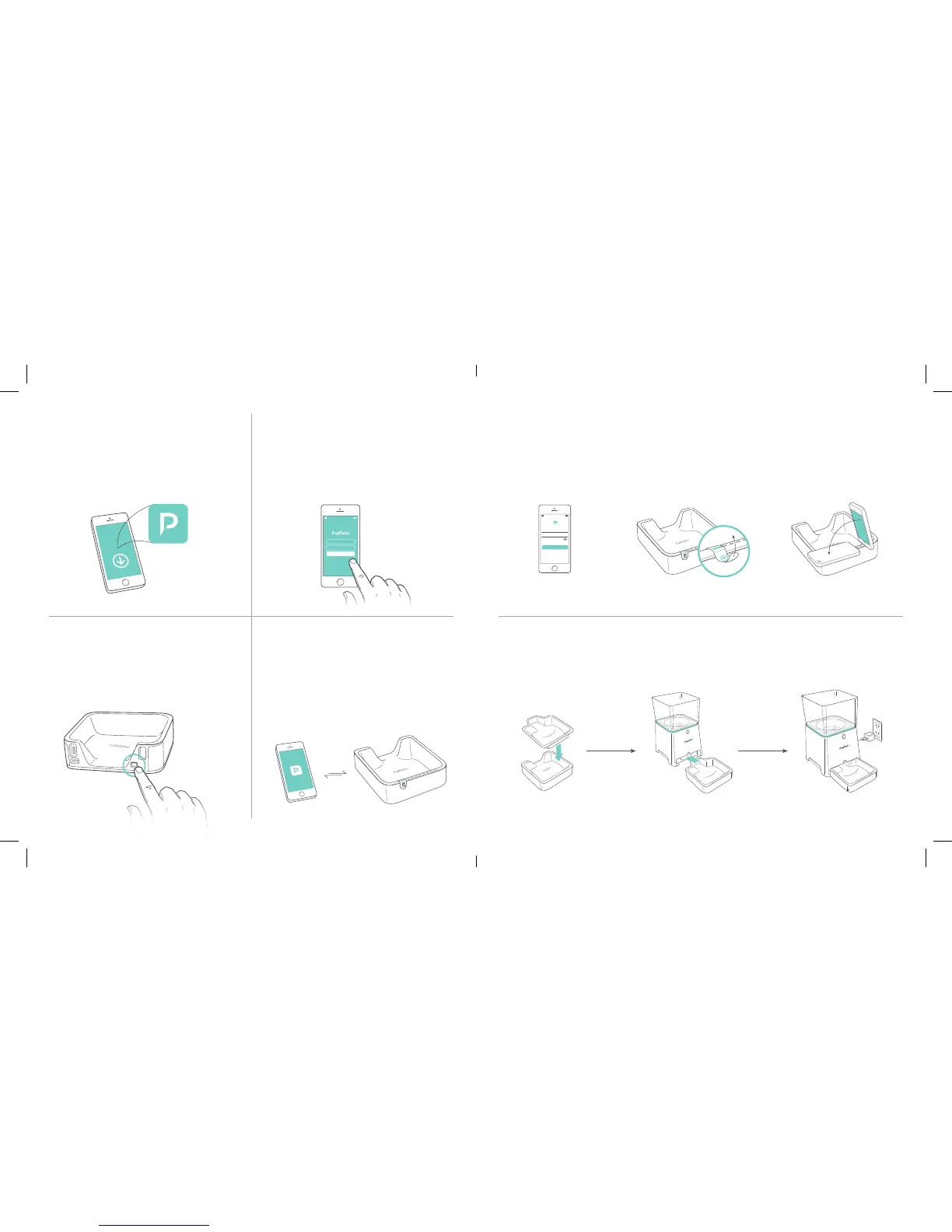
3. Power on the bowl
The power switch is located on the rear
right side of the bowl. Once powered on,
the red LED on the front left of the bowl
will blink on and o .
2. Create your Petnet account,
register your pet and food
Follow the directions on the Petnet App to
create your user account, add your pet’s
profi le and register your food.
4. Connect bowl with your phone
The Petnet App will guide you through
each step using a proprietary blinking
process to connect with your bowl
(see step 5).
5. Connect SmartFeeder to Wi-Fi
Ensure the front right LED is blinking. If it is not, repeat step 3. Use the app to choose your
Wi-Fi network and enter your Wi-Fi password. Remove the connect sticker from the bowl then
press the connect button on the app. Once the countdown begins, place your phone face
down on top of the connect sensor that is located on the left edge of the bowl.
6. Set up your SmartFeeder
Place the stainless steel bowl insert on top of the bowl.
Slide the bowl into SmartFeeder housing as shown below.
Connect A/C adapter to wall outlet.
Choose your Wi-Fi network
and enter your password
Stainless Steel
Bowl Insert
Remove connect sticker
Insert bowl into
feeder base
Press connect and place phone
face down over sensor
Plug-in using
A/C adapter
Network
Password
Remember Password
Blue House
••••••••
Connect
1. Download Petnet App
To confi gure your SmartFeeder, you’ll need
to download the Petnet App. Available on
the Apple App Store and Google Play.


 To Next Page