23Connect Peripheral Equipment
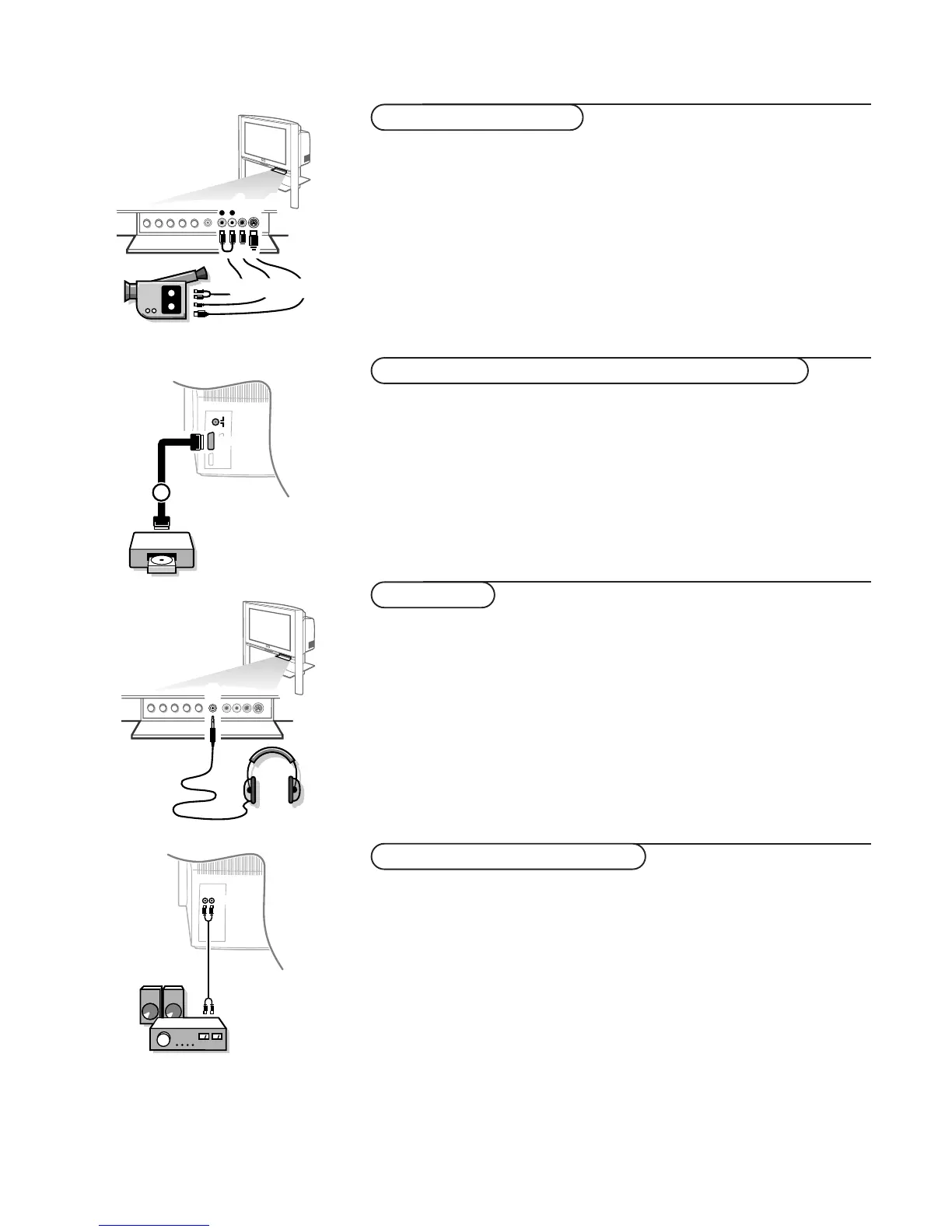
& Connect your camera or camcorder to sockets at the front side of your TV.
é Connect the equipment to VIDEO 2 and AUDIO L 1 for mono
equipment.
Press the
X key repeatedly to select the sound coming from one or
both loudspeakers of your TV.
“ For stereo equipment also connect AUDIO R 1.
S-VHS quality with an S-VHS camcorder is obtained by connecting the S-VHS
cables with the S-VIDEO input 3 and AUDIO inputs 1.
Connect your digital equipment with a eurocable 1 to one of the
euroconnectors (
EXT1, EXT2 or EXT3), or with a cinch cable to the VIDEO
input at the front side of the TV (see illustration above).
Note: the low quality of some digital picture material may be the cause of digital
image distortion. In this case select
Eco under the SMART PICTURE a key on the
remote control as this setting is intended to improve distorted picture quality.
& Insert the plug into the headphone socket L at the front side of the TV.
é Press ¬ on the remote control to switch off the internal loudspeakers
of the TV.
The headphone impedance must be between 8 and 4000 Ohm.
The headphone socket has a 3.5 mm jack.
In the SOUND menu select Headphone volume to adjust the headphone
volume, see p. 12.
Connect the audio cables to the audio input of your audio equipment and to
AUDIO L and R at the back of your TV.
You can listen to your TV sound via your audio equipment.
If you want to connect more equipment to your TV, consult your dealer.
Audio equipment / Amplifier
Headphone
Digital equipment (DVD, digital satellite tuner,...)
Camera & camcorder





 To Next Page