2 - Press
Rename
.
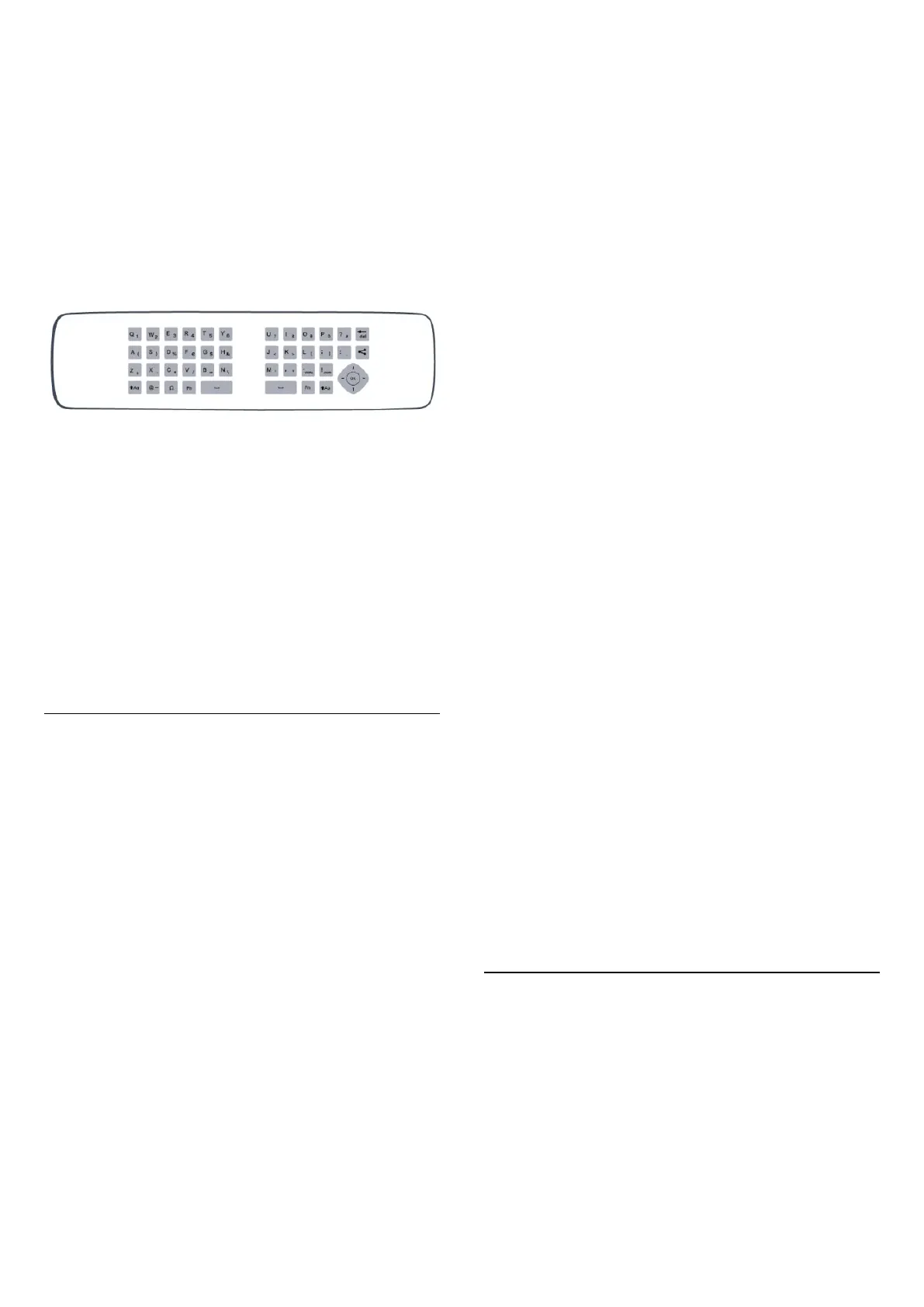
3 - You can enter text with the remote control keyboard or
open the on-screen keyboard.
With the remote control keyboard
• To delete a character, position the cursor behind the character
and press
.
• To enter a character, press the character on the keyboard.
• When you are ready, press
OK
to select
Done
. Press
OK
again to finish renaming.
For more information on using the keyboard, press
Keywords
and look up
Remote control, keyboard
.
With the on-screen keyboard
• To open the on-screen keyboard, place the cursor in the
name text field and press
OK
.
• To delete the character in front of the cursor, press
Backspace
.
• To enter a character, select the character with the arrow keys
and press
OK
.
• To select uppercase characters, press
.
• To select numbers or special characters, press
.
• When you are ready, press
to close the on-screen
keyboard.
• To finish renaming, select
Done
and press
OK
.
Lock a channel
To prevent children from watching a channel or a program, you
can lock channels or lock age rated programs.
Lock a channel
You can lock a channel to prevent children from watching it. To
watch a locked channel you need to enter the Child lock code.
You cannot lock programs from connected devices.
To lock a channel . . .
1 - While watching a TV channel, press
LIST
to open the
Channel list
.
2 - In any list, select the channel you want to lock.
3 - Press
OPTIONS
and select
Lock channel
. In a channel
list, a locked channel is marked with a lock
.
To unlock a channel, select the locked channel in the channel list.
Press
OPTIONS
and select
Unlock channel
. You will need
to enter the
Child lock
code.
Age ratings lock
To prevent children from watching a program not suitable for
their age, you can use an age rating.
Some digital broadcasters have age rated their programs. When
the age rating of a program is equal to or higher than the age
you have set as age rating for your child, the program will be
locked.
To watch a locked program you must enter the child lock code.
The parental age rating is set for all channels.
To set an age rating . . .
1 - Press
and select
Setup
and press
OK
.
2 - Select
Channel settings
>
Child lock
>
Age ratings lock
and
press
OK
.
3 - Enter a 4-digit
Child lock code
. If you did not set a code yet,
select
Set code
and press
OK
. Enter a 4-digit
Child lock code
and confirm. Now you can set an age rating.
4 - Set the age and press
OK
.
5 - Press
, repeatedly if necessary, to close the menu.
The TV will ask for the code to unlock the program. For some
broadcasters / operators, the TV only locks programs with a
higher rating.
Content rating
You can block programs with objectionable content.
1 - Press
and select
Setup
and press
OK
.
2 - Select
Channel settings
>
Child lock
>
Content ratings
lock
.
3 - If no child lock code is set, you must enter one now. Enter a
4-digit code.
4 - Set the content and press
OK
. The selected content is
blocked.
5 - Press
, repeatedly if necessary, to close the menu.
Set or change the lock code
To set the lock code or to change the current code . . .
1 - Press
and select
Setup
and press
OK
.
2 - Select
Channel settings
>
Child lock
>
Set code
or
Change
code
and press
OK
.
3 - If a code is set already, enter the current
Child lock code
and then enter the new code twice.
The new code is set.
Forgotten your code?
To override and enter a new child lock code in case you forget
it, enter 8888.
Options for channels
While watching a channel, depending on the type of channel
(analog or digital) you are watching or depending on the TV
settings you made, some options are available.
Open the options menu
While watching a channel, press
OPTIONS
.
24







 To Next Page