Picture-in-Picture(PIP)• Selecting the Signal Source
P3
OW that you have completed at
east a basic com_ection (as
shown on the previolts page), you are
rea@ to use PIP.
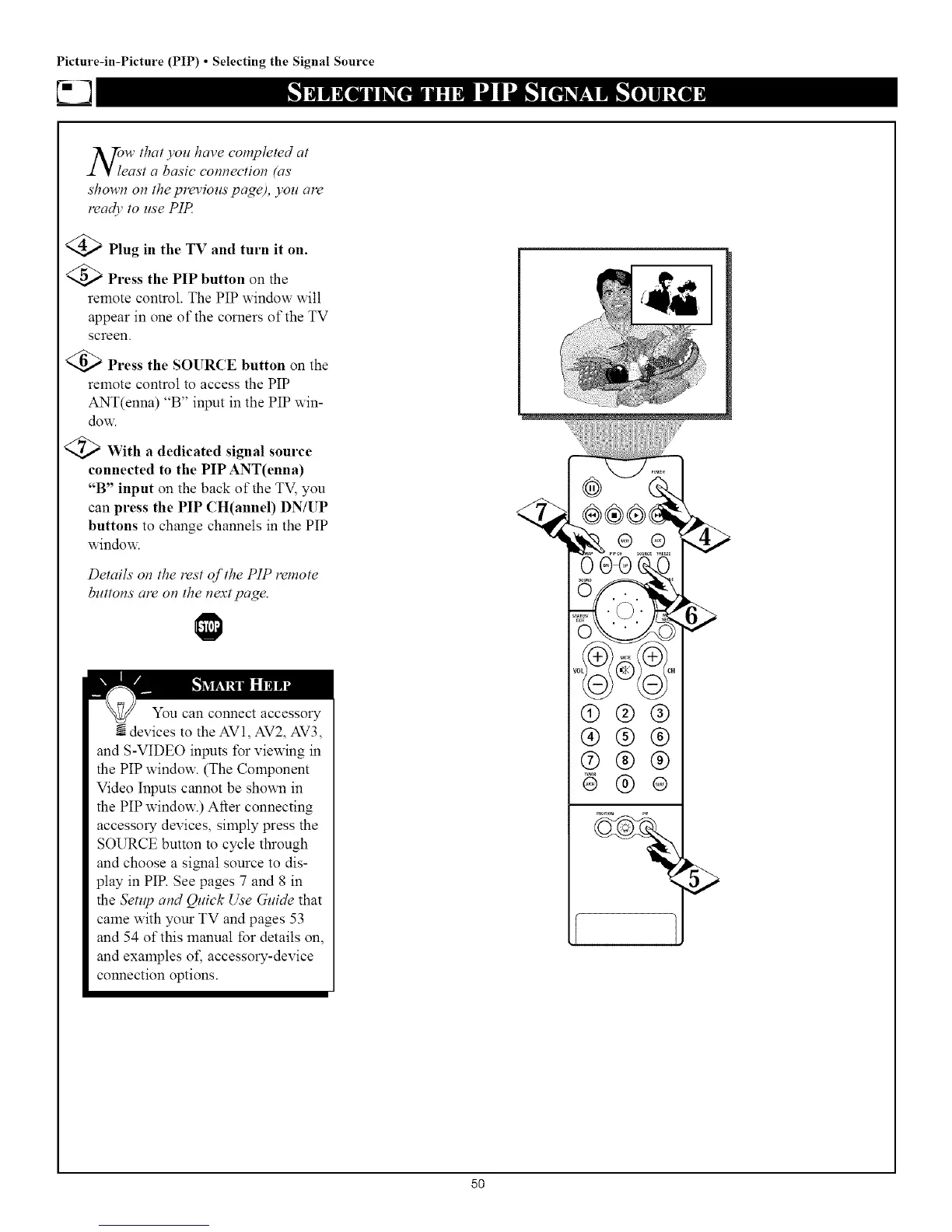
<_ Plug in the TV and turn it on.
<Q_ Press the PIP button on the
remote control. The PIP window will
appear in one of the corners of the TV
screen.
Press the SOURCE button on the
remote control to access the PIP
ANT(enna) "B" input in the PIP win-
dow.
<_ With a dedicated signal source
connected to the PIP ANT(enna)
"B" input on the back of the TM you
can press the PIP CH(annel) DN/UP
buttons to change channels in the PIP
window.
Details' on the rest of the PIP remote
buttons are on the next page.
You can connect accessory
-_ devices to the AV1, AV2, AV3,
and S-VIDEO inputs for viewing in
the PIP window. (The Component
Video Inputs cannot be sho,a_ in
the PIP window.) After connecting
accessory devices, simply press the
SOURCE button to cycle through
and choose a signal source to dis-
play in PIP. See pages 7 and 8 in
the Setup and QHick Use GHide that
crone with your TV and pages 53
and 54 of this manual for details on,
and examples or; accessory-device
connection options.
®@@
@@@
®@@
6@®
5O


 To Next Page