English
PLAYBACK 35
General features
Note:
Unless stated otherwise, all operations described are based
on remote control operation. A number of operations can also
be carried out via the system menu bar on the screen. (see
‘System menu bar operation’)
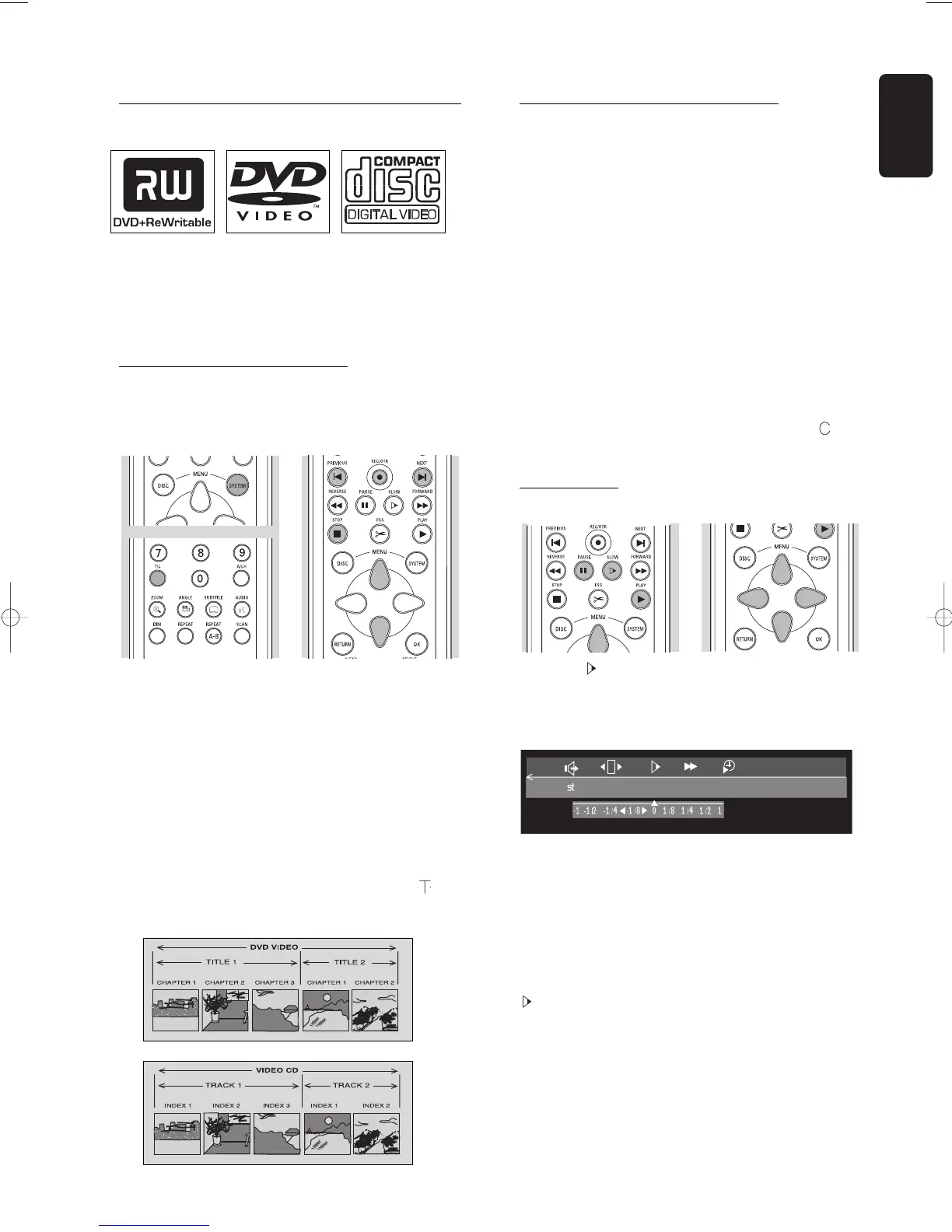
Moving to another title/track
When a disc has more than one title or track, you can
move to another title as follows:
l Press T/C.
l Press K NEXT during play to step forward to the
next title.
l Press J PREVIOUS during play to return to the
beginning of the current title. Rapidly press
J PREVIOUS twice to step back to the previous
title.
l To go directly to any title or track, enter the title
number using the numerical keys 0-9.
Notes:
- If the number has more than one digit, press the keys in
rapid succession.
- If the system menu bar is on screen, make sure the icon
is selected.
Moving to another chapter/index
When a title on a disc has more than one chapter or a
track has more than one index, you can move to
another chapter/index as follows:
l Press K NEXT during play to select the next
chapter/index.
l Press J PREVIOUS during play to return to the
beginning of the current chapter/index. Rapidly press
J PREVIOUS twice to step back to the previous
chapter/index.
l To go directly to any chapter or index, enter the
chapter or index number using the numerical keys
0-9.
Notes:
- If the number has more than one digit, press the keys in
rapid succession.
- If the system menu bar is on screen, make sure the icon
is selected.
Slow Motion
l Select (Slow motion) in the system menu bar.
l Use the w (down cursor) key to enter the slow
motion menu.
‰ The recorder will now go into pause mode.
l Use the t u (left right cursor) keys to select the
required speed: ‘-
1
’, ‘-
1
/
2
’, ‘-
1
/
4
’ or ‘-
1
/
8
’
(backward); ‘
1
/
8
’, ‘
1
/
4
’, ‘
1
/
2
’ or ‘
1
’ (forward).
l Select ‘
1
’ to play at normal speed again.
l If ; PAUSE is pressed, the speed will be set to ‘
0
’.
l Press 2 PLAY to exit slow motion mode.
l Press v (up cursor) to delete the slow motion menu.
You can also select Slow Motion speeds by using the
SLOW key on the remote control.



 To Next Page