English
46 MANAGING DISC CONTENT
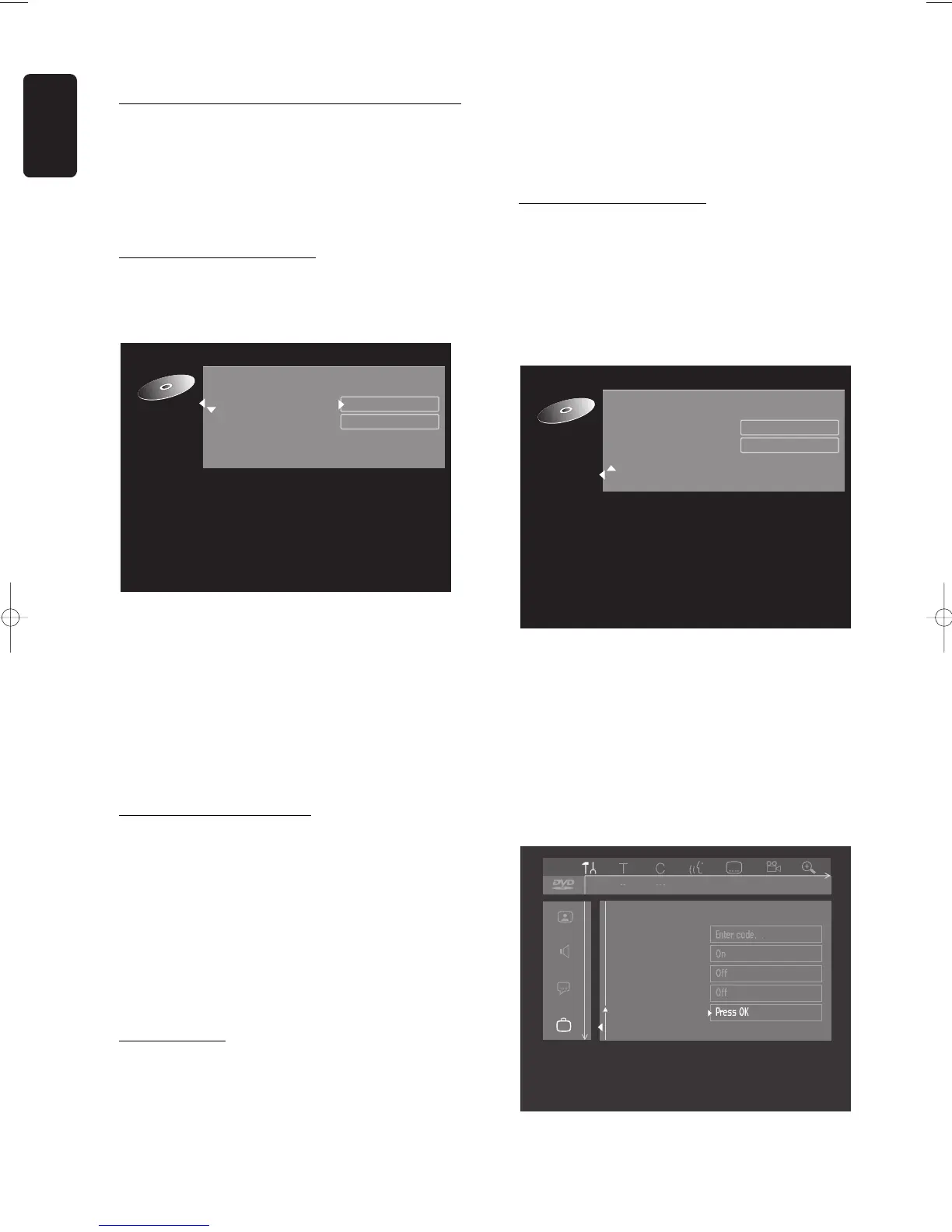
Disc Settings
For each DVD+RW or DVD+R disc the settings can be
changed to your personal preference in the disc settings
menu.
l In the Disc Info Screen press u (right cursor).
‰ You will now enter the ‘disc settings’ menu.
Changing the Disc Name
l In the Disc Info Screen press u (right cursor).
‰ You will now enter the ‘disc settings’ menu.
l Press u (right cursor).
l Enter the new name. A name may contain a
maximum of 64 characters.
l Use tu(left right cursor) for the position of the
characters. Use wv (down up cursor) to change
characters.
l Use SELECT to toggle between capitals and lower
case characters.
l Use CLEAR to erase a character.
l Confirm by pressing OK.
Protection of recordings
l In the Disc Info Screen press u (right cursor).
‰ You will now enter the ‘disc settings’ menu.
l Select ‘
Protection
’ and press u (right cursor).
l Select ‘
Protected
’ with wv(down up cursor).
l Press OK on the remote control to confirm.
‰ No further changes can be made to the disc.
It will also disable most title/disc settings options, as
well as the complete edit menu.
‰ Future editing is only possible after resetting the
Protection feature to ‘
Unprotected
’ again.
Erasing a disc
This option is only aivailable for DVD+RW discs that are
not erase-protected.
l In the Disc Info Screen press u (right cursor).
‰ You will now enter the ‘disc settings’ menu.
l Select ‘
Erase disc
’ and press OK.
‰ The message '
This will erase all titles
’ is
displayed.
l Press OK to confirm or t (left cursor) to cancel.
‰ ‘
Erasing disc
’ is shown until the action is
completed.
‰ After the disc has been erased, the Index Picture
Screen will show the free space on the disc.
Finalising a DVD+R disc
While a DVD+RW disc can be played instantly on most
DVD players, a DVD+R disc can be played only on the
DVD recorder until it is finalised. After finalisation no
changes can be made to the disc anymore.
l In the Disc Info Screen press u (right cursor).
‰ You will now enter the ‘disc settings’ menu.
l Select ‘
Finalise disc
’ and press OK to confirm.
‰ ‘
Finalising
’ is shown until the action is
completed.
‰ After finalisation the Index Picture Screen will
appear.
If the DVD+R disc was recorded on a different brand of
DVD recorder you may not be able to access the Disc
Settings screen. In this case you can use the ‘
Finalise
disc
’ option in the features menu of the user
preferences menu.


 To Next Page
 Loading...