Coverage Assessment
8-24 Troubleshooting
Coverage Assessment
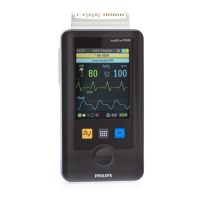
For MX40 devices, use the following procedure to confirm that the RF
coverage of the wireless network meets the requirements of the MX40 for
the performance level for clinically safe operation.
Measurements are focused in patient care areas where patients spend the
majority of their time (patient room, patient bathroom). Additional
measurements are suggested for traditionally difficult coverage locations
where monitored patients will be (in procedure areas, patient transport
corridors (frequent roaming) and elevators, etc.).
During the procedure, the MX40 is worn on the body to more closely
simulate the normal use model. The RF signal strength will be impacted
by the body. If the test criteria are not met, remediation is required.
Signal strength remediation may include:
• moving access points
• adding access points
Interference remediation may include:
• removing the source of the interference
• changing the frequency of operation
Assessment Mode
Using Assessment Mode, you can determine coverage levels of typical
locations within the hospital, e.g. patient rooms and hallways.
1. Turn the MX40 on.
2. Press the SmartKeys button.
3. Select the Op Modes SmartKey.
4. From the Operating Modes menu, select Service and enter the
password.
5. Use the scroll bar to navigate to the second page of the Service menu.
6. Select clear CAV data and confirm.
7. Scroll to the second page again and select Assessment Mode.
8. From the Assess Coverage Menu, select the Room button to choose
Room, Hallway, or Other.


 To Next Page
 Loading...