Label Assignment for Replacement MX40
5-8 Maintenance
Label Assignment for Replacement MX40
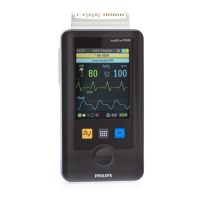
During installation, an equipment label is assigned to each MX40 in a
clinical unit so that the device can be identified during operation within the
wireless system. If an MX40 is lost, the Assign Label function at the
Information Center enables you to unassign the label from a lost device and
re-assign its label to a replacement device. Labels are limited to those
available in an individual clinical unit.
Re-assigning an Equipment Label at the IntelliVue
Information Center
To re-assign an equipment label to a replacement device:
1. At the Information Center, clear the sector that the original equipment label was
assigned to (Patient Window -> Sector Setup -> Clear Sector -> OK).
Note — Before clearing the sector, ensure that the equipment label of the lost device is not
actively assigned to a patient being monitored.
2. Select All Controls -> Label Assignment.
3. Enter password (tele).
Note — The remaining screens will be in English only.
4. Insert battery power into the MX40 and if attached, disconnect the patient cable.
5. Select Refresh.
6. Select the MAC address of the replacement device from the New Devices list. If the
address does not appear, remove battery power and re-insert. Select Refresh.
Note — The MAC address appears on the rear label of the MX40.
7. Select the equipment label that was assigned to the previous device from the
Equipment Label list.
8. Select Assign Label to initiate programming of the equipment label into the
replacement MX40.
9. When prompted, press Confirm on the MX40 to accept the assignment. The
confirmation must occur within 30 seconds of the prompt.
10. Wait for the new device label to change to the selected equipment label.
11. In Sector Setup, select the Bed Label and Equipment Label and then press OK.


 To Next Page
 Loading...