Label Assignment for Replacement MX40
Maintenance 14-7
10 Wait for the new_device label to change to the selected equipment label.
11 In Sector Setup, select the Bed Label and Equipment Label and then
press OK.
Re-assigning an Equipment Label at the IntelliVue
Information Center iX
To re-assign an equipment label to a replacement
device:
1 Enter the Manage Unit application (scroll down if necessary).
2 Select Label Assignment.
3 Select the entry for both the previously assigned device (on the left) and
the entry for the available device (on the right).
4 Select Replace.
5 At the MX40, select Confirm.
6 At the Information Center iX, select OK.
7 Select Refresh to confirm that the device now appears in the Assigned
Devices column.
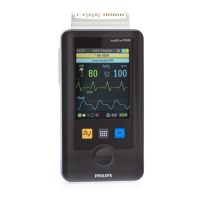
8 Confirm that the Equipment Label is now displayed on the MX40.


 To Next Page
 Loading...