3
A5
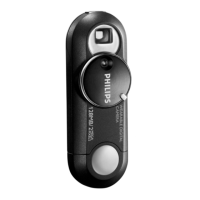
How do I transfer photos from my KEY camera to my computer?
JPEG files can be transferred to the KEY camera simply via Windows Explorer as
follows:
1. Make sure that the power control is in the off position.
2. Hook up the player to the PC via the USB connector.
3. Launch Windows Explorer to access your camera, which is named as a
Removable Disk.
4. Click onto the Removable Disk icon to access your files.
5. Drag & Drop or Copy & Paste the selected files from the Removable Disk to
your desired folder.
6. When you have finished viewing your files, click the Unplug or Eject Hardware
removal icon on the task tray to stop and eject the camera. Follow the screen
instructions. When you reach the Safe to Remove Hardware dialogue box,
click OK and remove your camera.
• For Windows98 users, please note there is no removal icon. Just unplug the
camera.
Optionally, your KEY camera JPEG files can also be transferred to the PC via Photo
Manager as follows:
1. Make sure that the power control of the camera is in the on position.
2. Hook up the camera to the PC via the USB connector.
3. Launch Photo Manager. Photo Manager will recognize the camera
automatically. Your photos in the camera are displayed in the Thumbnail.
4. To copy photos to your computer, first select the thumbnails of the photos to
transfer by pressing either the Ctrl-key or the Shift-key and click with your
mouse.
5. Click the Save button on the task bar. The Save dialogue box will open
automatically.
6. Select a format from Save Format (e.g. JPEG file) for the destination images.
7. Select a folder to save your photos.
8. Click Save to confirm.
9. Check the progress bar for photo transfer to be completed.
10. After transfer is complete, click the Unplug or Eject Hardware removal icon
on the task tray to stop and eject the camera. Follow the screen instructions.
When you reach the Safe to Remove Hardware dialogue box, click OK and
remove your camera.
• For Windows98 users, please note there is no removal icon. Just unplug the
camera.
(Go back to Q5)
A6 My KEY camera turns itself off.
• The camera will turn itself off if you have stopped taking pictures for 60 seconds
or more.
• The batteries may be weak. If so, recharge the batteries.
(Go back to Q6)
A7 Why are the pictures blurred?
While taking the pictures, your hand may have shaken to cause the blurring. Keep
your hand steady when pressing the shutter button. (The camera beeps when you
shoot).
(Go back to Q7)



 To Next Page