Finish (lock) a recording4.1.4
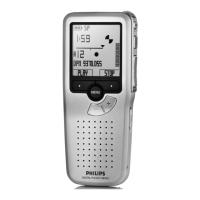
When a recording is finished and no additional
changes will be made, follow these steps to
mark it as finished and protect it from being
accidentally deleted:
Press the 1 + or – button
1
while stopped to
select the recording to be marked finished.
Press the end-of-letter (2
EOL) button
2
to
lock the file and mark it as finished. The ┱
symbol is displayed.
To assign priority status to the recording, 3
press the
EOL button
2
again within half a
second. The ! symbol is displayed, indicating
that the file has priority status.
To make changes to the recording, press the 4
EOL button
2
again to remove the finished
mark.
2
1
E Tip
Philips SpeechExec software can be configured to
download files from the Digital Pocket Memo to
the PC that are marked finished only.
C Caution
Locked files are deleted when the memory card
is formatted or the delete-all-dictations function
is used.
4.1.5 Change the recording format
The recording format determines the audio
quality of your recordings and aects the
number of audio files that can fit on the
memory card.
The Digital Pocket Memo supports the following
recording formats:
Standard Play (SP) requires 1 megabyte for 10 •
minutes of recording.
Long Play mobile (LPm) requires 1 megabyte •
for 15 minutes of recording.
Press the 1
MENU button
1
while stopped to
open the Digital Pocket Memo menu.
Press the 2 + or – button
2
to select the
Setup menu item and press the
ENTER smart
button.
3
Press the 3 + or – button
2
to select the
Record format menu item and press the
ENTER smart button
3
.
Press the 4 + or – button
2
to choose
between SP and LPm.
Press the 5
OK smart button
4
to save the
setting or press the
CANCEL smart button
3
to exit the sub-menu without changing
the setting.


 To Next Page
 Loading...