Make a recording with the Digital Pocket 1
Memo.
Start 2 Philips SpeechExec Dictate software.
Connect the Digital Pocket Memo to the 3
PC using the USB cable or the optional USB
docking station.
By default, the recordings on the Digital 4
Pocket Memo will be downloaded
automatically to the PC and moved to the
Finished dictations folder of the worklist.
D Note
How and which files are downloaded after
a Digital Pocket Memo is connected can be
configured in the settings menu of SpeechExec
or with the Configuration Wizard.
5.2 Menu settings
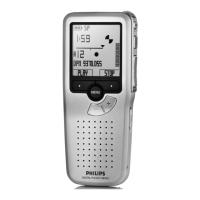
To access the Digital Pocket Memo menu:
Press the 1
MENU button
1
while stopped to
open the Digital Pocket Memo menu.
Press the 2 + or – button
2
to select the
next/previous menu item.
Press the 3
ENTER smart button
3
or the
MENU button
1
to enter a submenu. Press
the
BACK smart button
4
to exit the
menu.
Press the 4 + or – button
2
to select a
function.
Press the 5
OK smart button
4
to confirm
a selection or the
CANCEL smart button
3
to exit a sub-menu without changing a
setting.
4
1
2
3
The menu oers the following options:
Press the MENU button
DELETE DICTATION (see page 15)
AUTHOR (KEYWORD) (see page 21)
INDEX SET/CLEAR (see page 20)
INSERT / OVERWRITE MODE (see page 12)
SETUP
DELETE SECTION (see page 16)
LANGUAGE
VOICE ACTIVATION (see page 19)
RECORD FORMAT (see page 13)
BACKLIGHT
LCD CONTRAST
RECORD LAMP ON/OFF
DEVICE BEEP ON/OFF
DATE & TIME (see page 10)
MICROPHONE SENSITIVITY (see page 14)
DELETE ALL DICTATIONS (see page 16)
PLAYBACK VOLUME
FORMAT MEMORY (see page 9)
DEVICE FONT (MODERN/CLASSIC)
MAIN MENUSETUP MENU


 To Next Page
 Loading...